
Chapter 5 · 5.1
Opening, editing and saving a PowerPoint presentation
You can open a PowerPoint pptx in LibreOffice Impress and in Euro-Office without converting it. Adding, duplicating, moving and deleting slides works just as you're used to.
In LibreOffice Impress
Opening: File > Open..., or double-click the file. On the left you see the Slide Pane with all your slides, and in the centre the slide you're working on.
| What | How to do it |
|---|---|
| New slide | Slide > New Slide (Ctrl + M) |
| Duplicate a slide | Select the slide and choose Slide > Duplicate Slide |
| Delete a slide | Select the slide in the Slide Pane and press Delete, or choose Slide > Delete Slide |
| Move slides | Drag them in the Slide Pane, or choose View > Slide Sorter for an overview of all slides |
| Hide a slide during the presentation | Slide > Hide Slide |
| Slide layout (title, content, two columns) | Slide > Layouts |
| Slide size, for example 16:9 | Slide > Slide Properties... |
Saving: press Ctrl + S. If LibreOffice asks which format you want, choose the button with PowerPoint to keep it as a pptx (see Docx or odt, xlsx or ods: which file format should you choose?). If you want odp, choose File > Save As....
In Euro-Office
- Click the pptx in your Nextcloud. The presentation editor opens.
- New slide: Home tab, Add Slide (Ctrl + M).
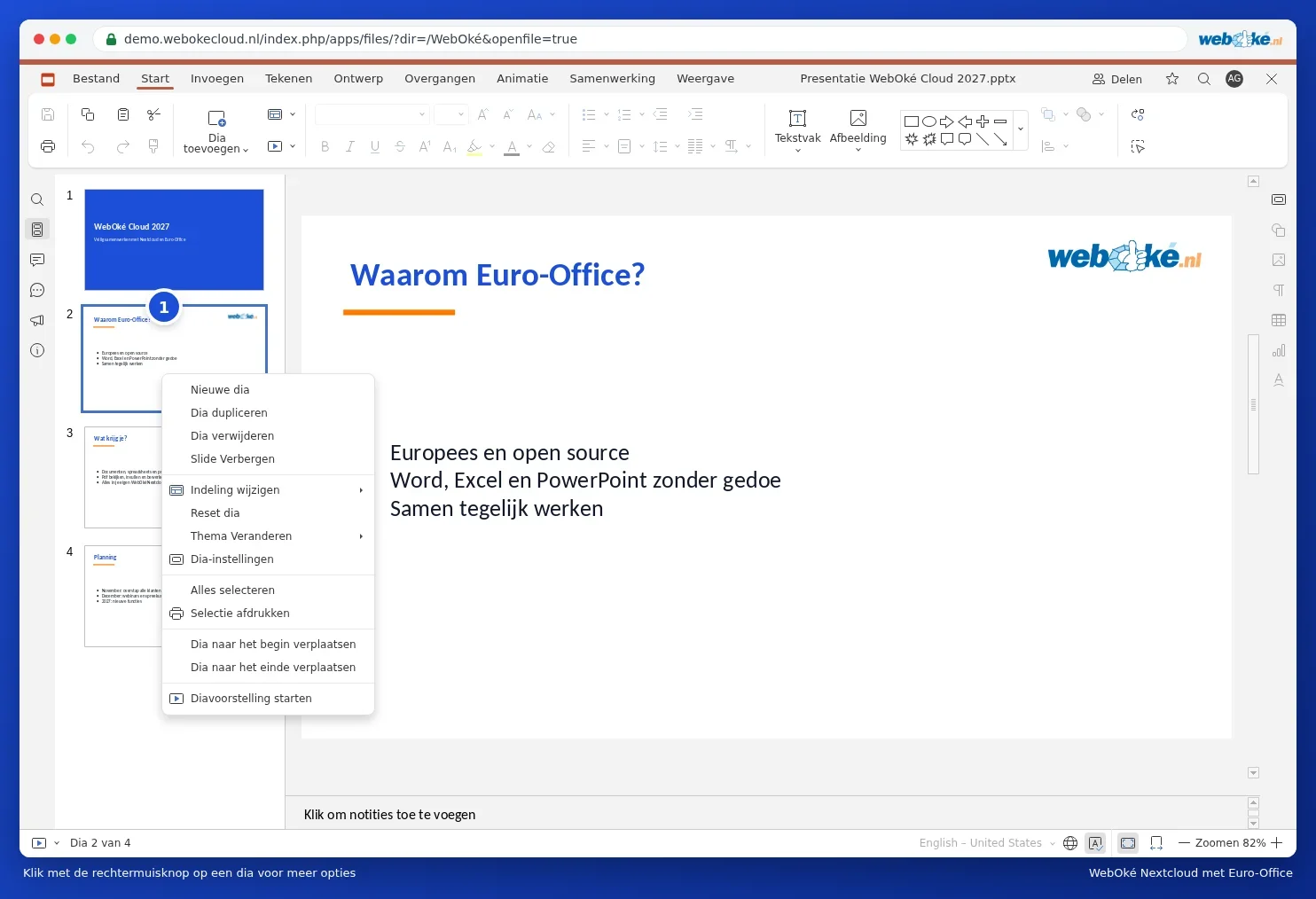
- Duplicate or delete: right-click the slide in the slide overview and choose Duplicate slide or Delete slide.
- Euro-Office saves automatically in the format you opened the presentation in.
Read more in Adding, moving and deleting slides and Saving a presentation as PDF or pptx. To convert an old 4:3 presentation to widescreen, see Converting an old 4:3 presentation to widescreen 16:9.
Tip: animations, transitions and embedded videos from PowerPoint don't all work exactly the same way. Play the presentation through once before you use it in front of an audience.