
Chapter 1 · 1.4
Opening a Word or Excel file from your Nextcloud
Your files are stored in your WebOké Nextcloud. You can open them in three ways. Which one you choose depends on whether you work together with others.
| Method | Together at the same time | Without internet |
|---|---|---|
| In the browser, in Euro-Office | Yes | No |
| In the Nextcloud Office program, via your connected Nextcloud | Yes | No |
| From the Nextcloud folder on your computer, in LibreOffice | No | Yes |
In Euro-Office (browser)
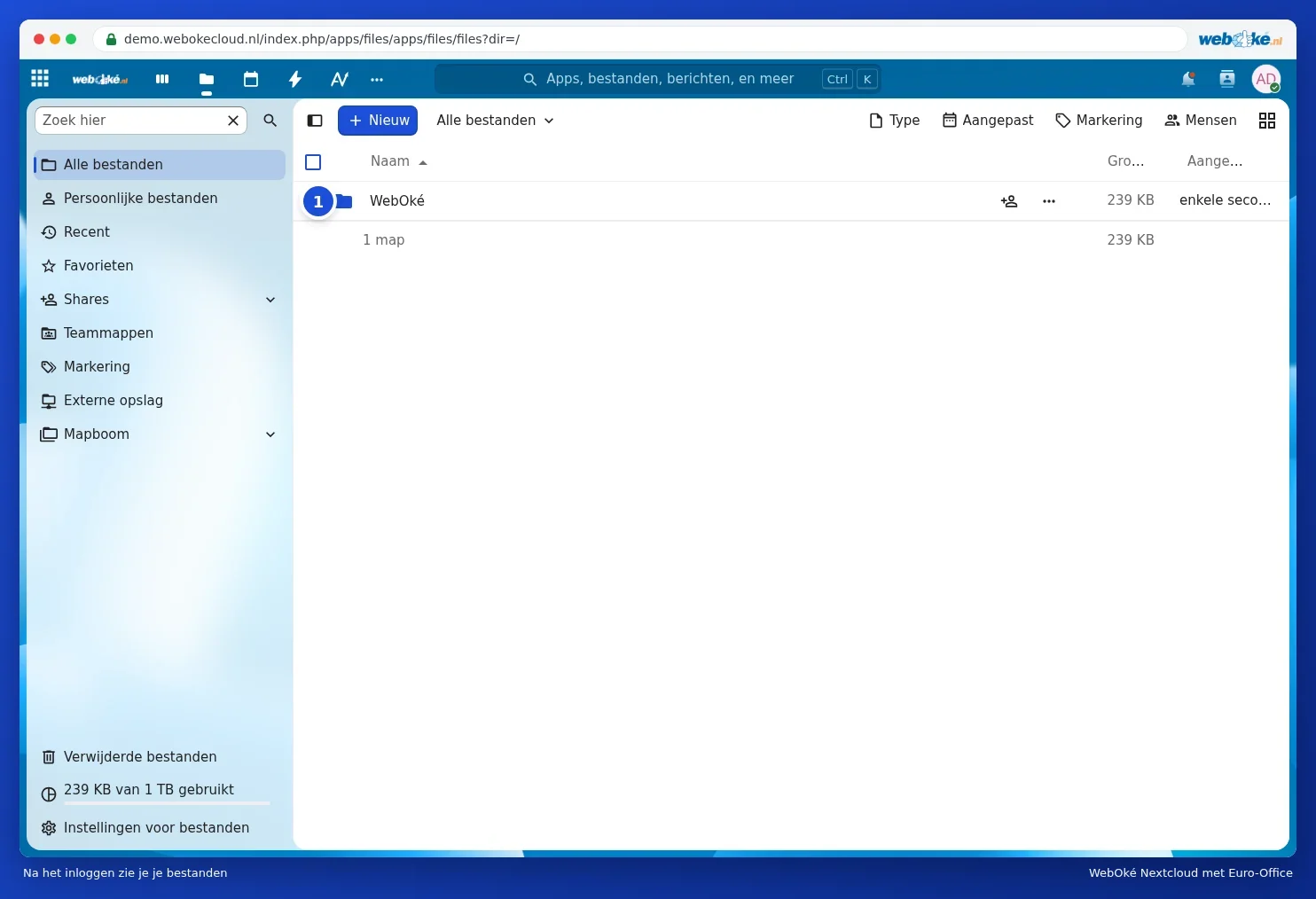
- Log in to your WebOké Nextcloud and go to Files.
- Click the name of the file. Euro-Office opens the right component: the word processor for a docx, the spreadsheet editor for an xlsx.
The file is not converted: a docx stays a docx. Read more in Opening an existing Word, Excel or PowerPoint file.
In LibreOffice (on your computer)
For this you need the Nextcloud Files sync app. It puts your Nextcloud files in a folder on your computer. You can read how to install it in Installing Nextcloud Files on Windows.
- Open the Nextcloud folder in Explorer or Finder and double-click the file. Does it open in a different program? Then right-click it and choose Open with LibreOffice.
- Or start LibreOffice, choose File > Open... and go to the Nextcloud folder.
- Work on the file and save it with File > Save (Ctrl + S). The app then automatically puts the file in your Nextcloud.
When you save a docx, LibreOffice asks which format you want to keep. Choose Use Word 2007-365! to keep it as a docx. You can read why in Docx or odt, xlsx or ods: which file format should you choose?.
Please note: don't open a shared document in LibreOffice while a colleague is editing it in the browser. You will then end up with two versions side by side, a conflict copy. Read Combining LibreOffice on your computer with Euro-Office in the cloud before you combine the two.