
Chapter 7 · 7.3
Setting up an out of office message
Going on holiday or unavailable for a while? With an out of office message, everyone who emails you automatically gets a reply.
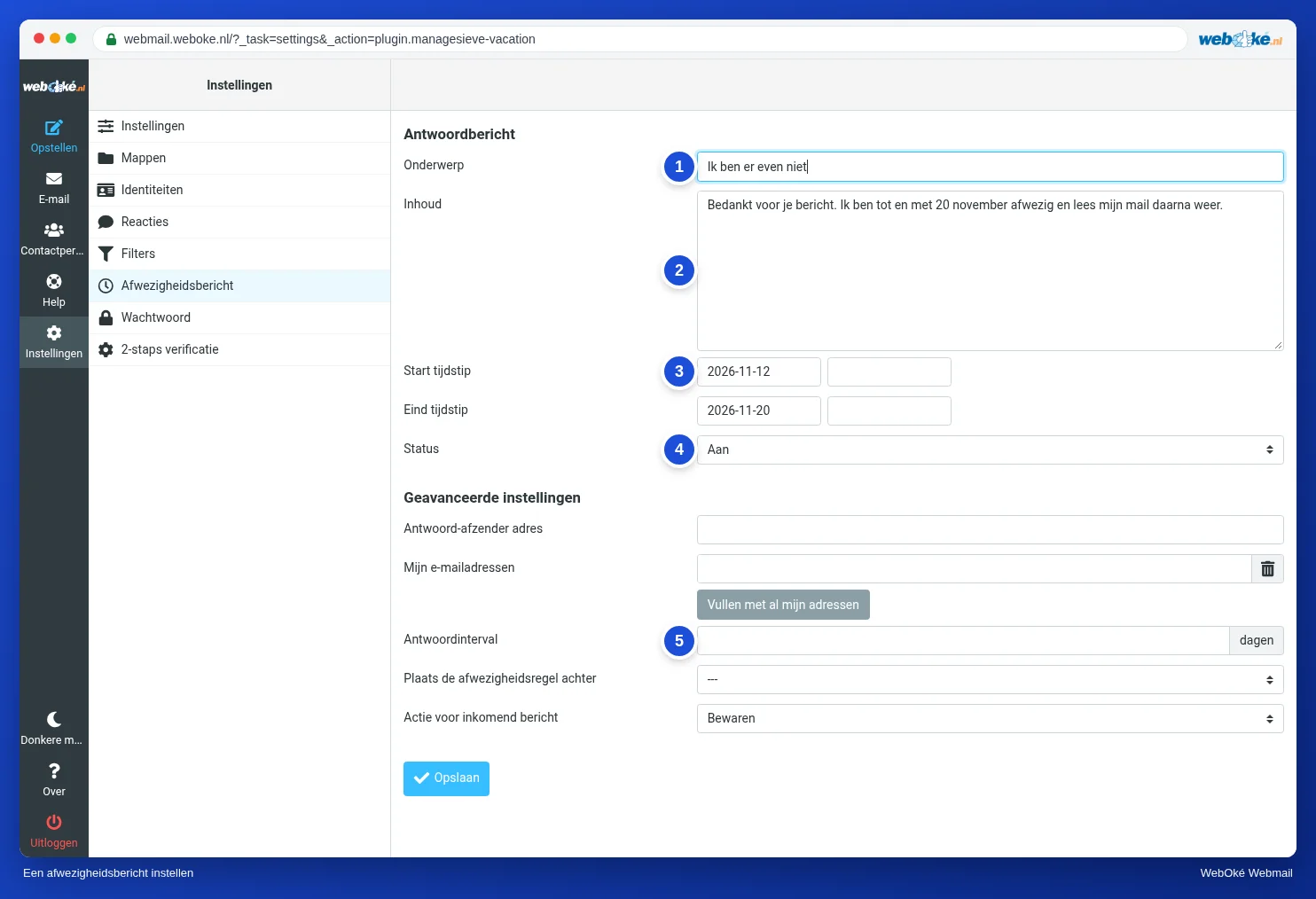
- In the menu, click Settings and then Out of Office.
- Fill in the Subject (1), for example I'm away for a while.
- Write your message under Body (2). Say when you'll be back and who people can email or call in the meantime.
- Enter the dates under Start time and End time (3). The message then switches on and off by itself. If you leave them empty, the message stays on until you switch it off yourself.
- Set Status (4) to On.
- Click Save.
Advanced settings
| Setting | What does it do? |
|---|---|
| Reply sender address | The address the automatic reply is sent from. You usually leave this empty. |
| My additional addresses | Do you also receive mail through other addresses, for example through a forwarder? Add them here, or click Fill with all my addresses. |
| (5) Reply interval | The number of days before someone who emails you again gets the out of office message once more. This way, nobody gets the same reply with every email. |
| Incoming message action | What happens to the email itself. Leave this set to Keep and your email simply stays in your mailbox. |
Switching it off
Set Status to Off and click Save. If you entered an end time, the message switches off by itself.
Tip: you can also set up a holiday message in DirectAdmin. Use one of the two, not both, otherwise people get two automatic replies. See Vacation Messages.