
Chapter 7 · 7.2
Combining LibreOffice on your computer with Euro-Office in the cloud
LibreOffice and Euro-Office work well together if you agree on a few rules. The most important one: edit any document that several people work on in Euro-Office. Use LibreOffice for your own documents and for tasks you can't do in the browser.
Five rules
- Edit shared documents only in Euro-Office. If you open a shared document from the Nextcloud folder on your computer in LibreOffice while a colleague is editing it in the browser, you end up with two versions side by side: a conflicted copy.
- Choose docx, xlsx and pptx for files you open in both programs. That way nothing gets converted. See Docx or odt, xlsx or ods: which file format should you choose?.
- Wait for syncing to finish (green cloud) before you open a file in Euro-Office that you've just saved in LibreOffice. Otherwise you'll see an older version. See You don't see your changes when you download the file or open it on your computer.
- Use the same fonts. In your templates, choose a font that's available in both, such as Carlito or Liberation Sans. See Fonts: why your document looks different.
- Close a document in LibreOffice when you've finished, so it doesn't stay locked unnecessarily.
What do you use for what?
| Task | Use |
|---|---|
| Writing together, comments, tracking changes | Euro-Office |
| Working on the train without internet | LibreOffice, or Nextcloud Office with files on your computer |
| Converting lots of old doc and xls files | LibreOffice (Converting old doc, xls and ppt files in one go) |
| Creating a PDF form from a text document | LibreOffice (Creating a fillable PDF form) |
| Creating a PDF form directly in a PDF, redacting a PDF | Euro-Office (Editing a PDF) |
| Excel files with VBA macros | LibreOffice runs some of them, Euro-Office doesn't (Macros from Word and Excel (VBA): what still works?) |
If something does go wrong
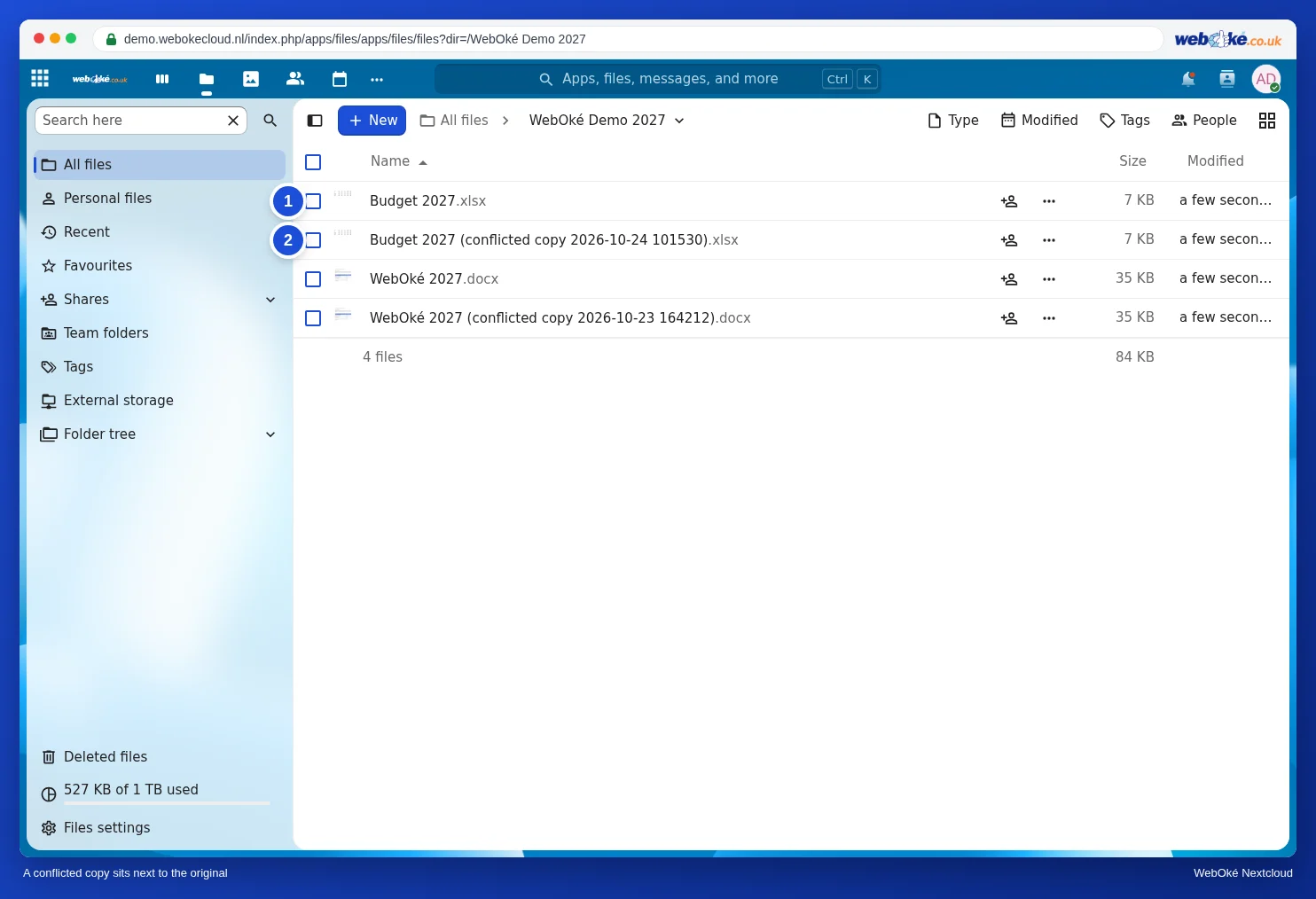
A conflicted copy. Do you see a file in your Nextcloud folder with conflicted copy and a date in its name? Nothing has been lost: these are two versions of the same file. To find out how to merge them, read Conflicted copies: what they are and how to resolve them.
LibreOffice reports Document in Use. The file is open on another computer or in another program. Choose Open Read-Only to view it without making changes, and only edit it once the other person has finished.
Euro-Office opens the document read-only or reports that it's being edited in another app. See A document opens read-only.
You can read more about the three ways to open a document in Working with Office files from your computer.