
Chapter 6 · 6.1
Creating and managing folders
Folders keep your mail organised, for example with a folder per client or per project. Folders are stored on our server, so you also see them in your email program and on your phone.
Creating a folder
- In the menu, click Settings and then Folders.
- At the top, click Create.
- Enter a name in Folder name (1).
- In Parent folder (2), choose whether the folder stands on its own (---) or sits under another folder, for example under Inbox.
- Click Save.

Managing folders
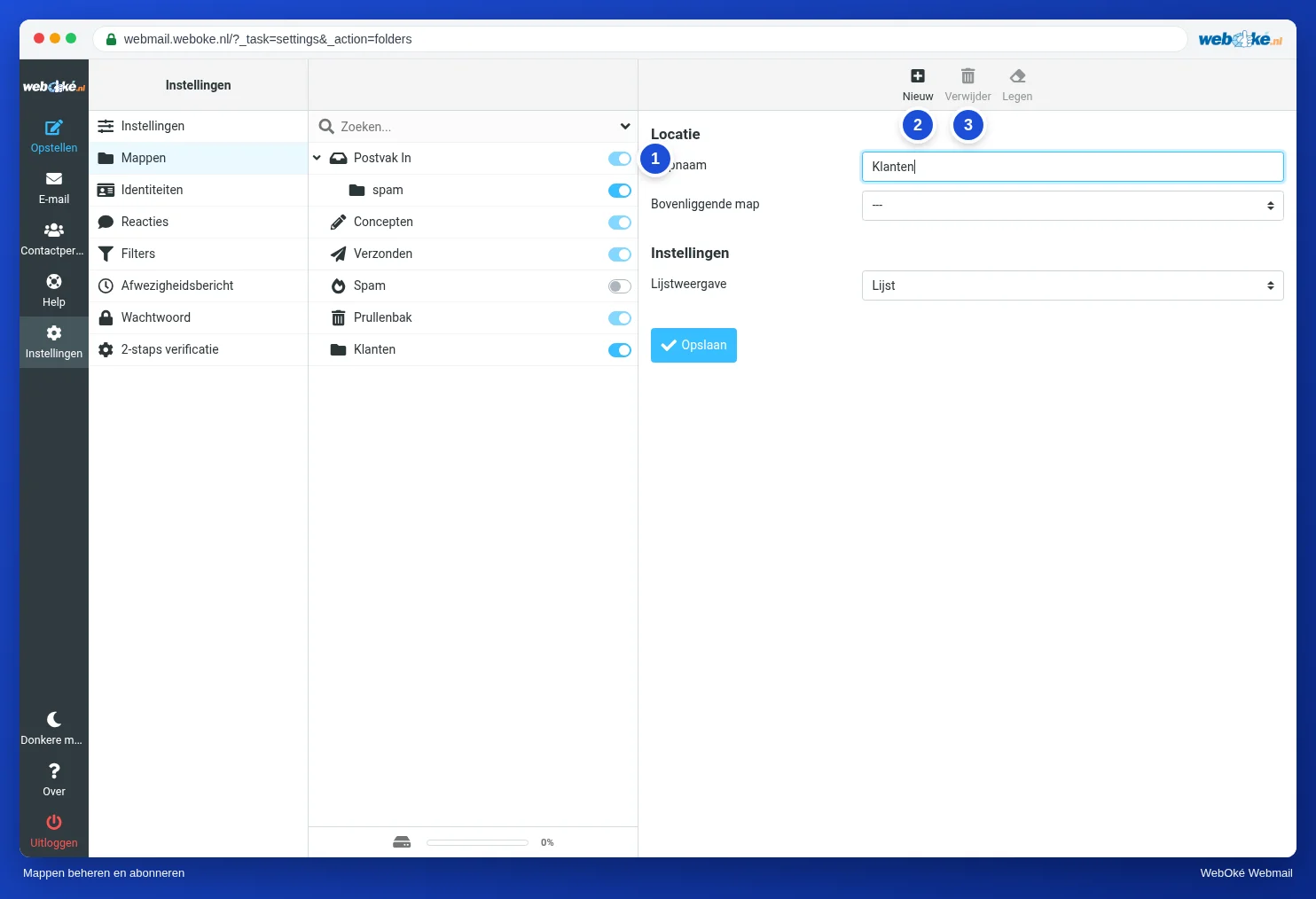
- Show or hide: use the switch (1) next to a folder to choose whether it appears in your folder list. This is called subscribing. A hidden folder and the mail in it still exist.
- Rename or move: click the folder, change the name or the parent folder and click Save.
- Delete: click the folder and then Delete (3). Note: the mail in the folder is deleted too.
Inbox, Drafts, Sent and Trash are fixed folders. You cannot delete them.
Folder actions

In your mailbox, click the three dots next to your email address above the folders (1). There you will find:
- Empty: delete all messages in the selected folder. Handy for the trash and the spam folder.
- Mark all as read: mark all messages in the folder as read in one go.
- Compact: permanently remove messages that are marked as deleted.
- Manage folders: go to Settings, Folders.
Tip: want mail to go into a folder automatically? Create a filter. See Creating a filter.