
Chapter 5 · 5.1
Your name as the sender
When you send an email, the recipient sees your name and your email address. If they only see info@yourdomain.com, it is less clear who is writing. In the webmail, this is called an identity. You only need to set it up once.
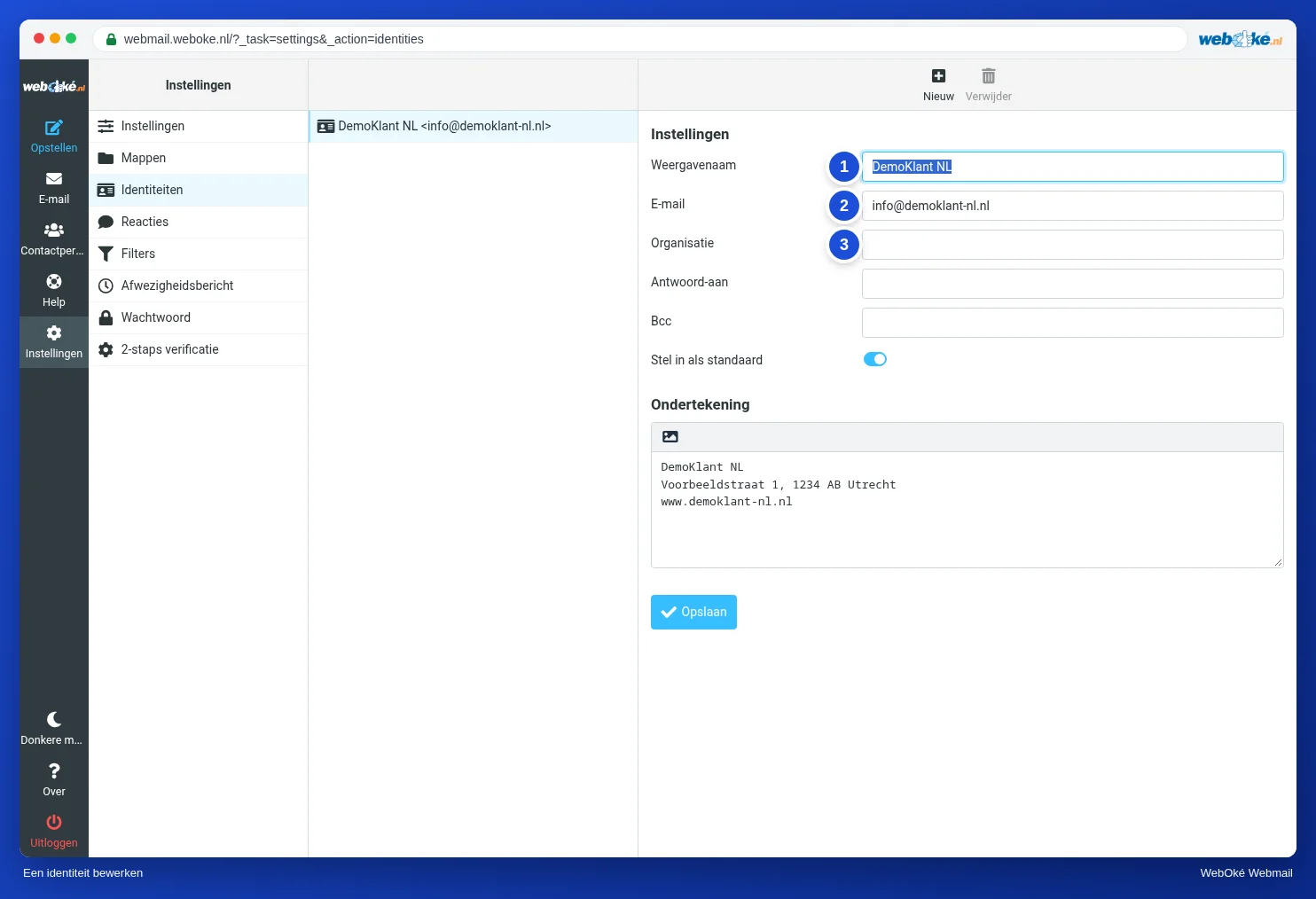
- Click Settings in the menu and then Identities.
- Click your email address in the list.
- Under Display Name (1), enter your name or the name of your company. This is the name the recipient sees.
- Leave the Email address (2) as it is.
- If you like, fill in your Organization (3).
- Click Save.
The other fields
| Field | What does it mean? |
|---|---|
| Reply-To | Do you want replies to go to a different address? Enter that address here. Usually you leave it empty. |
| Bcc | Every message you send also goes to this address as a hidden copy. For example, so a colleague can follow along. |
| Set default | Do you have more than one identity? Then the webmail uses the default identity unless you choose a different one. |
Below the fields, you can also set up your signature. See Creating a signature.