
Chapter 8 · 8.2
Creating groups
Do you often email the same group of people, such as your team or your club's committee? Then create a group. When you write a message, you can choose the whole group in one go.
Creating a group

- Go to Contacts.
- Click the three dots next to Groups and choose Add group.
- Type a Name (1) and click Save.
Adding people to a group
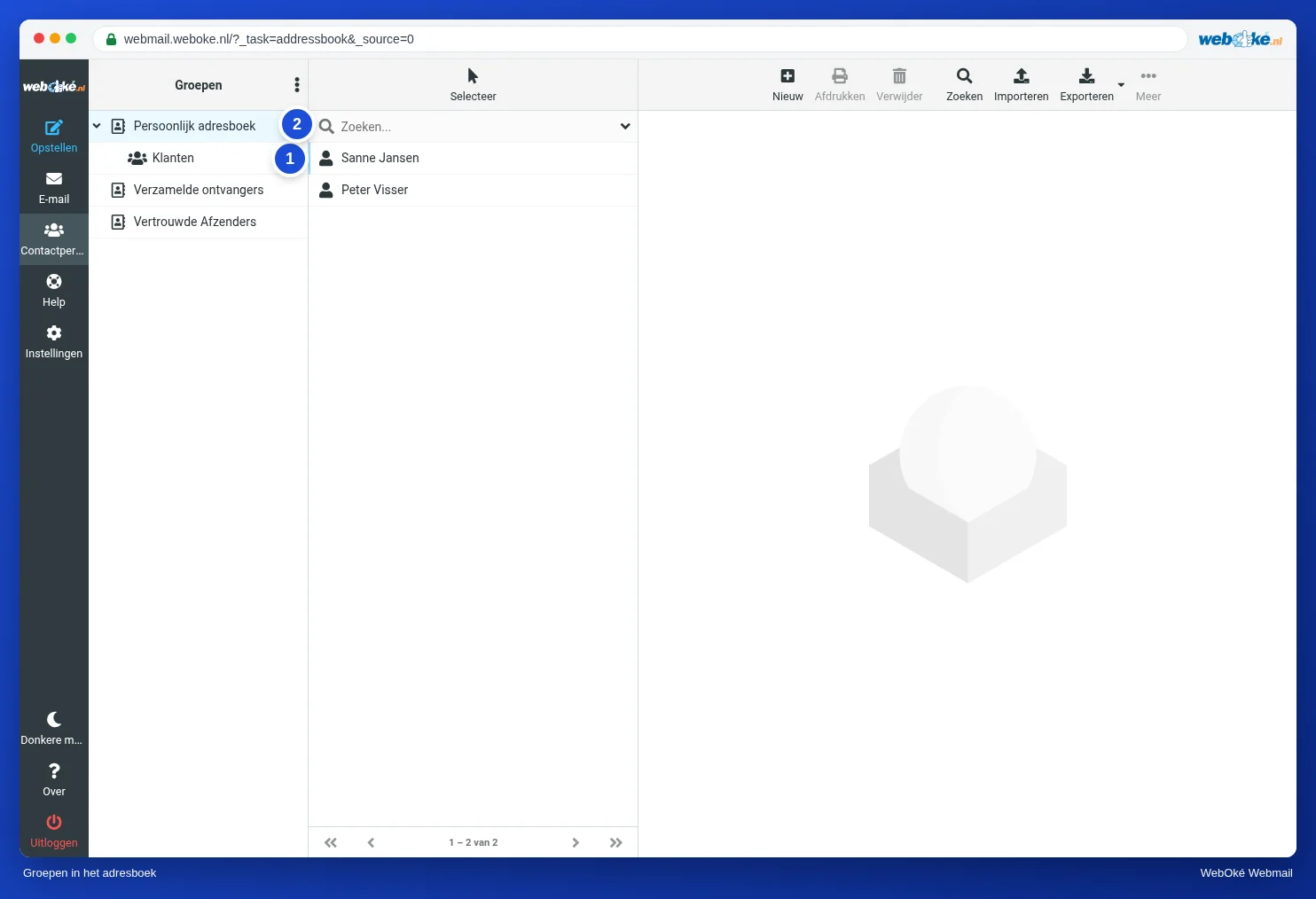
Drag a contact from the list to the group (1). You can also select several contacts and drag them at once. On a contact's Groups tab, you can see which groups they belong to.
With the three dots (2), you can also rename or delete a group. If you delete a group, the contacts themselves are kept.
Emailing a group
When writing a message, start typing the name of the group in the Recipient field, or choose the group with the button showing little figures next to the Recipient field.
Please note: for a large group, put the addresses in Bcc so that recipients cannot see each other's addresses. Also keep the daily sending limit in mind, see The daily limit has been reached.