
Chapter 5 · 5.2
Creating a signature
A signature (called Signature in the webmail) is the text that is added automatically under your messages, such as your name, address and website.
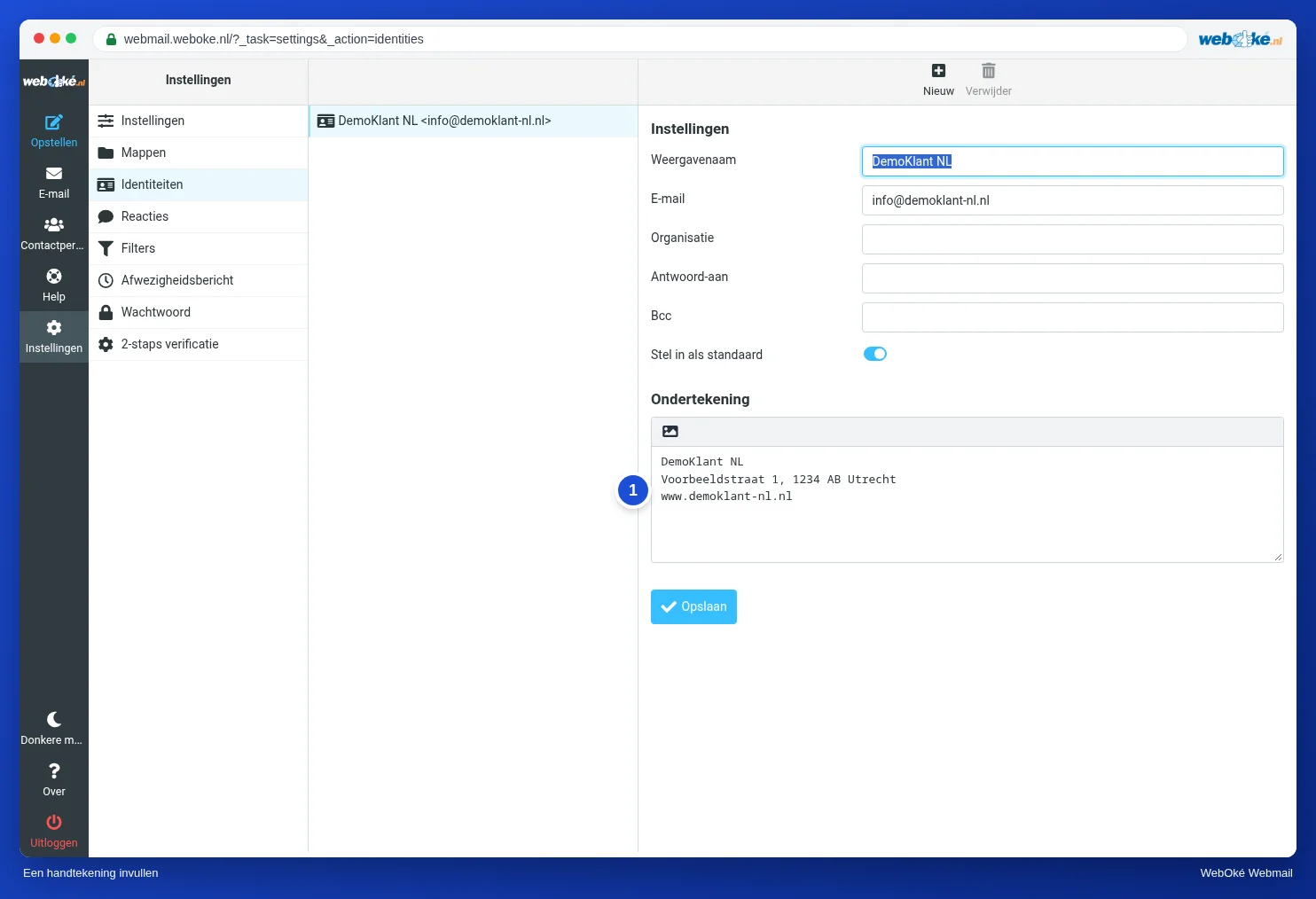
- Go to Settings, Identities and click your email address.
- Type your signature in Signature (1).
- Click Save.
When you write a new message, the signature is already there at the bottom, with two dashes above it. These dashes are a convention between email programs that lets them recognise the signature.
A signature with formatting or a logo
In the Signature box, click the button with the picture. You then get the same toolbar as when writing a message, with bold, colours and links. You add a logo as an image with a web address, so an image that is already on your website. Keep the logo small, otherwise every message becomes large.
Tip: a formatted signature is only shown if you also write the message with formatting. If you write in plain text, the signature is added as plain text.
When is the signature added?
In Settings, Composing Messages, under Signature Options you choose whether the signature is always added, including when replying and forwarding. There you also choose whether it goes below or above the quoted message.
Want a different signature or no signature for a single message? While writing, click Signature at the top to add it, or simply remove it from the text.