
Chapter 2 · 2.2
The message list: sorting and threads
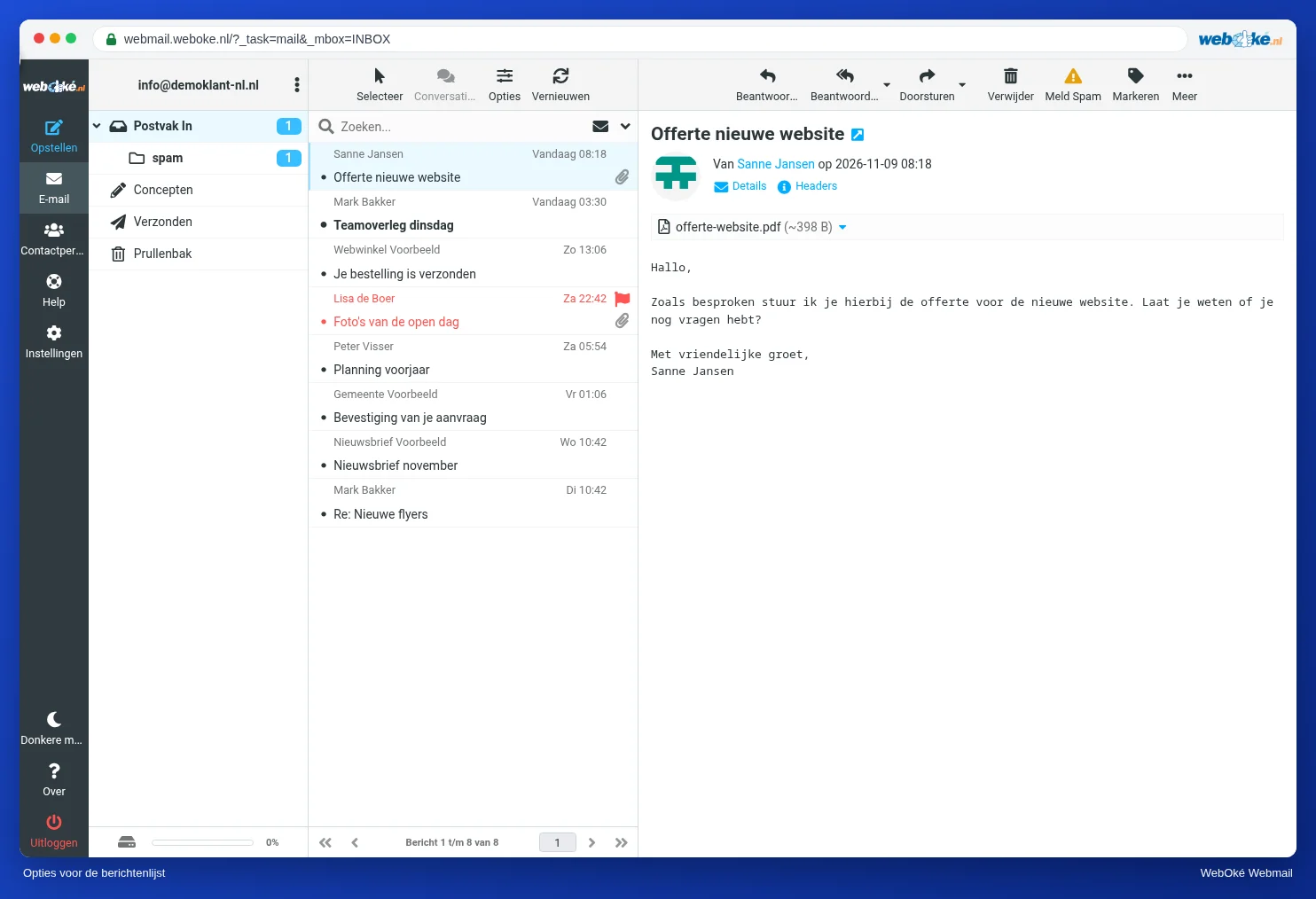
You decide how the message list looks: the order the messages appear in, and whether messages on the same subject are grouped together.
The list options
- Above the message list, click Options.
- Choose what you want and click Save.
| Option | What does it mean? |
|---|---|
| (1) Sorting column | For example by date, sender, subject or size. With None, messages appear in the order they arrived. |
| (2) Sorting order | descending puts the newest or largest at the top, ascending the oldest or smallest. |
| (3) List mode | List shows each message separately. Threads groups messages and replies on the same subject together. |
Tip: is your mailbox almost full? Sort by size, descending. The largest messages then appear at the top, so you can quickly free up a lot of space.
Selecting
With Select above the list, you can choose all messages, unread messages, flagged messages or none in one go. This is handy for moving many messages at once or marking them as read.
Refreshing
The webmail regularly checks for new mail by itself. Don't want to wait? Click Refresh. You set how often the webmail checks in Settings, User Interface, see The most important settings.
More messages per page
By default, you see 50 messages per page. Below the list, you can go to the next page. You change the number in Settings, Mailbox View, Rows per page.