
Chapter 5 · 5.3
Presenting with notes and the presenter view
When you present, you want to see your own notes, but your audience shouldn't. That's what the presenter view is for: your laptop shows the current and next slide, your notes and a clock, while the projector shows only the slide.
In LibreOffice Impress
Writing notes: choose View > Notes Pane. A box appears under each slide where you type your text. With View > Notes you see the slide and its notes together on one page, which is handy for printing.
Presenting:
- Connect the projector or second screen.
- Press F5 to start from the first slide, or Shift + F5 to start from the current slide. You can also choose Slide Show > Start from First Slide.
- With two screens, the Presenter Console opens automatically on your laptop, showing the next slide, your notes and a clock. If the slide appears on the wrong screen, use the Reverse button to swap the screens.
You set this up in Slide Show > Slide Show Settings.... There you choose, among other things, which screen shows the presentation and whether the Presenter Console runs full screen, in a window or is switched off. For a presentation that keeps starting over, choose Loop and repeat after here.
While presenting: Space, Enter or the right arrow for the next slide, the left arrow for the previous one, Esc to stop.
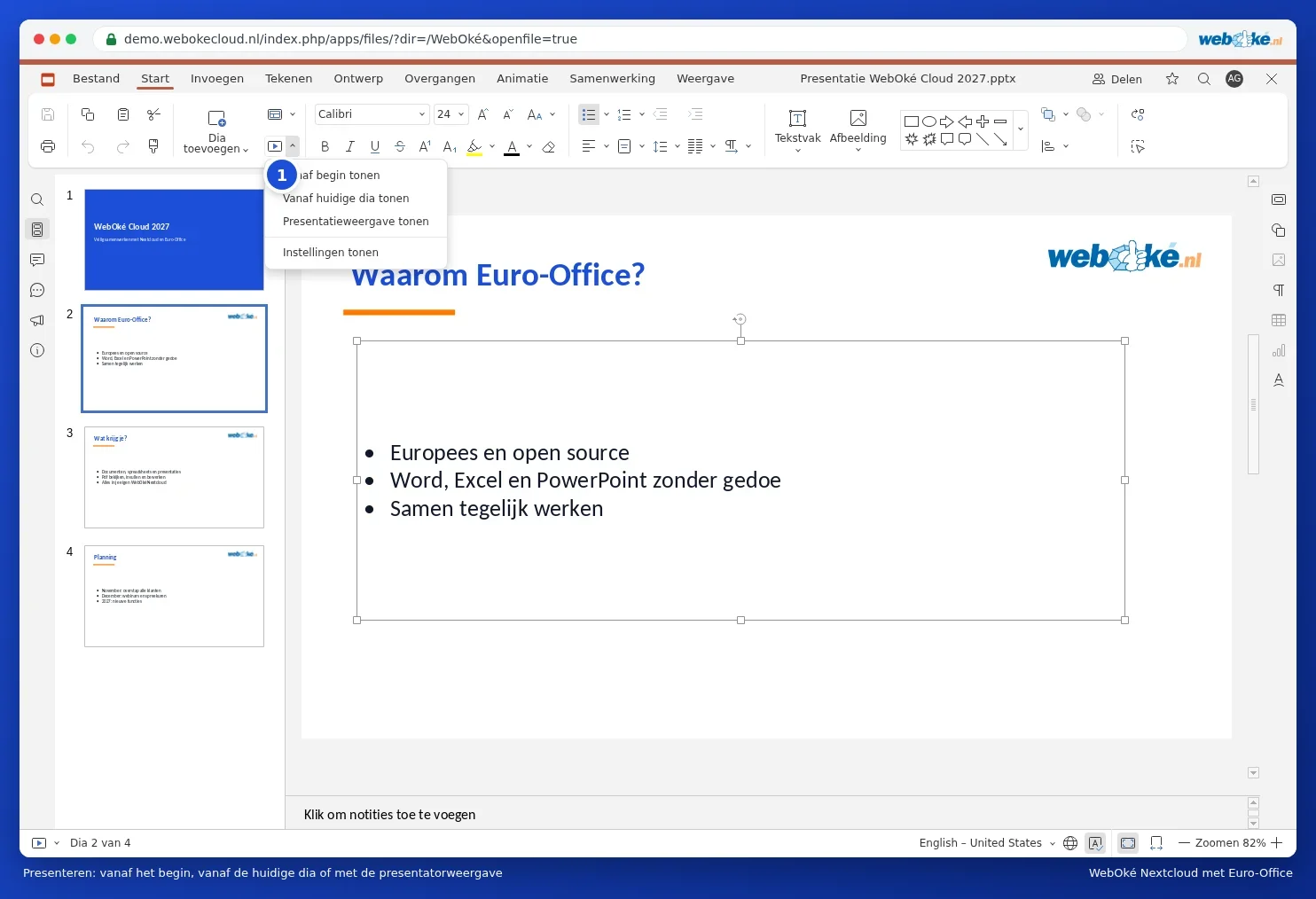
In Euro-Office
- Type your notes in the box under the slide. Can't see it? On the View tab, tick Notes.
- On the Home tab, click the arrow next to Start slideshow and choose Show Presenter View.
- The presenter view opens in a new window. If your browser blocks it, allow pop-ups for your Nextcloud.
Read more in Presenting and the presenter view and, for a presentation that plays on a loop, Playing a presentation on a loop (trade fair, waiting room, shop window).