
Chapter 6 · 6.2
Editing a PDF
A PDF is meant to fix how something looks, not to be edited. Even so, you sometimes need to correct a typo, remove a page or hide something. You can do this in LibreOffice and in Euro-Office, each with its own limits.
In LibreOffice
If you open a PDF in LibreOffice, it opens in Draw, the drawing program.
- Choose File > Open... and select the PDF.
- Click in a piece of text to change it. Draw treats text as separate text boxes, usually one per line. You can move, resize or delete images.
- To delete a page, right-click the page in the list on the left, or choose Page > Delete.
- Save the result as a PDF: File > Export As > Export as PDF.... Pressing Ctrl + S saves it as a drawing (odg), not as a PDF.
Please note: a PDF is not a text document. After editing, text may run over the edge, and if a font is missing, it will look different. Draw works well for a few small changes; if you need to rewrite a lot, ask for the original Word or LibreOffice file. A scanned PDF contains an image rather than text, so you can't edit it this way.
Tip: if you create PDFs yourself in LibreOffice, choose Hybrid PDF (embed ODF file) when exporting (see Saving a document as PDF or PDF/A). You can then simply open it again later as a document in Writer.
In Euro-Office
Click the PDF in your Nextcloud and choose the Editing mode at the top right, or click Edit PDF on the Home tab. Use Edit Text to change text; on the Insert tab you can add pages, text boxes and images.
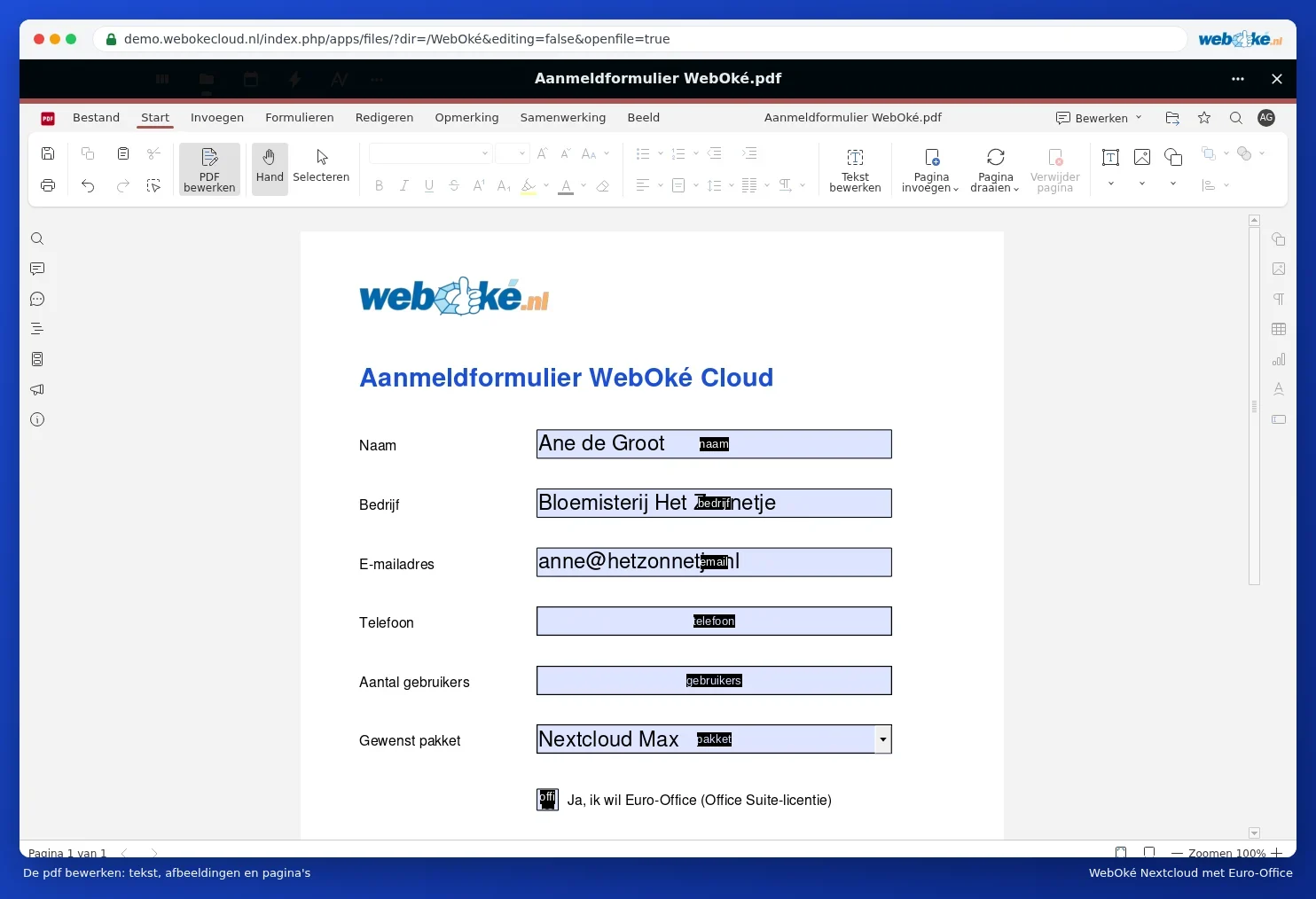
- Editing: Editing a PDF.
- Rotating, deleting or merging pages: Rotating, deleting or merging PDF pages.
- Making sensitive data truly invisible with Redact: Hiding sensitive data in a PDF. Drawing a black box over it is not enough: the text then stays in the file.
- Converting a PDF into an editable Word file: Converting a PDF into an editable Word file.