
Part 2 · 2.2
503 and Resource Limit Is Reached
Do you see a white page with 503 Service Unavailable, Resource Limit Is Reached or The server is temporarily unable to service your request? Or is your website suddenly very slow? Then your package is hitting one of its limits. Every hosting package has its own computing power. Usually it only lasts a short while and resolves itself.
What counts?
| Limit | What happens when you reach it? |
|---|---|
| Entry processes | Too many requests at the same time. Visitors get 503 or Resource Limit Is Reached. |
| CPU | Too much processing. Everything slows down and requests hang for longer. |
| Physical memory | Not enough memory. Scripts are aborted. |
| IO and IOPS | The disk is under too much load. The site becomes slow, especially in the admin area. |
| Processes | Too many processes at once, for example because of cron jobs. |
All domains in one package share the same limits.
How to fix it
- In DirectAdmin, open the Resource Usage page under Extra Features. If there is a message saying limits have been hit, click DETAILS and check which limit shows Faults, and when.
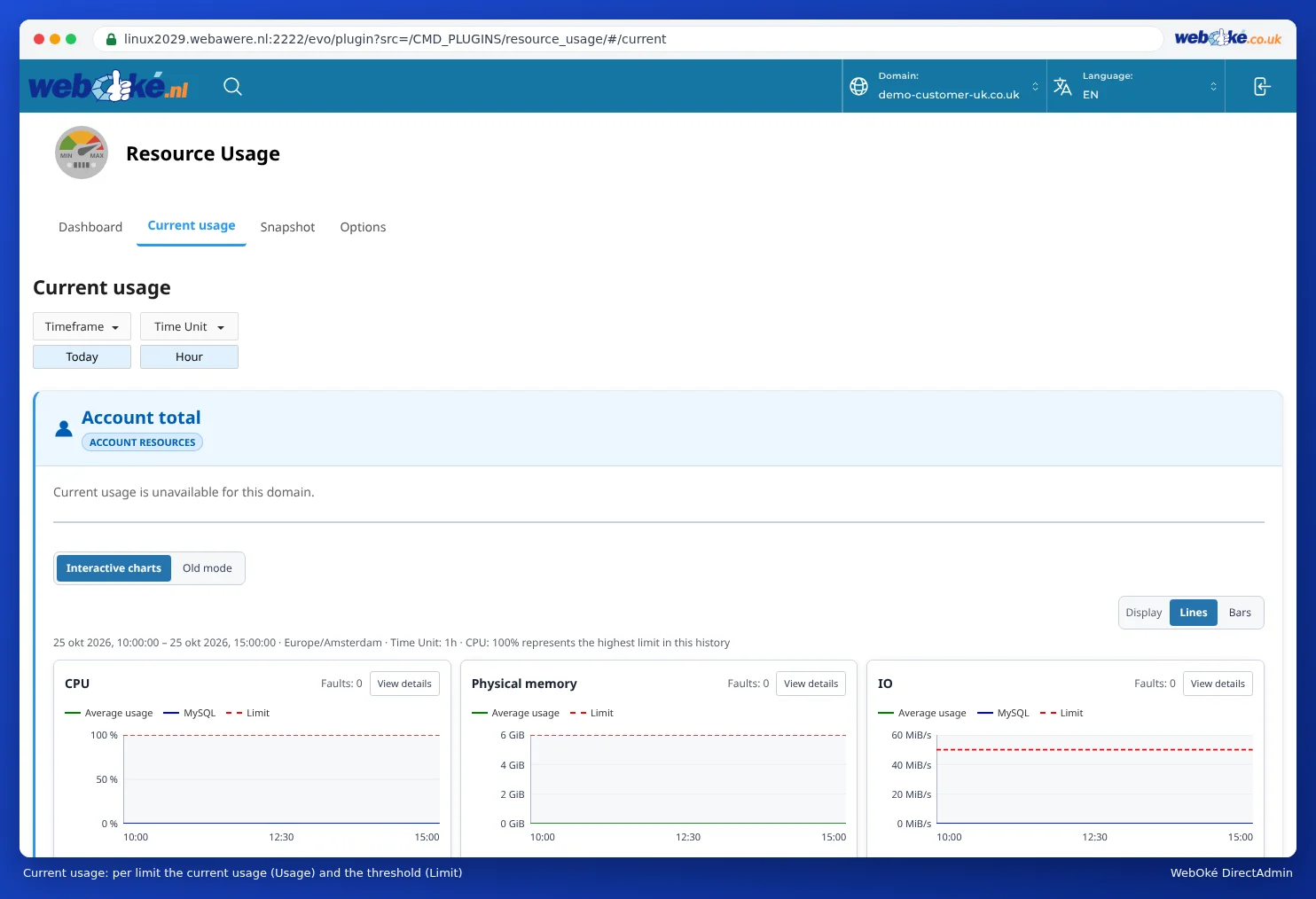
Resource Usage: the usage (Usage) and the limit (Limit) for each resource - No faults? Then the slowness isn't caused by the limits. Use X-Ray to measure which plugin or page is taking the time (see X-Ray: tracking down slow pages).
- Check the access log around the time of the faults. It is often a bot: a search engine, an AI crawler or someone trying to log in thousands of times on wp-login.php or xmlrpc.php. Block them with a security plugin or rules in .htaccess.
- Turn on caching. In WordPress, the LiteSpeed Cache plugin works well with our web servers.
- Clean up your plugins, update everything and use a recent PHP version.
- Has your website simply grown? In My WebOké, go to your package and choose a bigger package via Admin, or give a busy site its own package.
When should you contact us?
You see no faults and X-Ray shows no cause, but the 503 keeps coming back? Then get in touch.
Ask the AI assistant in My WebOké first, or create a ticket via Support centre and then Submit a ticket. Include:
- the full address of the page where it goes wrong
- the time it went wrong
- what you were doing at that moment, for example saving, uploading or logging in
- a screenshot of the message
Never send your password.
Detailed explanation: 503 or 'Resource Limit Is Reached': what now? and Resource limit reached / 503 / PHP X-ray.