




































When the storage space of your hosting or Email Only package is full, you can always easily add extra storage space, click here for an explanation about that.
If you don't want to add extra storage space but would rather free up space in your existing mailboxes, this can be easily done in DirectAdmin, in this article we explain how to do this.
Step 1 - Go to My Products and click on 'Open DirectAdmin control panel'.
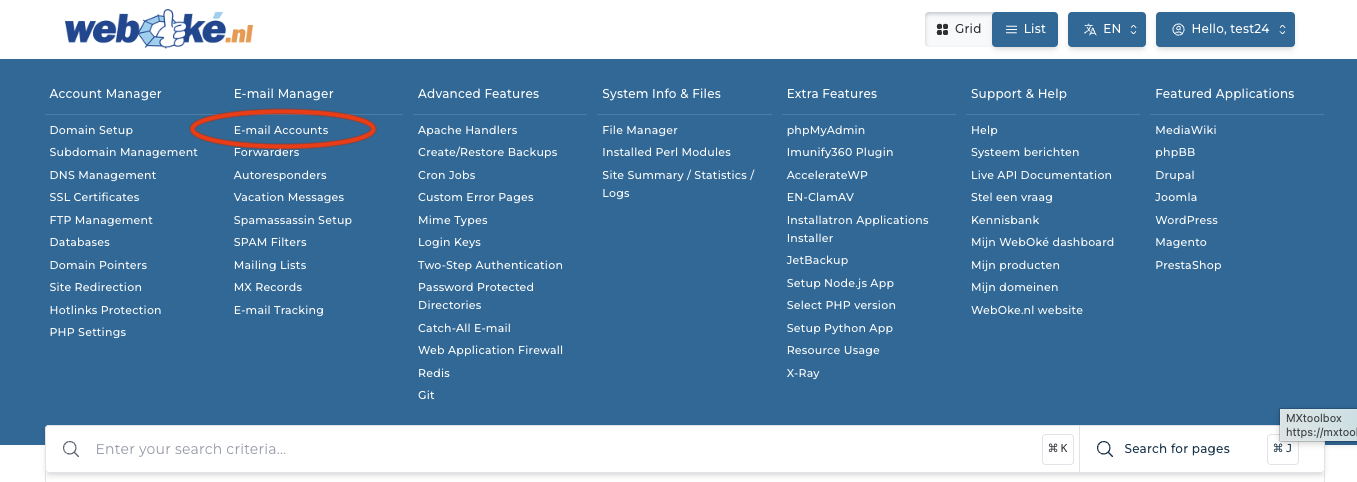
Step 2 - Click on 'Email Accounts'
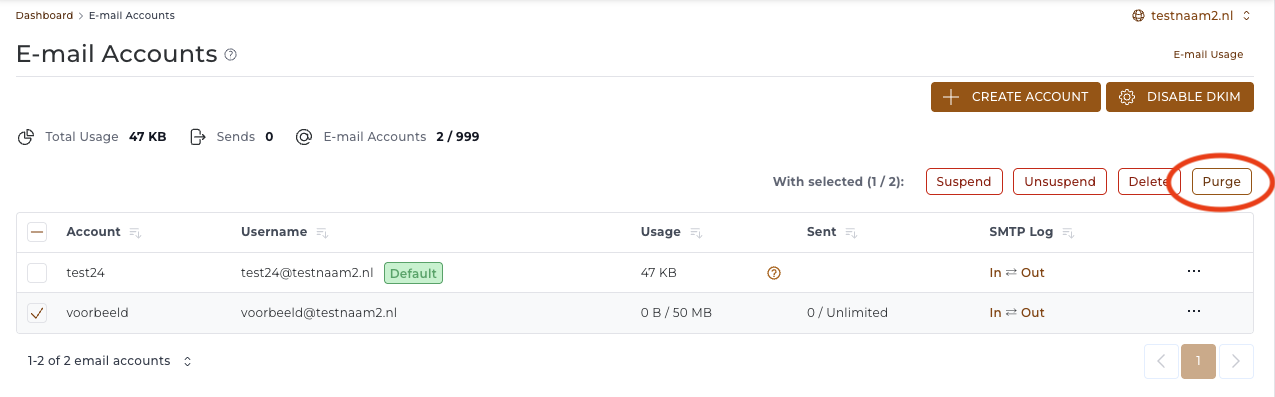
Step 3 - Check the mailbox(es) you want to purge and click on 'Purge'.
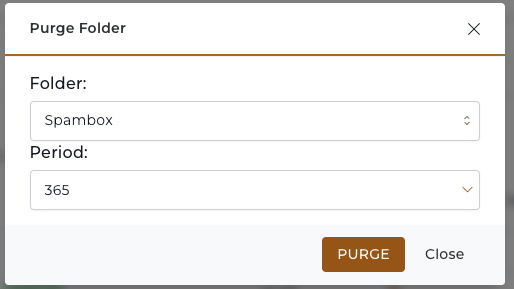
Step 4 - Choose under 'Folder' which folder you want to purge, you have 3 choices:
Inbox: here you can purge emails from the inbox folder
Imap folders: this purges emails from all folders
Spam: this only purges emails from the spam folder
Under 'Period' you choose from which period you want to purge the emails. In the example from the screenshot, we delete all mail that is in the inbox and older than 365 days.
After making your choices, click on 'Purge', keep in mind that the emails will be deleted.
In that case, we always recommend keeping at least one local copy.