
Chapter 2 · 2.4
Setting a new password or a different server name
Have you changed the password of your email address, or do you want to use a different server name? Then you also need to update it in Outlook, and on all your other devices.
A new password
Outlook usually notices by itself that the old password no longer works and then asks for the new one. Enter it and tick the option that lets Outlook remember it.
Does Outlook not ask for it?
- Classic Outlook: click File, then Account Settings and Account Settings again. Choose your email address, click Change and enter the new password.
- New Outlook: go to Settings and then Accounts. Choose your email address and change the password there. If that doesn't work, remove the account and add it again (see Adding your email address to the new Outlook). Your mail is stored on our server and will come back by itself.
Don't forget your other devices
If a phone, tablet or second computer keeps trying with the old password, our server will block the IP address those attempts come from after a number of failed attempts. Your mail, webmail and website will then suddenly stop working from your own internet connection.
In My WebOké, go to Support centre and then Am I blocked? to check whether your IP address is blocked.
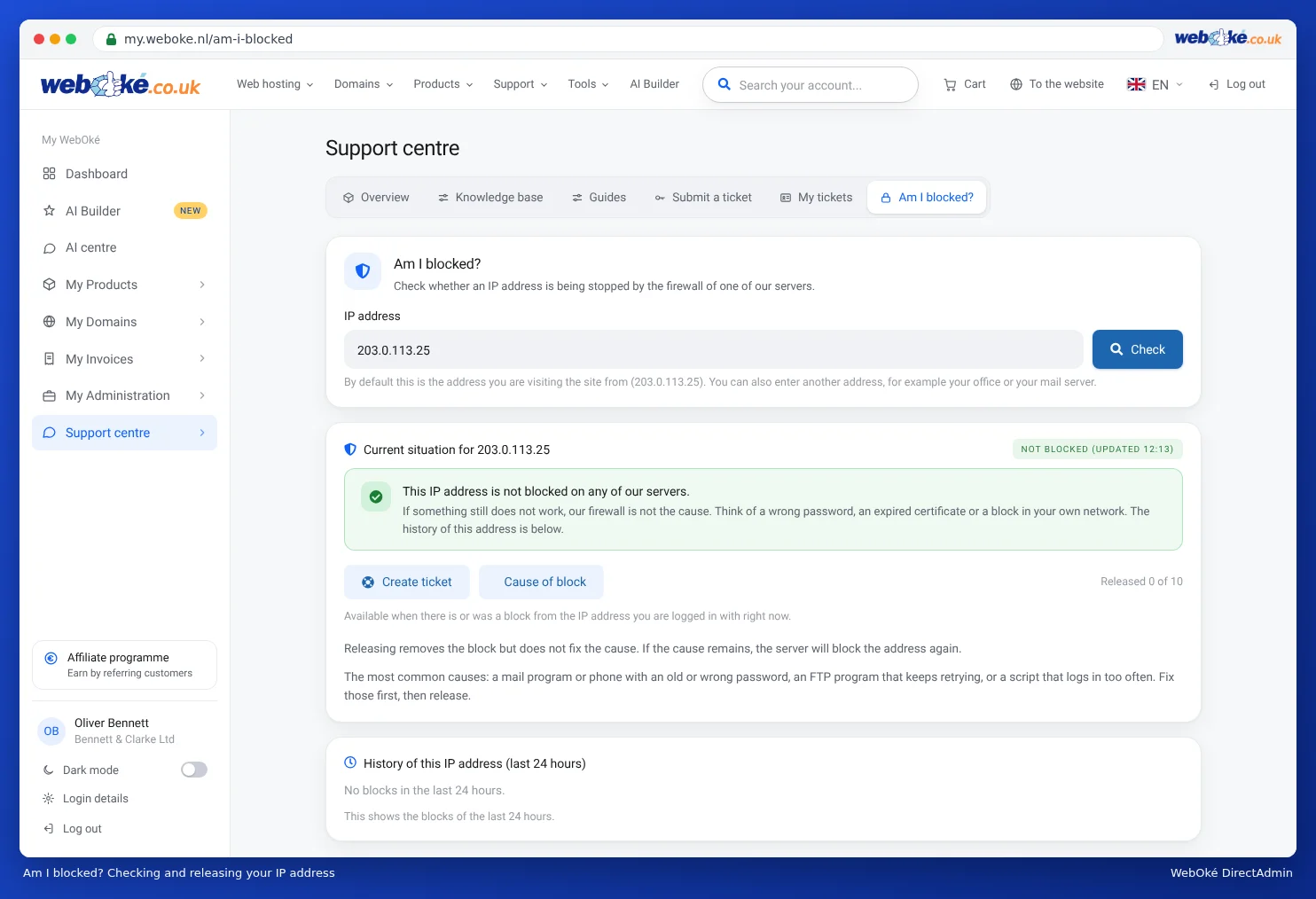
First set the new password on all your devices, and only then unblock your IP address. Otherwise you will be blocked again straight away.
A different server name
Do you get a certificate warning, or has your website moved? Then it's better to use the server name of your package (see The details you need).
- Classic Outlook: File, Account Settings, choose your address and click Change. Change the incoming and outgoing server.
- New Outlook: remove the account and add it again with the new server name. That is usually the quickest way.