
Chapter 3 · 3.2
An out-of-office message: why it runs on the server
Going on holiday and want people to receive an automatic reply? With a WebOké email address, you set this up on our server, not in Outlook. That way it always works, even when your computer is switched off.
Why not in Outlook?
With an Exchange or Microsoft 365 account, Microsoft's server sends the automatic reply. Outlook only gives the instruction. Your WebOké email address is an IMAP account. With IMAP, Outlook can read and organise your mail, but it cannot tell our server to reply automatically.
- New Outlook: Microsoft states that automatic replies do not work for POP and IMAP accounts. You either won't see the button, or it won't work for this address.
- Classic Outlook: the Automatic Replies button is missing for an IMAP account. You can create a rule that replies, but it only works as long as Outlook stays open on your computer. If your computer shuts down or goes to sleep, it stops.
- Outlook app: here too, you can't rely on an automatic reply for this address.
On our server it always works: day and night, whatever your computer is doing, and whichever Outlook or app you use.
A vacation message in DirectAdmin
A vacation message has a start and end date and stops by itself. So you can't forget to switch it off.
- Log in to DirectAdmin and go to E-mail Manager and then Vacation Messages.
- Choose the email address, the period and how often the same sender receives a reply.
- Type your message and click CREATE.
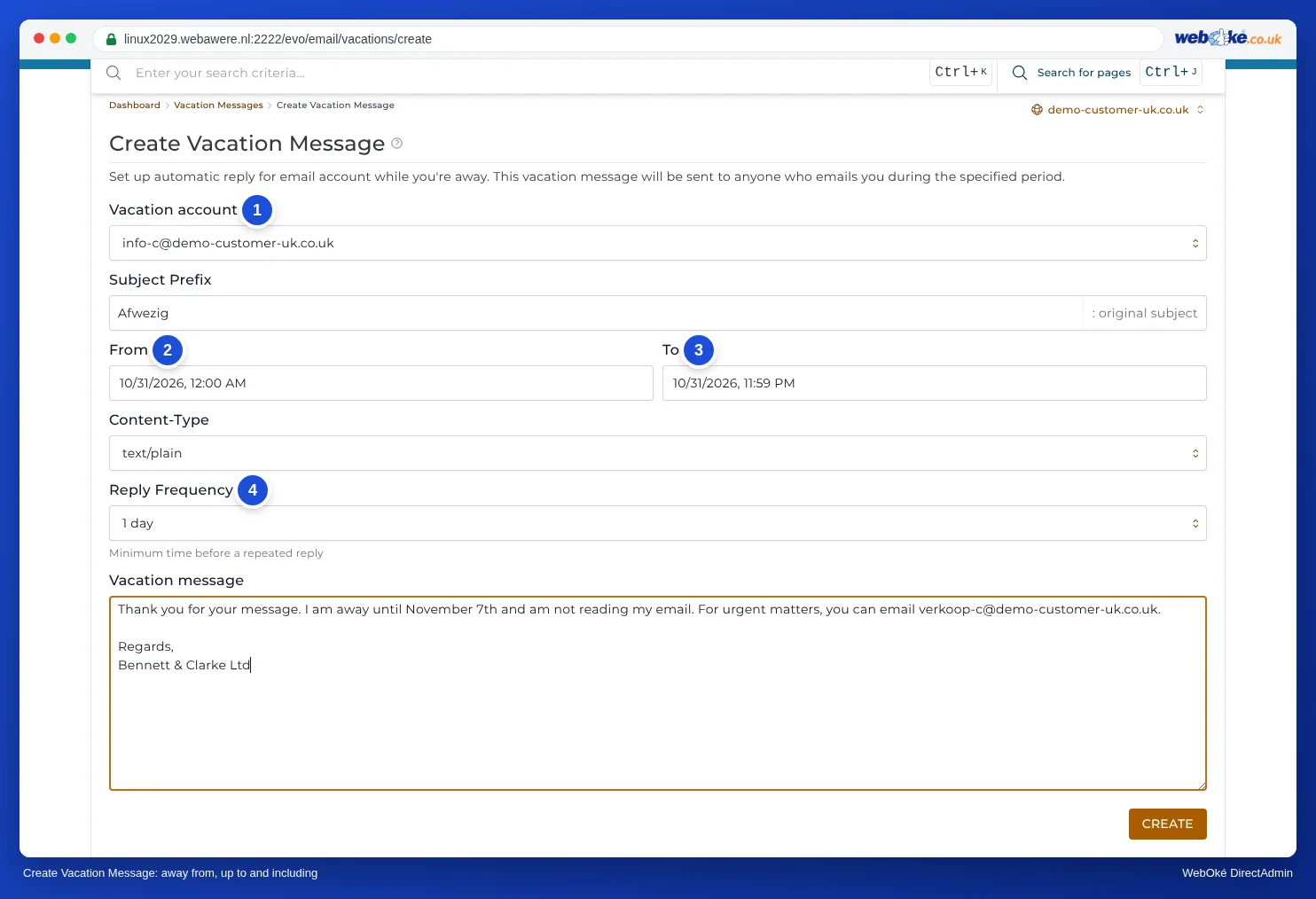
You'll find all steps and fields in Vacation Messages.
Or in webmail
Don't have access to DirectAdmin, for example because a colleague manages the package? Then create a filter in webmail that replies with a message. You can read how in Setting up a vacation message/out-of-office in webmail. Such a filter has no end date: switch it off yourself after your holiday.
Vacation message or autoresponder?
An autoresponder is meant for a fixed reply that always applies, such as a confirmation of receipt on info@. For an absence, choose a vacation message. The difference is explained in Autoresponder or vacation message: which should you choose?.
Please note: Don't set up a vacation message and an autoresponder or reply filter on the same address at the same time. The sender will then receive two automatic replies.