
Chapter 2 · 2.3
Testing your website before you change the DNS
Is your website already at WebOké, but does your domain still point to your old provider? Then you'll still see the old site when you type in your domain. With the free tool Test your website before moving, you can already view the new version with us, without changing anything in your DNS. Your old site simply stays online. You don't need an account.
What needs to be ready?
- The domain is already in a package at WebOké. The domain name transfer doesn't need to be done yet.
- Your website is already in the package, along with its database (see Migrating your website: backup, import and WordPress).
Two ways
Go to www.weboke.nl/en/website-testen. You can also find the tool on the website in the Tools menu.
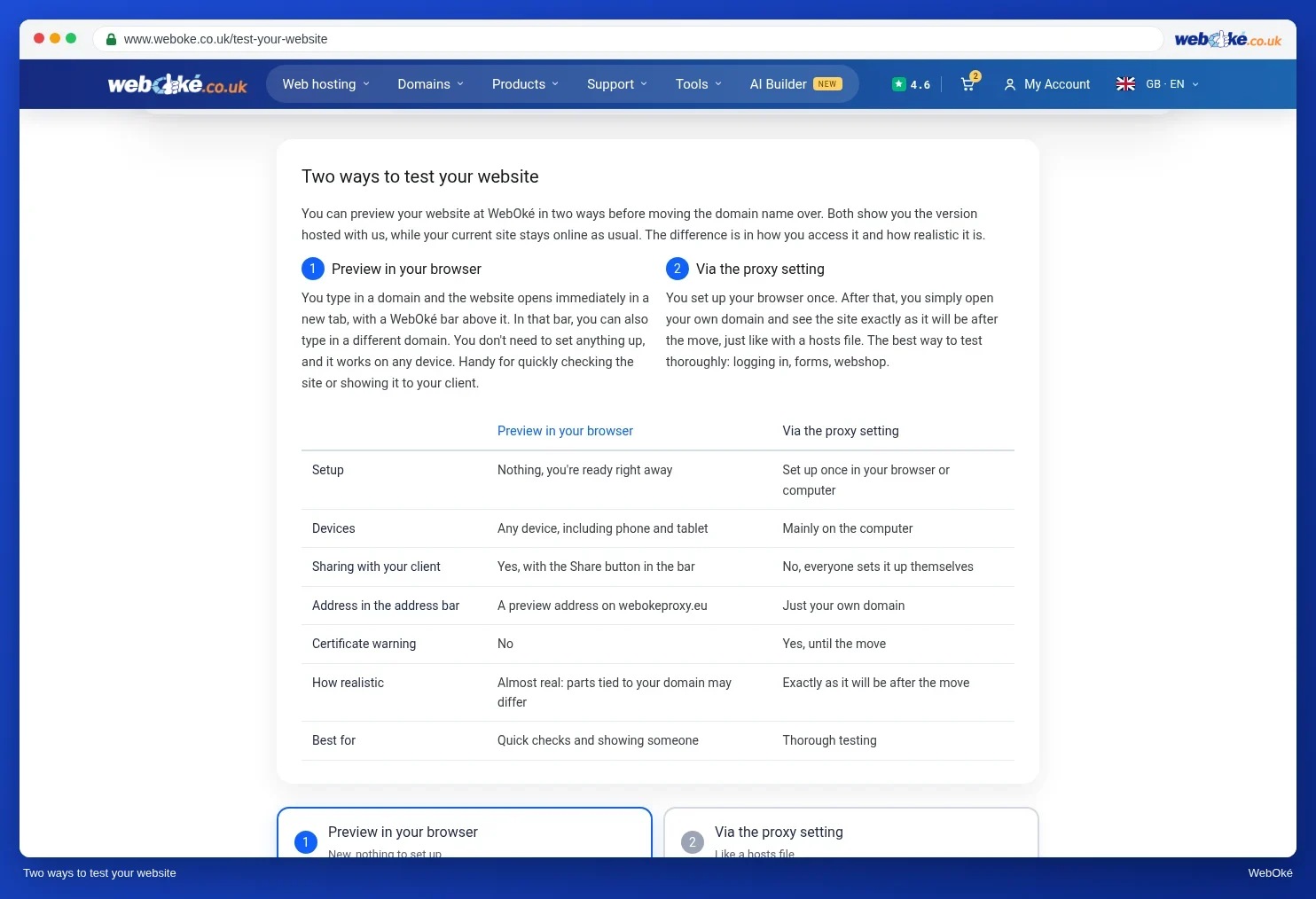
| View in your browser | Via the proxy setting | |
|---|---|---|
| Set up | Nothing, you're ready straight away | Set up once in your browser or computer |
| Devices | Any device, including phone and tablet | Mainly on a computer |
| Share with your client | Yes, with the Share button | No |
| How realistic | Almost real | Exactly as after the move |
View in your browser
- Choose the View in your browser tab.
- Enter your domain name and click Open.
- Your website opens in a new tab, with a WebOké bar at the top. It shows which IP address the site comes from. Use Current site to open the site as it is online now, for comparison.

With this method, your site runs under a different address. Features tied to your own domain, such as reCAPTCHA, Google Maps, payments or logging in with Google or Facebook, may therefore behave differently. Test those with the proxy setting.
Via the proxy setting
- Choose the Via the proxy setting tab.
- Enter your domain name and click Add.
- Click Copy next to the personal address and paste it into the proxy setting of your browser or computer. The page explains where to do this for each system.
- Open your own domain in a private window. You'll now see the version at WebOké.

Please note: a certificate warning is normal with the proxy setting. As long as your domain doesn't point to us yet, we can't create an SSL certificate for it. After the switch, your site automatically gets a valid certificate.
What should you test?
- Do all pages open, including pages under a menu?
- Are all images there?
- Can you log in to your website's admin area?
- Do forms work, such as your contact form? Does the email arrive?
- Does your webshop work, all the way through checkout?
Finished testing? Click Stop testing and turn the proxy setting off again. All steps for each system, with videos, are in Viewing your website at WebOké before you transfer your domain name and Testing your website before a move.