
Chapter 2 · 2.2
Migrating your email with the email migration tool
With the free email migration tool, you copy all your existing email from your old provider to your mailbox at WebOké, including all your folders. The tool copies your email via IMAP. It doesn't move anything, so nothing changes in your old mailbox.
Before you start
- Create the same email addresses at WebOké that you use now. See Creating an email address. You can do this as soon as your package is ready, even if your domain hasn't been transferred yet.
- Check that your new mailboxes are large enough for your old email.
- For each mailbox, make sure you know the email address and password of your old mailbox, and the name of your old provider's IMAP server. You'll find it for each provider in chapters 5 and 6.
How to migrate your email
- Log in to My WebOké, go to My Products and click the Email migration tab. Or go straight to my.weboke.nl/emailverhuizen. The tool has five steps: Source, Destination, Review, Transfer and Done.
- Source: choose your old provider from the list. For well-known providers, we fill in the server name for you. If your provider isn't listed, choose Other provider and enter the IMAP server. Also enter the email address and password of your old mailbox.
- Destination: enter the email address and password of your mailbox at WebOké. If your domain doesn't point to WebOké yet, enter the server name from your welcome email (something like linux2023.webawere.nl).
- Review: we test both mailboxes and show you how many messages and folders we find. Click Start migration.
- Transfer: the migration runs on our servers. You can close the page.
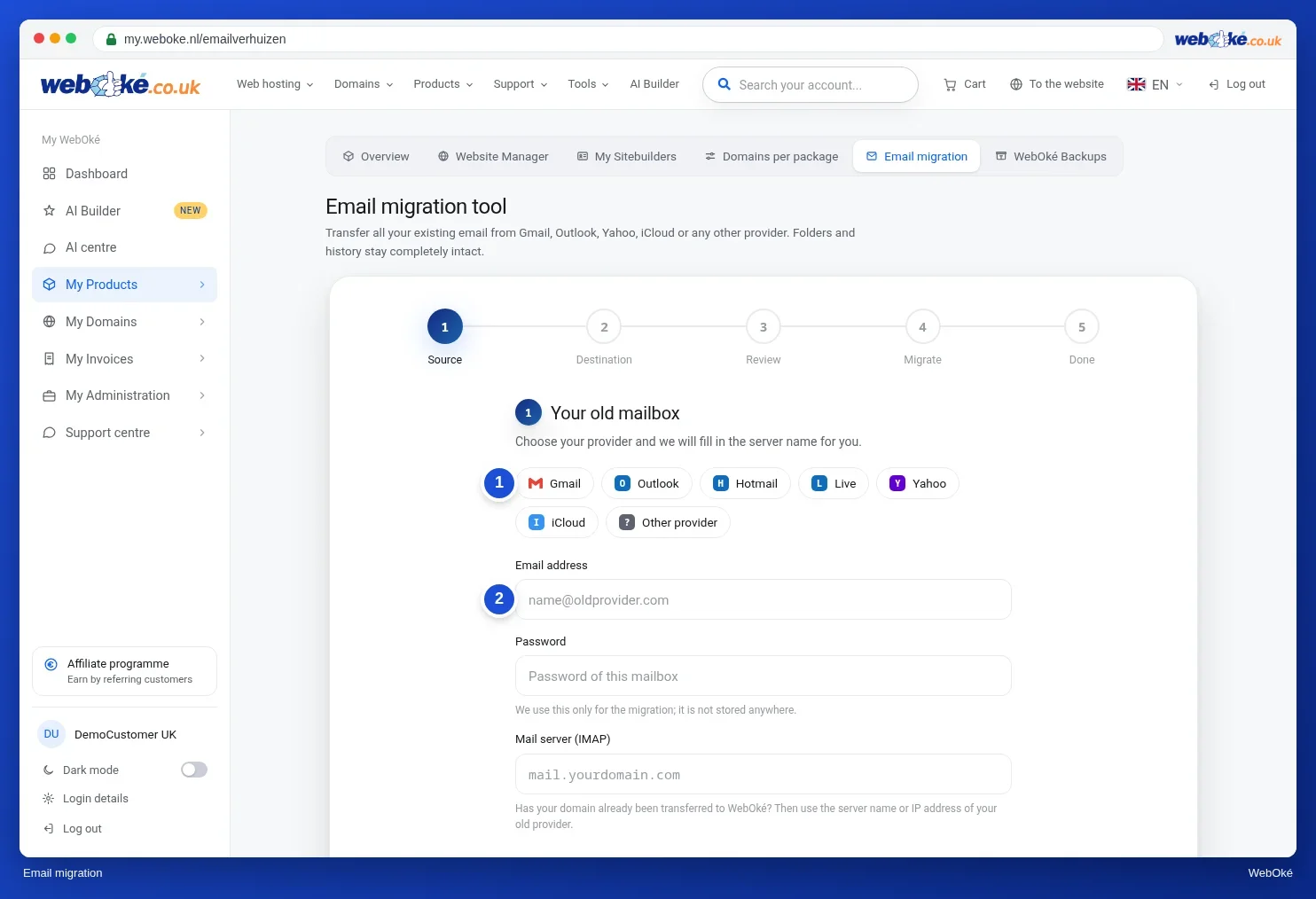
For all the screens and what to do if something goes wrong, see Migrating email to WebOké (including from Microsoft 365).
Which server name do you enter for your old mailbox?
- The name your old provider gives for IMAP, such as imap.aanbieder.nl or mail.aanbieder.nl.
- Not mail.jouwdomein.nl if your domain already points to WebOké: that name then points to our server.
- Not an IP address: that gives a certificate warning or doesn't work with a secure connection.
Good to know
- You can run the migration again later. The tool skips messages that have already been copied. Do this one day after your domain has been transferred, see What happens to your email during the move.
- The tool only migrates email. Export your contacts and calendars separately from your old webmail or email program.
- If you're coming from Gmail, you need an app password. If you're coming from Outlook, Hotmail, Live or Microsoft 365, you log in to Microsoft within the tool. See Migrating email to WebOké with the email migration tool.
- Prefer working in DirectAdmin? Then you can also use IMAPSync Migrations, see IMAPSync Migrations in DirectAdmin.
- Was your email only stored on your computer because you used POP3? Then drag the folders in your email program to your new IMAP mailbox. See Migrating your email: the options.