
Chapter 2 · 2.1
Migrating your website: backup, import and WordPress
Your website usually has two parts: the files (such as the pages, the theme and the images) and a database (for WordPress, Joomla and webshops). Both need to move to your new package. There are a few ways to do this. With every option, your old website stays online.
First: make a backup with your old provider
To be safe, always make your own backup first and keep it on your computer:
- Files: download your website's folder. It is often called
public_html,httpdocsorwww. You can use an FTP program or your old provider's file manager. - Database: export it as a .sql file, usually with phpMyAdmin.
Chapters 5 and 6 explain where to find this with your old provider.
The options side by side
| Option | Suitable for | Read |
|---|---|---|
| Import website in the Website Manager | WordPress and other software we recognise. The easiest option: we fetch the site for you. | Below |
| Import in Installatron | If you prefer working in DirectAdmin. Installatron fetches the site via FTP. | Importing an existing website in Installatron |
| By hand | Any website. You upload the files with FTP and import the database yourself. | Below |
| Website migration service | If you would rather not do it yourself. | Free website migration service: how we move your website to WebOké |
Import website in the Website Manager
- Log in to My WebOké and go to My Products, tab Website Manager.
- Click Import website (3).
- Choose The website is hosted with another provider.
- Choose what kind of website it is and enter the details:
- For WordPress, your admin login is often enough: the URL of your current website, your WordPress username and your WordPress password.
- Doesn't that work, or isn't it WordPress? Then click Not working? Use FTP details. You then enter the Protocol, the Server (host), the Username, the Password and the Folder containing the website files, often /public_html or /httpdocs. You can find these details with your old provider.
- Under Where should the website go on your package?, choose the domain and click Start import.
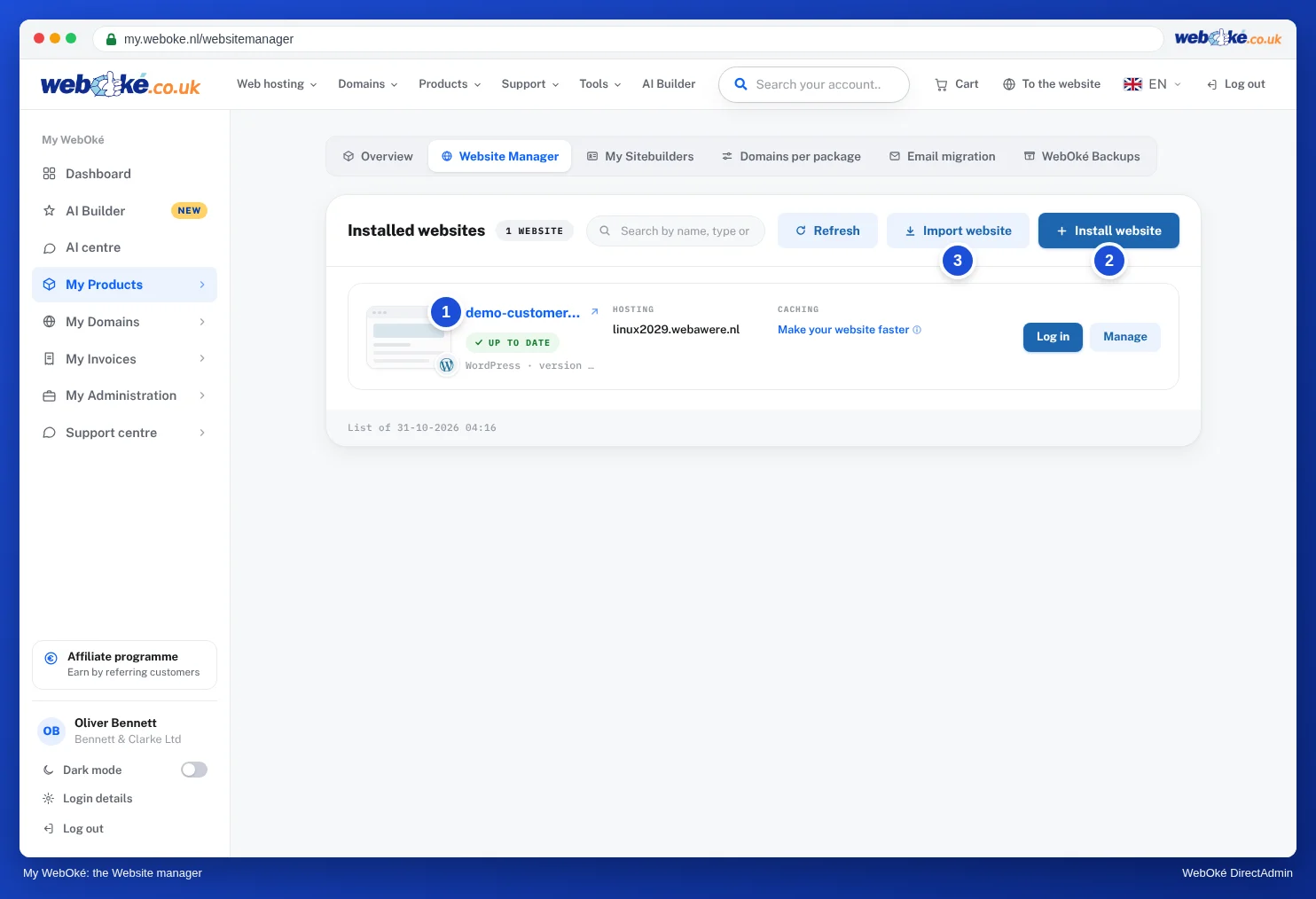
We fetch the files and the database and put them on your package. Your old website stays intact. We only use the details you enter for the migration. You can read more about the Website Manager in Can I also do this in My WebOké? The Website Manager.
Migrating by hand
- Use an FTP program to upload your website's files to the folder
domains/jouwdomein.nl/public_htmlon your package. See Connecting with FileZilla (FTP, FTPS and SFTP). Delete the default page index.html there. - Create a new database with a user in DirectAdmin. See Creating a database.
- Import your .sql file into that database. See Importing a database, including large files, also for large files.
- Enter the new database name, user and password in your website's configuration file. For WordPress, that is
wp-config.php.
Please note: never put a database file in public_html. Anyone who guesses the name could then download it. Delete it after the import.
A backup from another control panel
If your website comes from another provider using DirectAdmin, cPanel or Plesk, you may have a full backup of your account there. Such a backup doesn't always fit straight onto your package at WebOké. In that case, contact us first (see Restoring a DirectAdmin backup), or move the files and the database separately as described above.
WordPress: what to look out for
- Your website keeps the same domain, so nothing needs to change in the database.
- You can also use a migration plugin. It packages the files and the database on your old site and places them with us. Some free versions have a maximum size.
- Does the home page work, but other pages give a 404? In WordPress, go to Settings › Permalinks and click Save changes without changing anything. You'll find more solutions in My website doesn't work after uploading or migrating.
- Do you have a webshop? Transfer the database one more time just before the switchover, so no orders from the last few days are missing. See Migrating a WordPress site.
A website from a site builder
Did you make your website with your old provider's own website builder, or with a platform such as Wix or Squarespace? Then you usually can't take the site with you as files. You'll need to rebuild it, for example with WordPress or the AI Builder. Check whether your old provider offers an export option. Not sure? Just ask us: we're happy to help.
Is your website now at WebOké? Test it before you switch the DNS, see Testing your website before you change the DNS.