



























Thunderbird is our favorite mail client for many reasons, but most importantly: Thunderbird is open-source and independent from big tech, making it extremely privacy-friendly.
In Thunderbird you can not only easily connect the mailboxes you've created in our hosting packages (click here for an explanation), but you can also add your Nextcloud calendar with just a few clicks.
Step 1 - To add your calendar to Thunderbird, you need to create an app password, click here to learn how to create one.
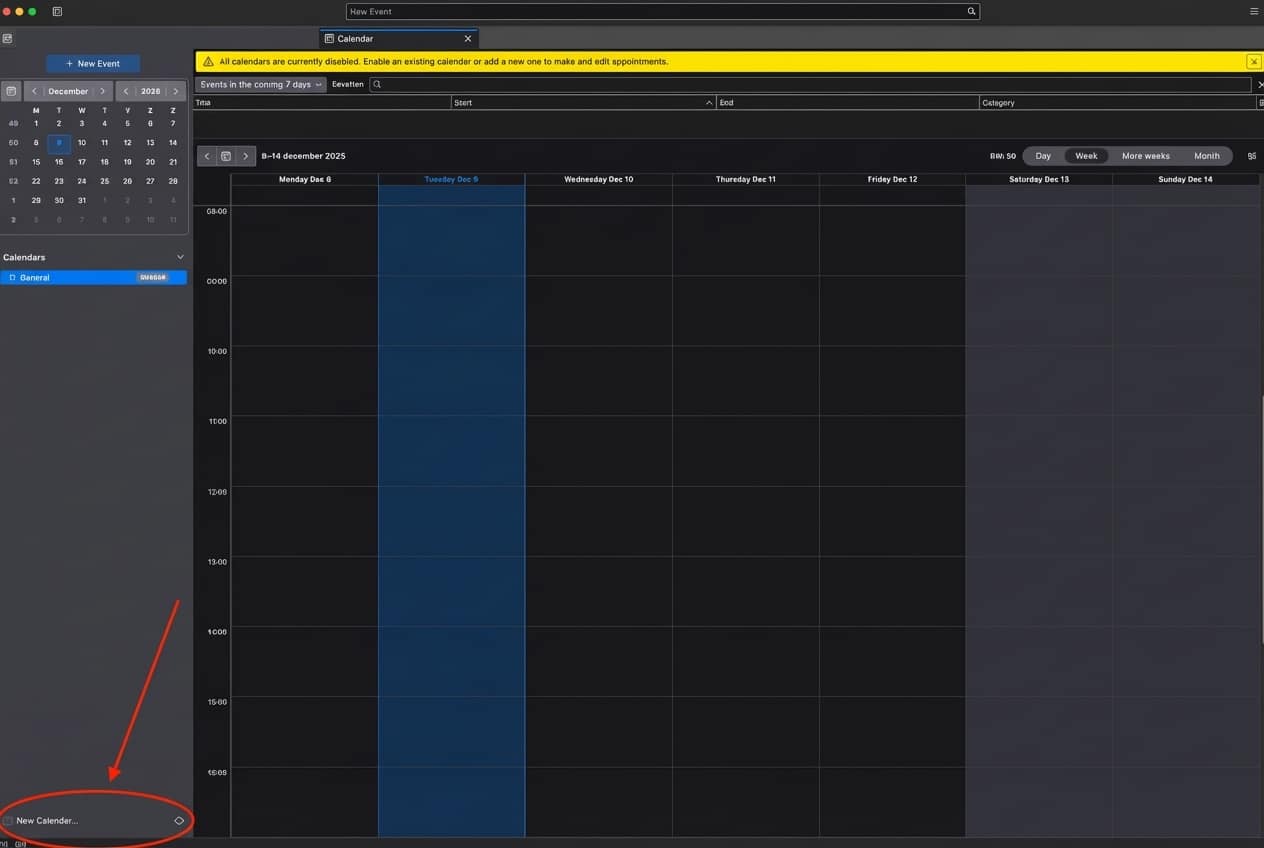
Step 2 - Open Thunderbird and open the calendar. Then click on 'New Calendar' at the bottom left
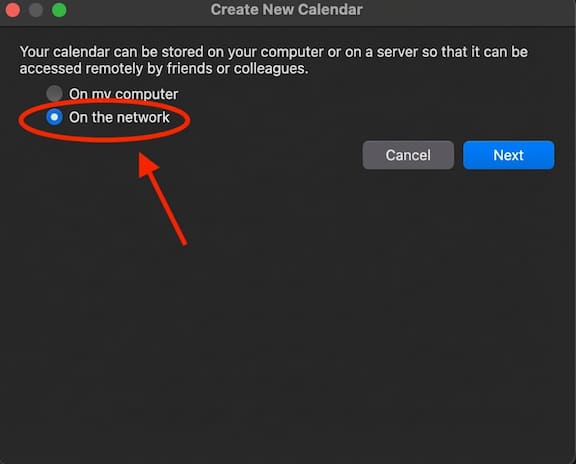
Step 3 - Click on 'On the Network' and then on 'Next'.
Step 4 - Enter your Nextcloud account username at 'Username' and your Nextcloud server URL at 'Location'. Then click on 'Find Calendars' at the bottom right.
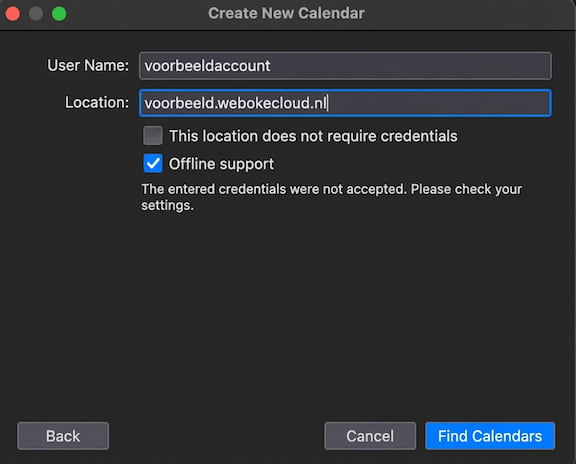
Step 5 - Enter the app password here that you created on your Nextcloud server.
Don't know how to create an app password? Click here.

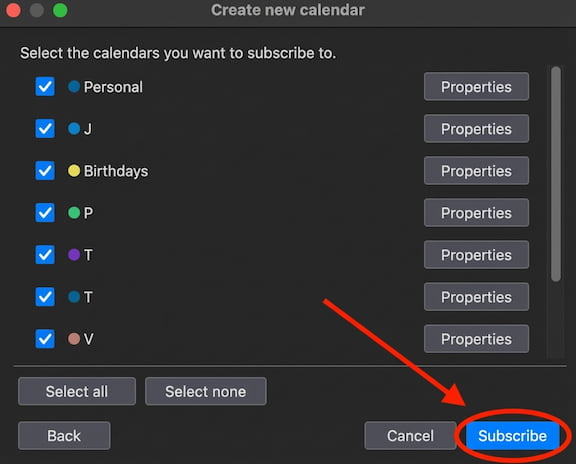
Step 6 - All calendars that your Nextcloud account is a member of will be shown, here you can select which calendars you want to add to Thunderbird.
After doing that, click on 'Subscribe'.
Step 7 - Done! Your calendar is now linked to Thunderbird. Every calendar item you add, delete or edit here is immediately synchronized with your Nextcloud server and vice versa.