



























Because we enforce 2FA as an important security measure for all users, it's often necessary to create an app password when you want to connect your Nextcloud account with various apps.
Think of situations where you can't go through the normal login flow, for example:
- Synchronizing calendars with CalDAV and contacts with CardDAV.
- Logging into Nextcloud mobile apps
- Setting up a WebDAV connection
Using app passwords brings several major security benefits: it maintains strict 2FA access since there's no way to access your files without going through a 2FA process, but it also offers the advantage that if you've lost your smartphone or want to disconnect a device for any other reason, you can simply delete the app password.
Creating an app password is quick and easy, we'll explain it here:
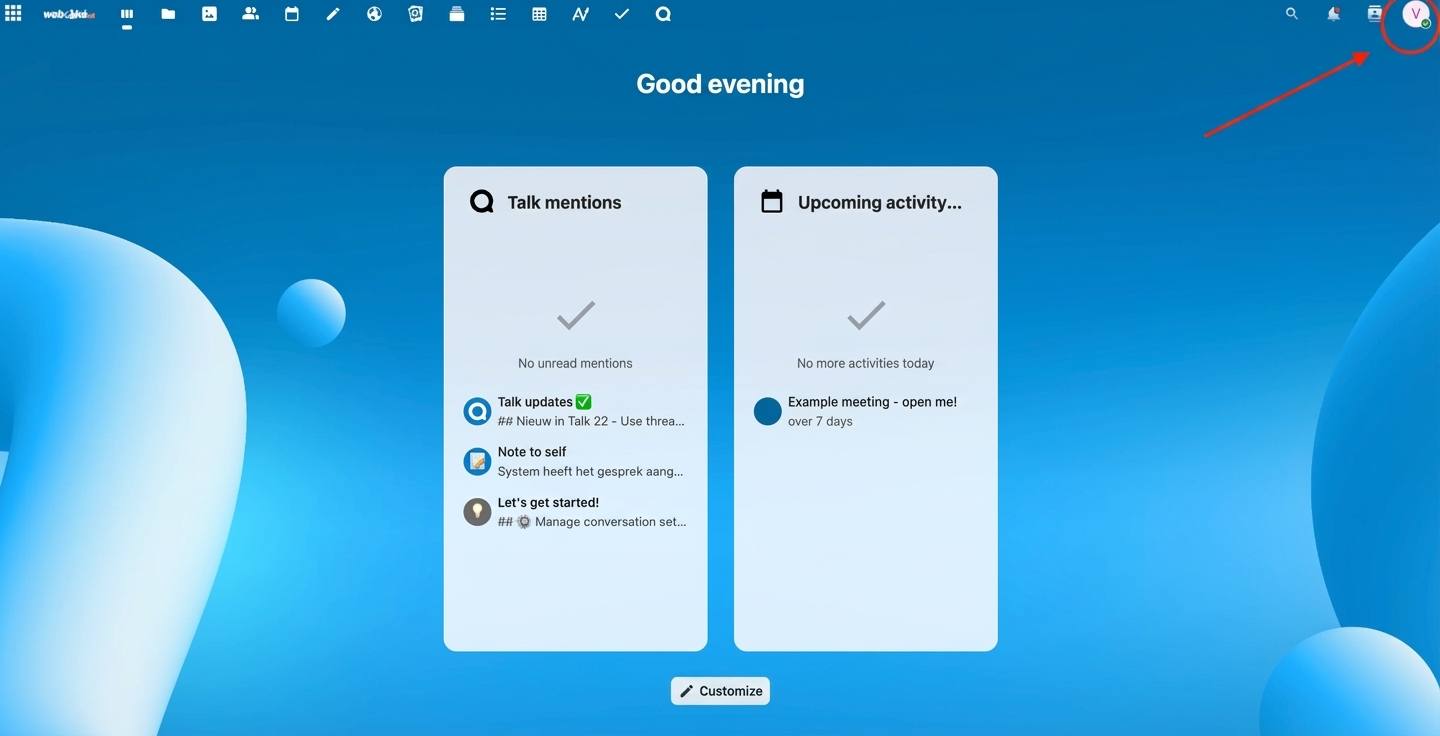
Step 2 - Go to your Nextcloud server on your PC or laptop and log into your account, then click on your profile in the top right.
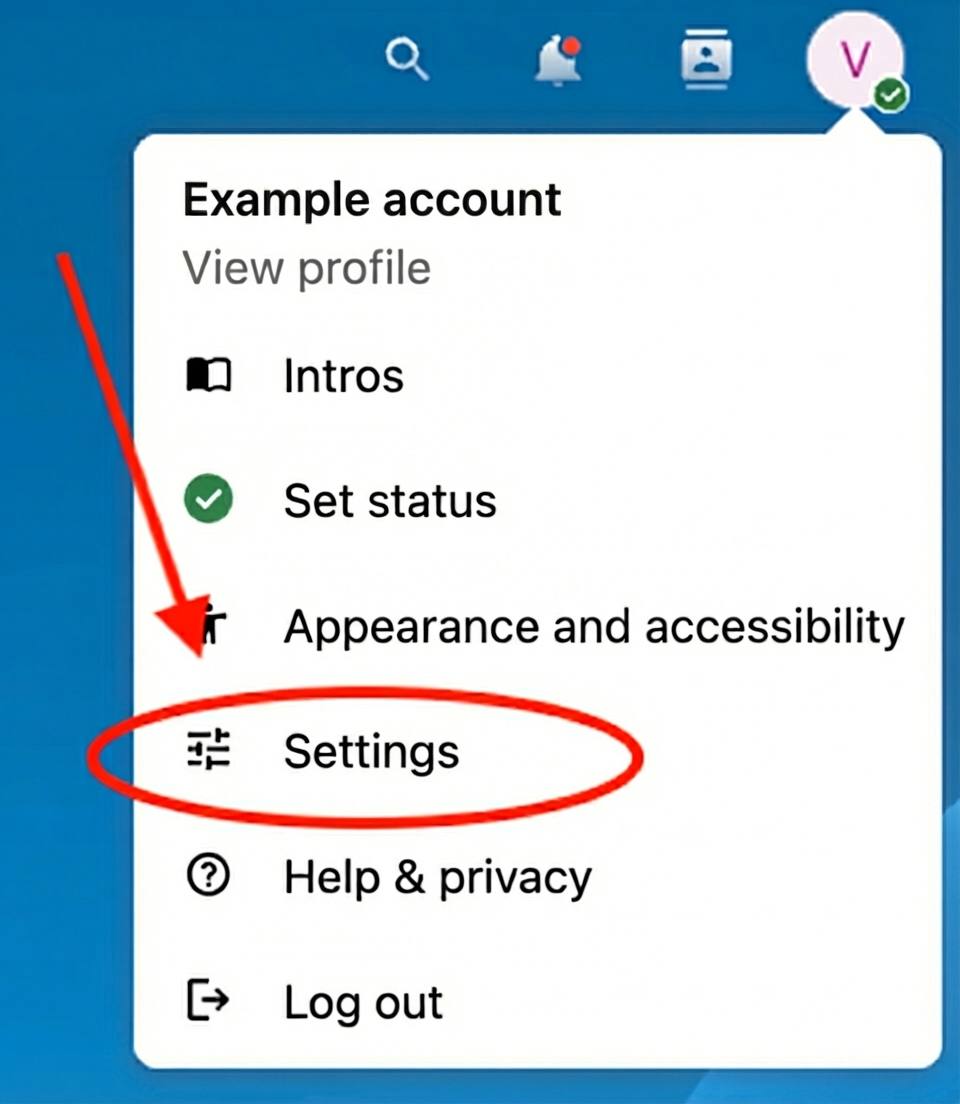
Step 3 - Click on 'Settings' in the dropdown menu
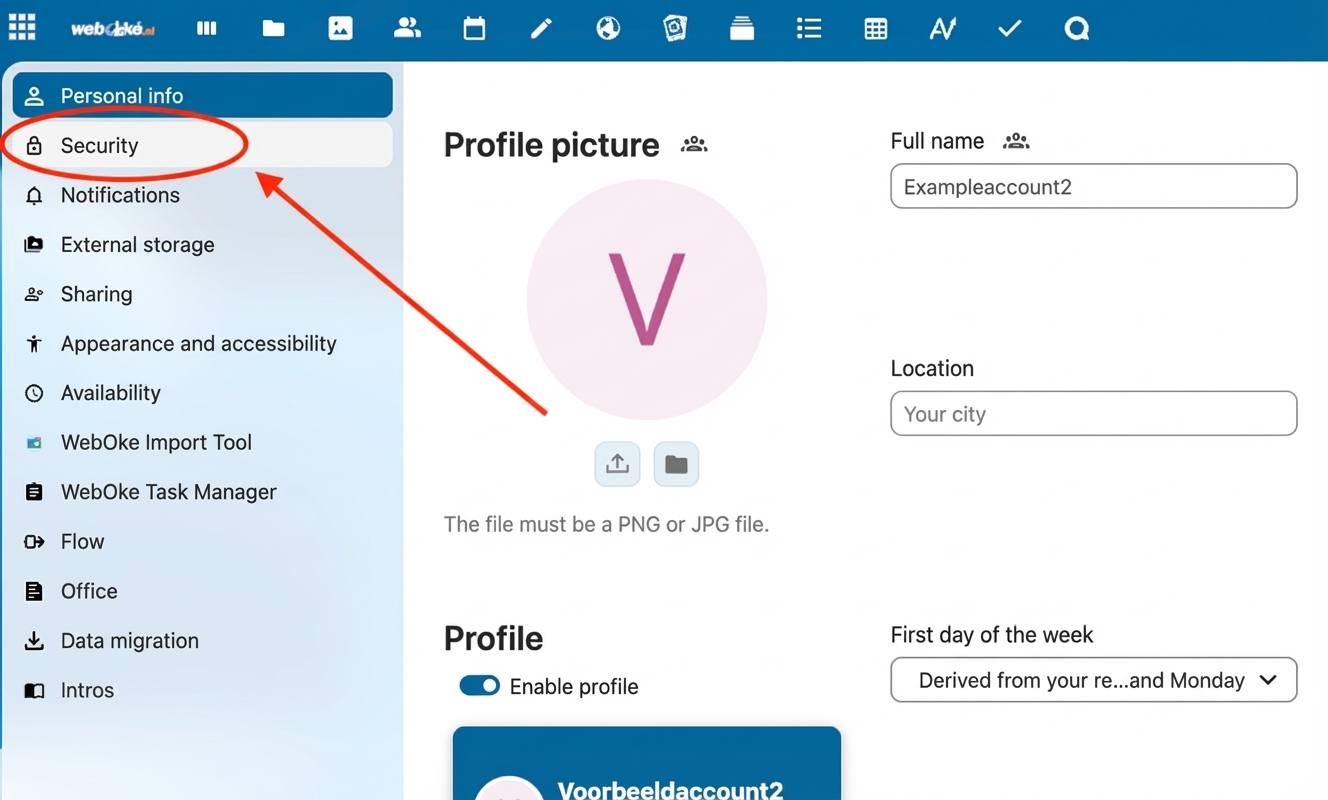
Step 4 - Click on 'Security' on the left
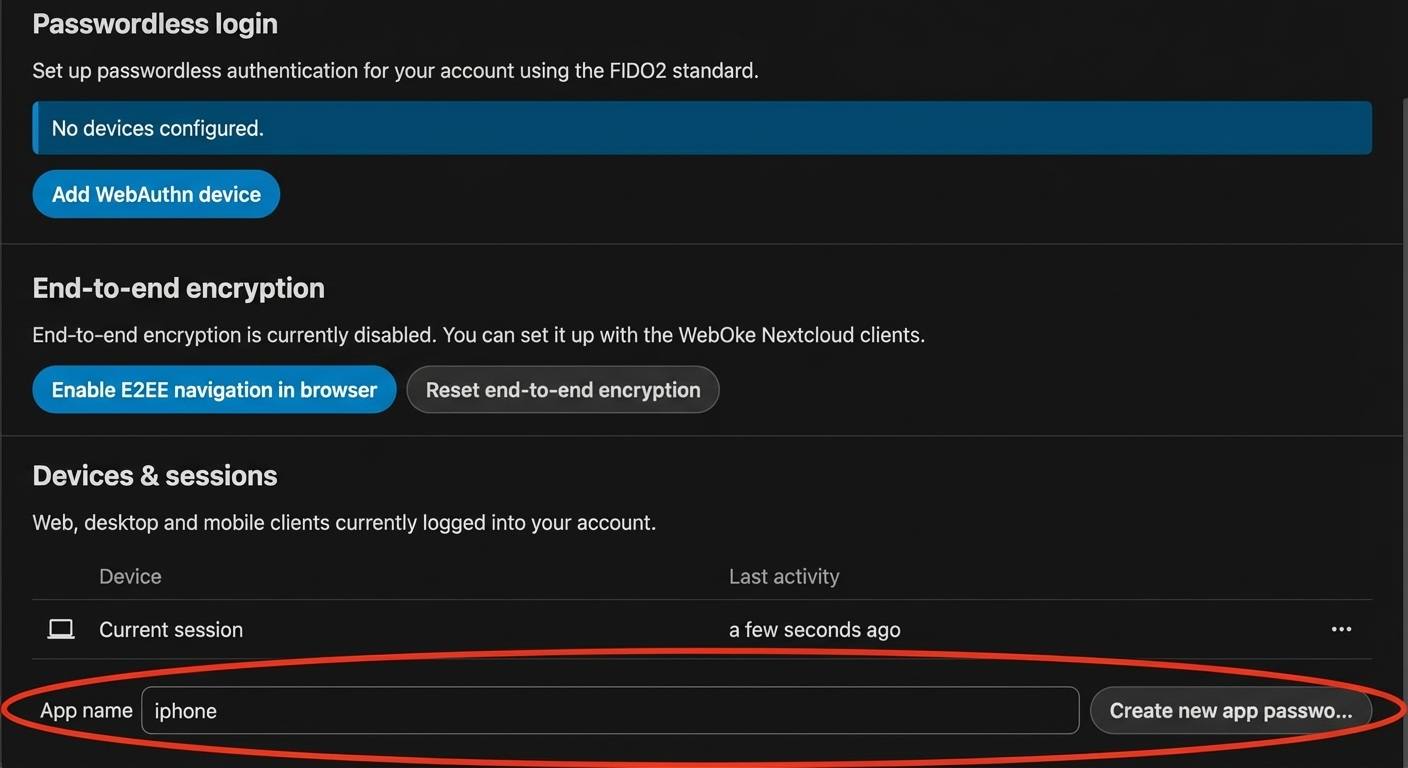
Step 5 - Scroll all the way down in this screen to 'Devices & sessions'.
Here we'll create a secure app password that can be used to establish a connection with the iPhone app.
Enter a recognizable name in the field (in this case 'iPhone') and then click on 'Create new app password'.
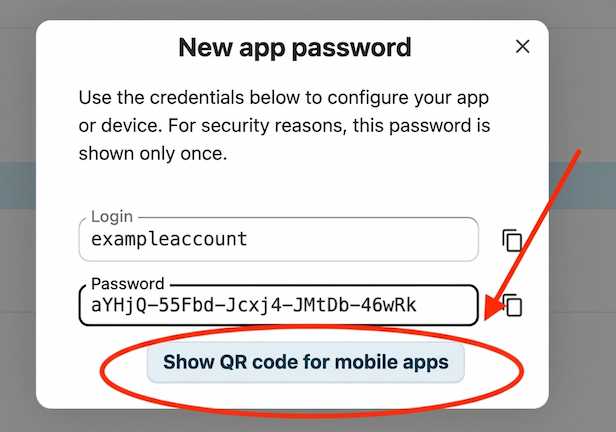
Step 6 - You'll then see the unique app password that has been created in the pop-up.
If you want to log in on a smartphone, you can choose to log in with a QR code, then you can click on 'Show QR code for mobile apps' to see and scan the password's QR code.
TIP: If you have both a Mac and an iPhone and need this password on the iPhone, you can copy the password on your Mac and paste it directly on your iPhone.
That's it! With this password you can set up a secure connection from another app or device, to disconnect simply delete the app password.