























With the Nextcloud Files app for Windows you can synchronize the data on your Nextcloud server with Windows.
In Windows Explorer you can open and edit files and folders stored on your Nextcloud server, and you can also upload files and folders directly to your server.
Installing this app is quick and easy - we'll help you step-by-step!
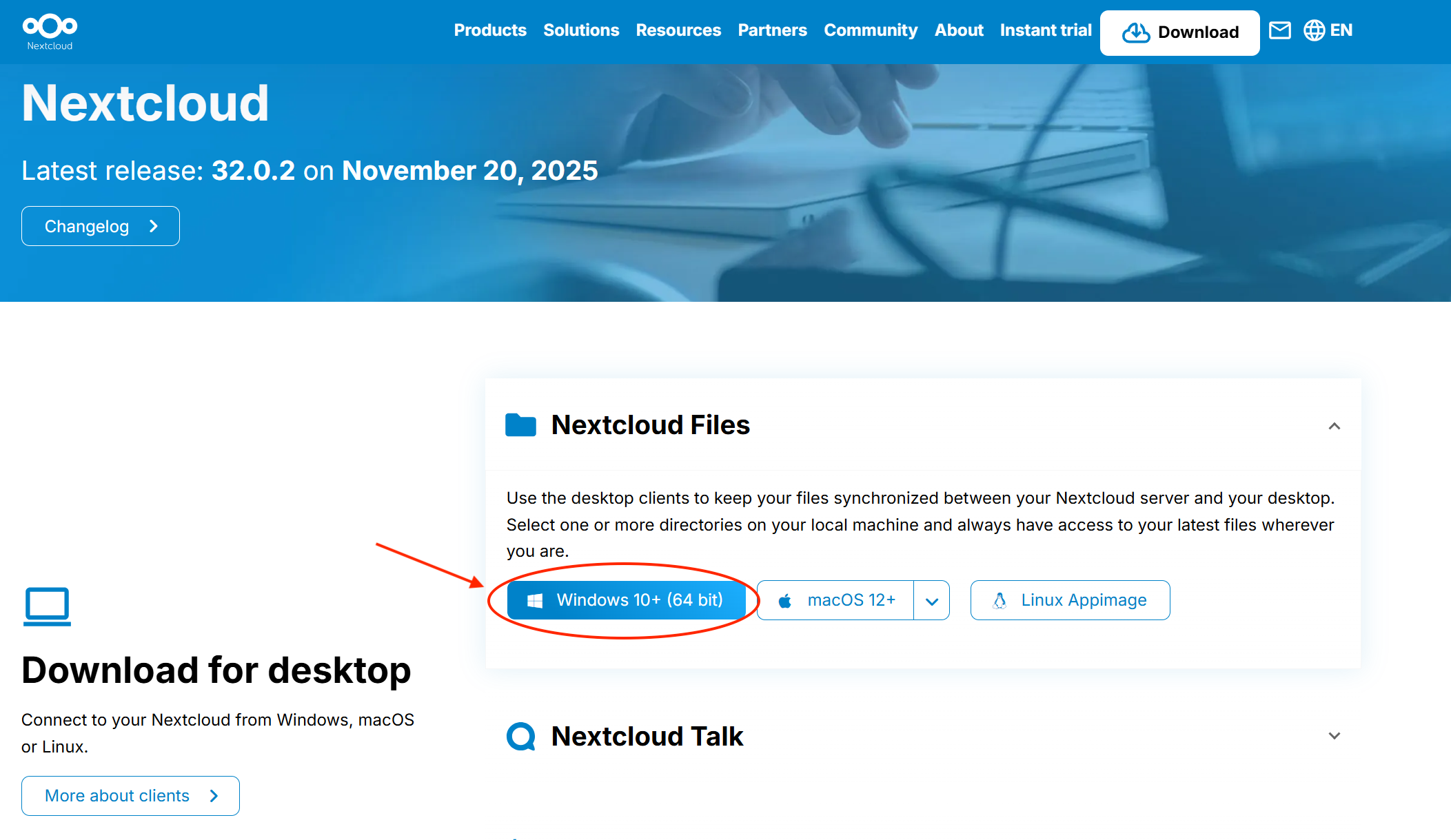
Step 1 - Click here to download the Nextcloud Files app and go through the installation process.
Step 2 - Open your browser and log in to your Nextcloud server with your Nextcloud account if you haven't already.
Step 3 - Open the Nextcloud Files app and click on 'Log in'.

Step 4 - Enter your Nextcloud server URL and click on 'Next'

Step 5 - Your browser will then open, click on 'Log in' here.

Step 6 - Complete the login process if you're not already logged in to your Nextcloud account.
When you're logged in you'll see this screen, click on 'Grant access' here

Step 7 - When you return to the app you'll see this screen, where you can make several choices that we'll explain.
Synchronize everything from server: with this option everything is stored both on your Nextcloud server and on your Windows device.
The advantage is that you always have a local copy of all data, but the disadvantage is that if you have, for example, 100GB of storage in use on the server, your data also takes up 100GB of space on your Windows device.
The advantage is that your data is always available offline, for example in case of problems with your Nextcloud server or when you don't have internet.
Choose what to sync: here you choose which folders should always be synchronized and which should have a local copy kept. This can be a useful option when you want to access certain folders offline.
Use virtual files instead of downloading content immediately: with this option nothing is downloaded initially. You can find the entire folder structure of your Nextcloud server in Windows Explorer, but these are shortcuts and previews.
Only when you open a file is it downloaded directly from the server and stored locally. This method ensures that almost no storage space is used on your Windows device, the disadvantage is that your data is not accessible without an internet connection.
Choose which option suits you best and click on 'Connect'.

Step 8 - Done! You're now logged in and have an active connection between your Windows device and your Nextcloud server.