





We'll get straight to the point:
Unlike iOS, Android doesn't natively support the open CalDAV/CardDAV protocols needed to synchronize Nextcloud calendars and contacts.
This makes sense from Google's perspective (Android is owned by Google) - they want you to use their services.
To make this possible anyway, you need to install the DAVx5 app, which costs a one-time fee of €5.99 in the Google Play Store.
Click here to view the app in the Google Play Store.
In this article we'll explain how to set up a CalDAV and CardDAV connection using DAVx5.
Step 1 - Open the DAVx5 app and set your preferences, it's important here to give the app all permissions to work properly.
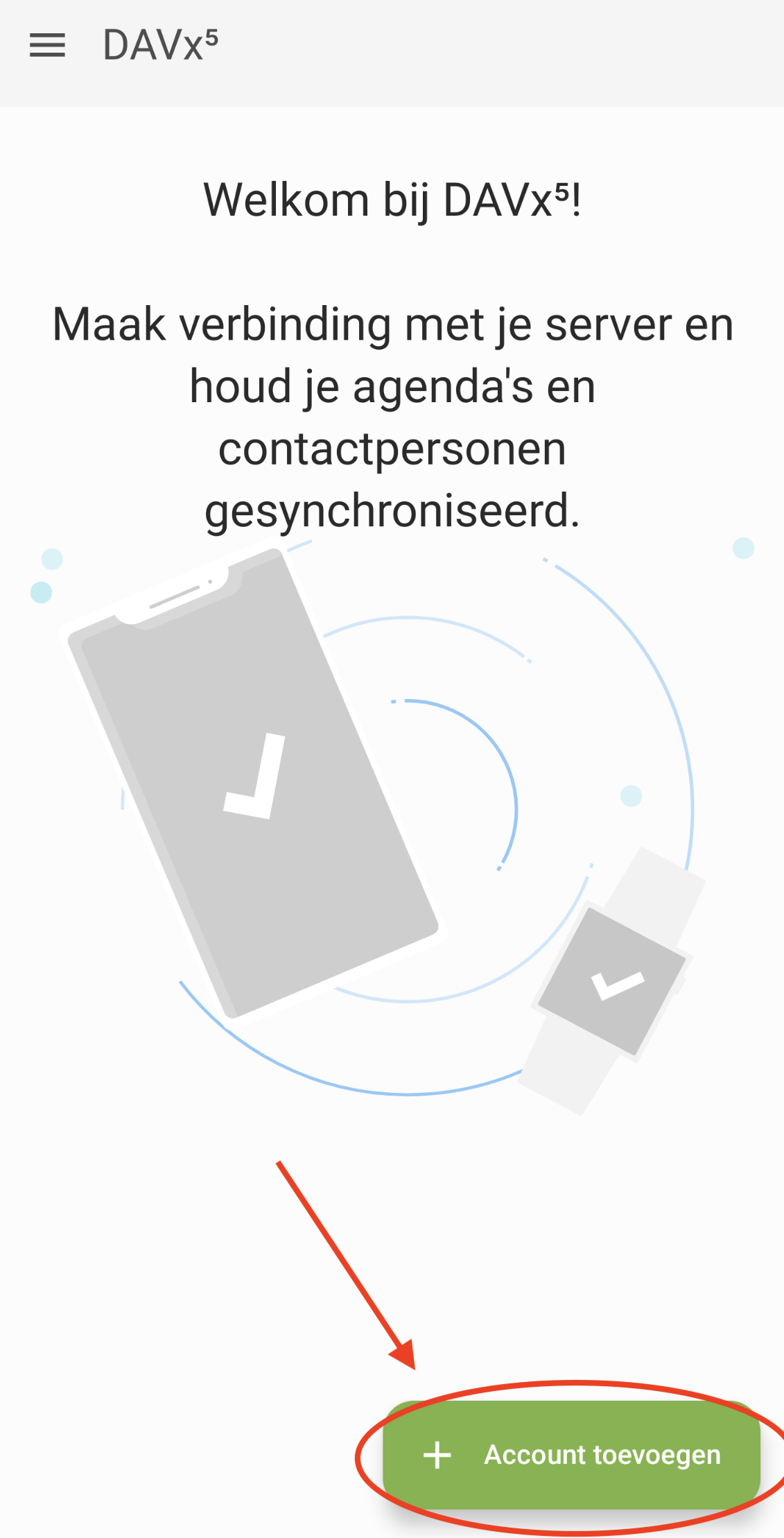
Step 2 - After setting your preferences you'll see this screen. Click on 'Add account'.
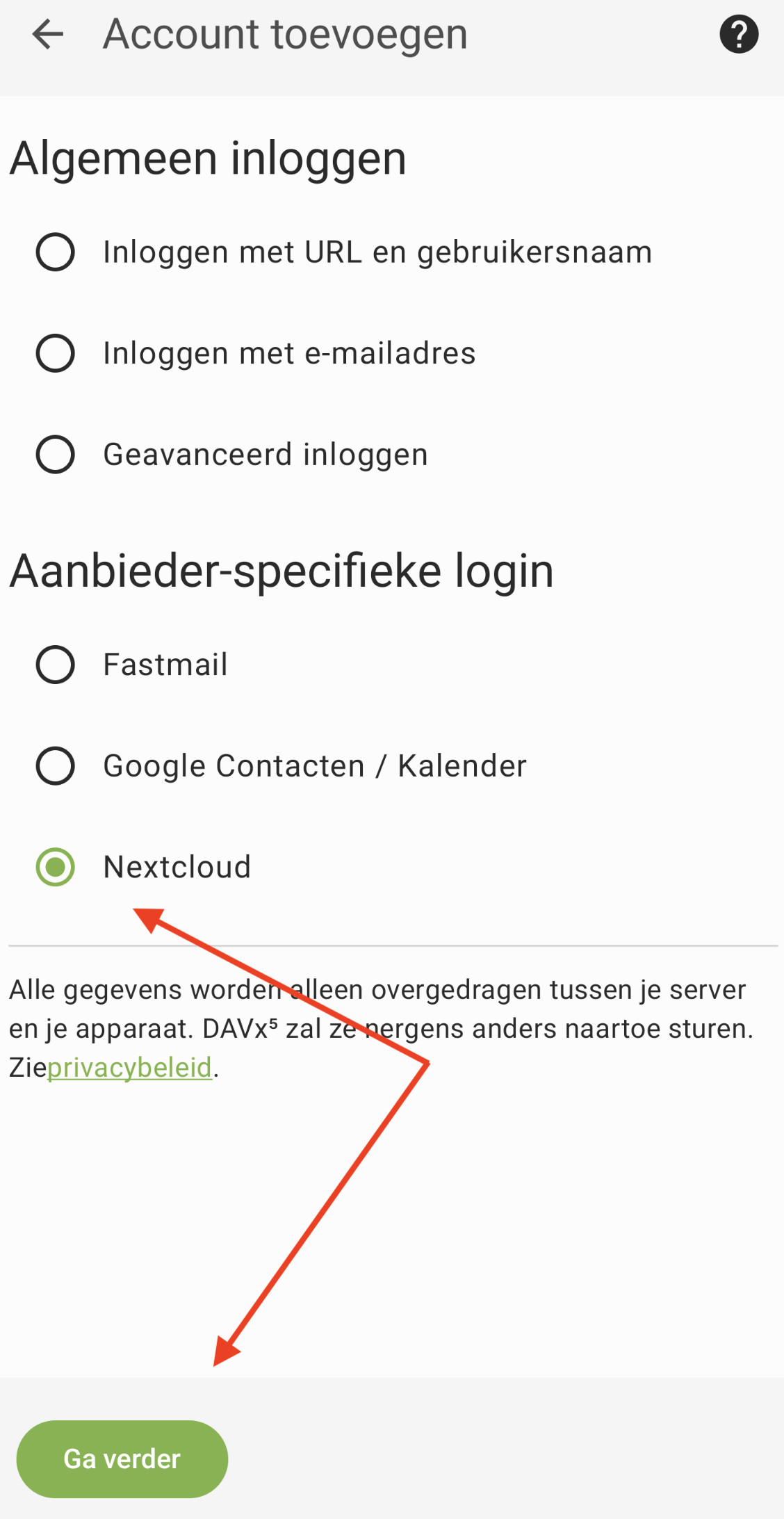
Step 3 - Choose Nextcloud and click on Continue
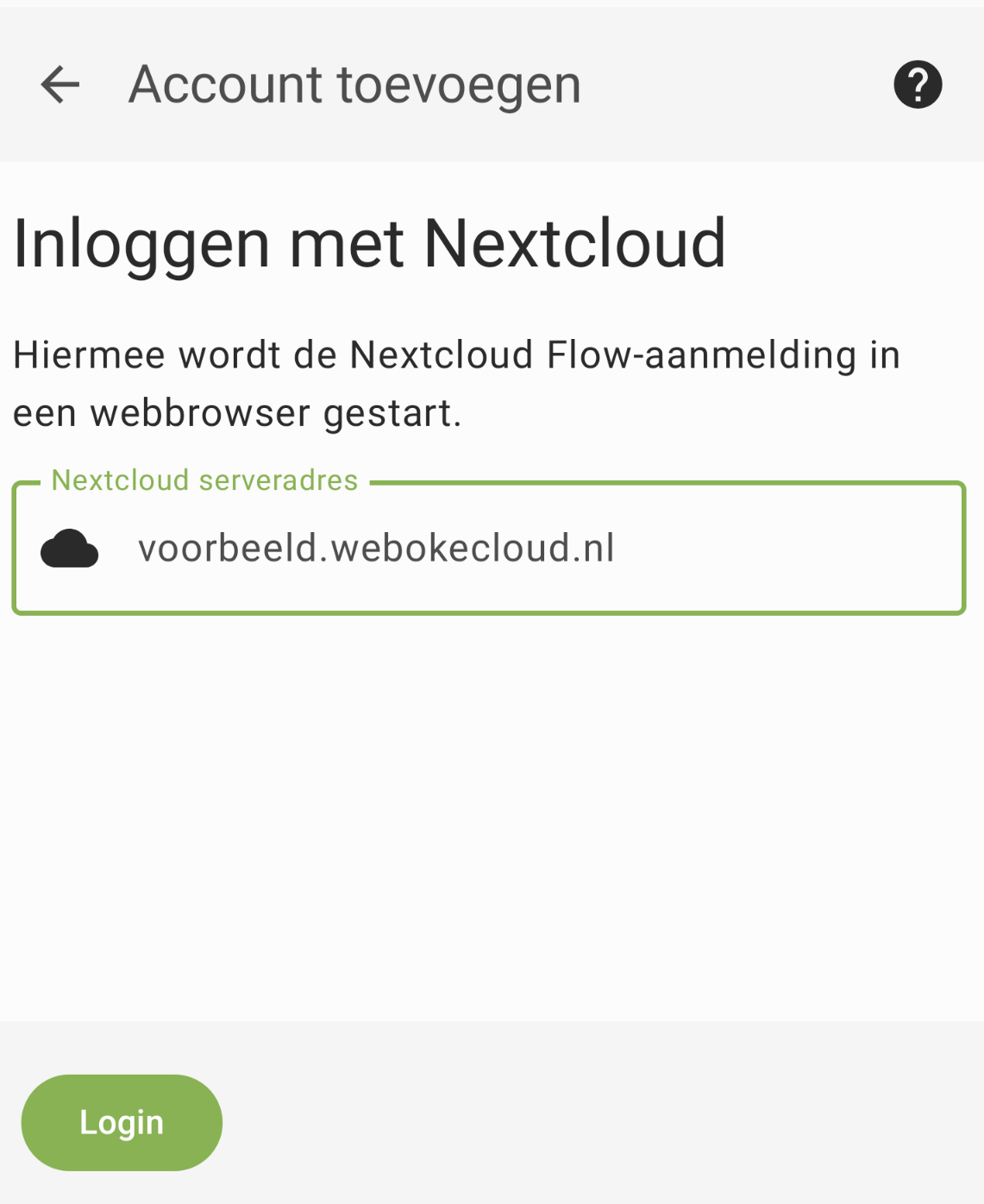
Step 4 - Enter your Nextcloud server URL and click on Login
Step 5 - The browser will then open where you can follow the normal login process to your Nextcloud account. After successfully logging in, you'll see a pop-up where you can choose Grant access to give the app permission to establish a connection with your Nextcloud account.
Step 6 - Check the calendars and contact lists you want to synchronize and then click on 'Synchronize now'.
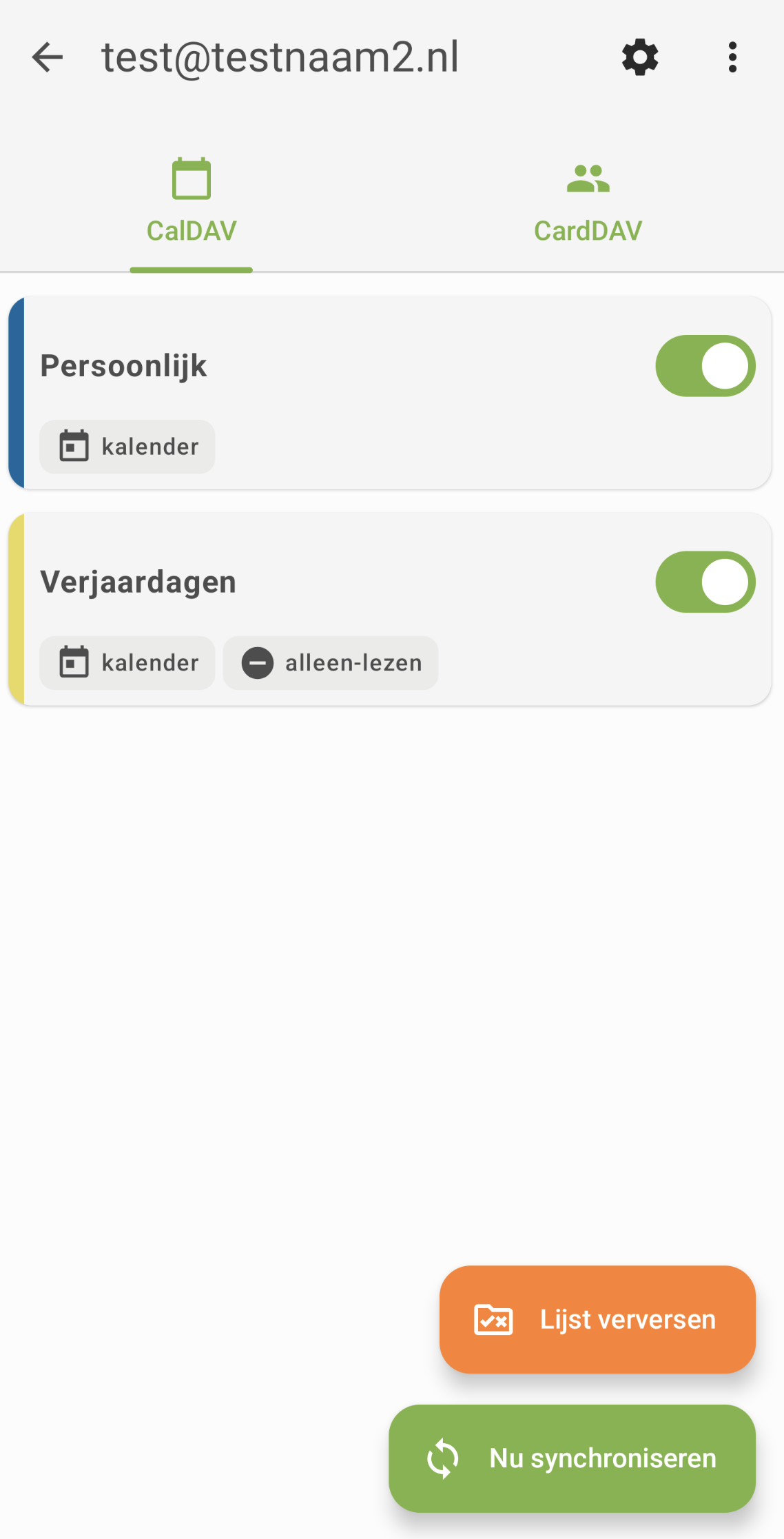
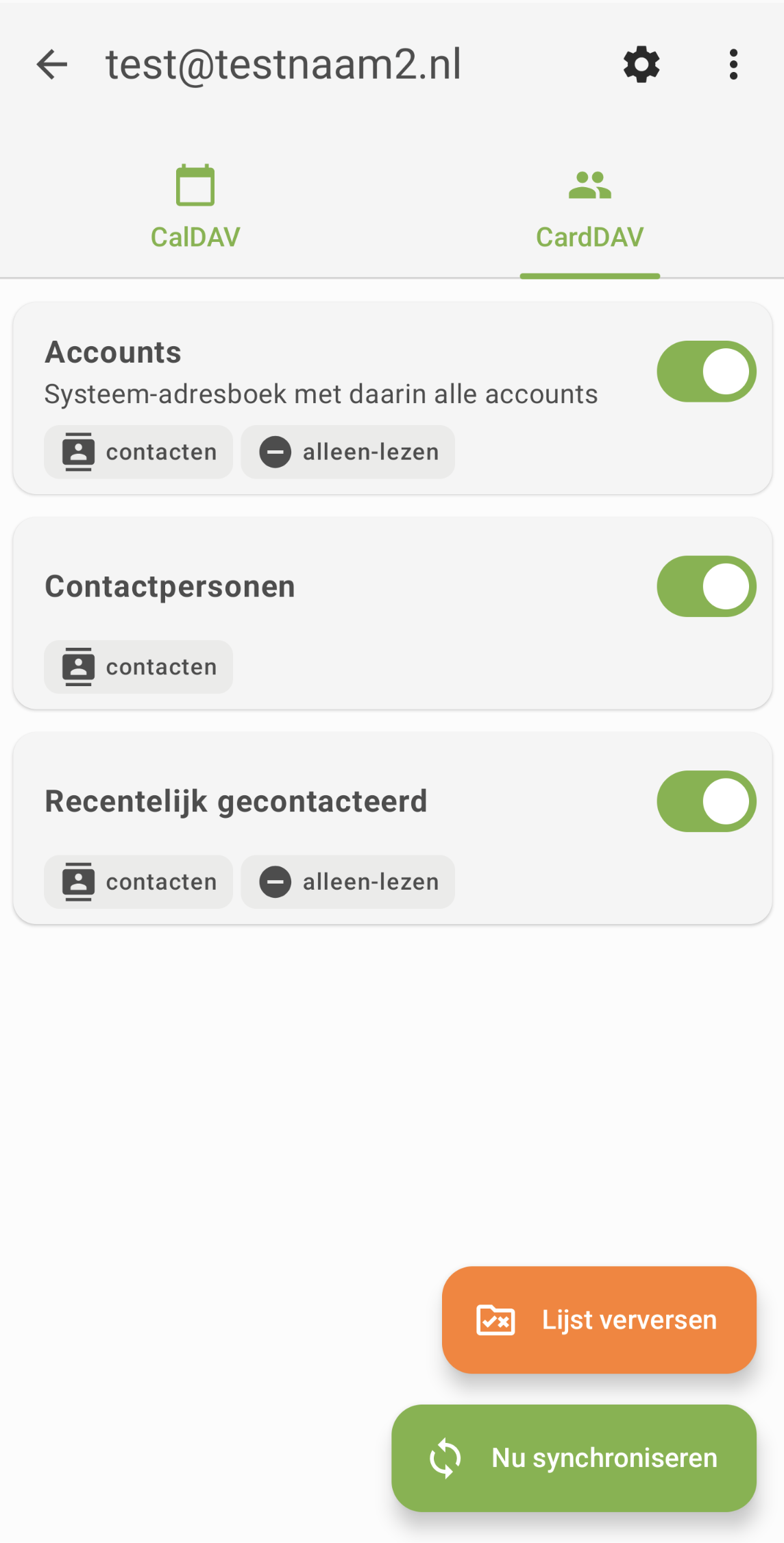
Step 7 - Done! Your calendars and contact lists are now synchronized with your Android device, they can be found in your standard calendar and contacts app.