
Chapter 2 · 2.2
Verifying your domain in My WebOké
Are your nameservers set to ns1.webawere.nl and ns2.webawere.nl? Then add Google's TXT record in My WebOké. You need the code from Google Search Console (see Signing in and adding your domain).
How to add the record
- In My WebOké, go to My Domains and click the DNS tab.
- Choose the right domain at the top.
- Click + Add record. The Add DNS record window opens.
- Under Type, choose TXT (1).
- Under Name, type @ (2). This means the domain itself. Below the field, Full name now shows exactly your domain name.
- Leave TXT record type set to Plain (free text).
- Under Text (3), paste the full code from Google Search Console, including
google-site-verification=. Don't type any quotation marks: they are added automatically if needed. - Click Save record (4).
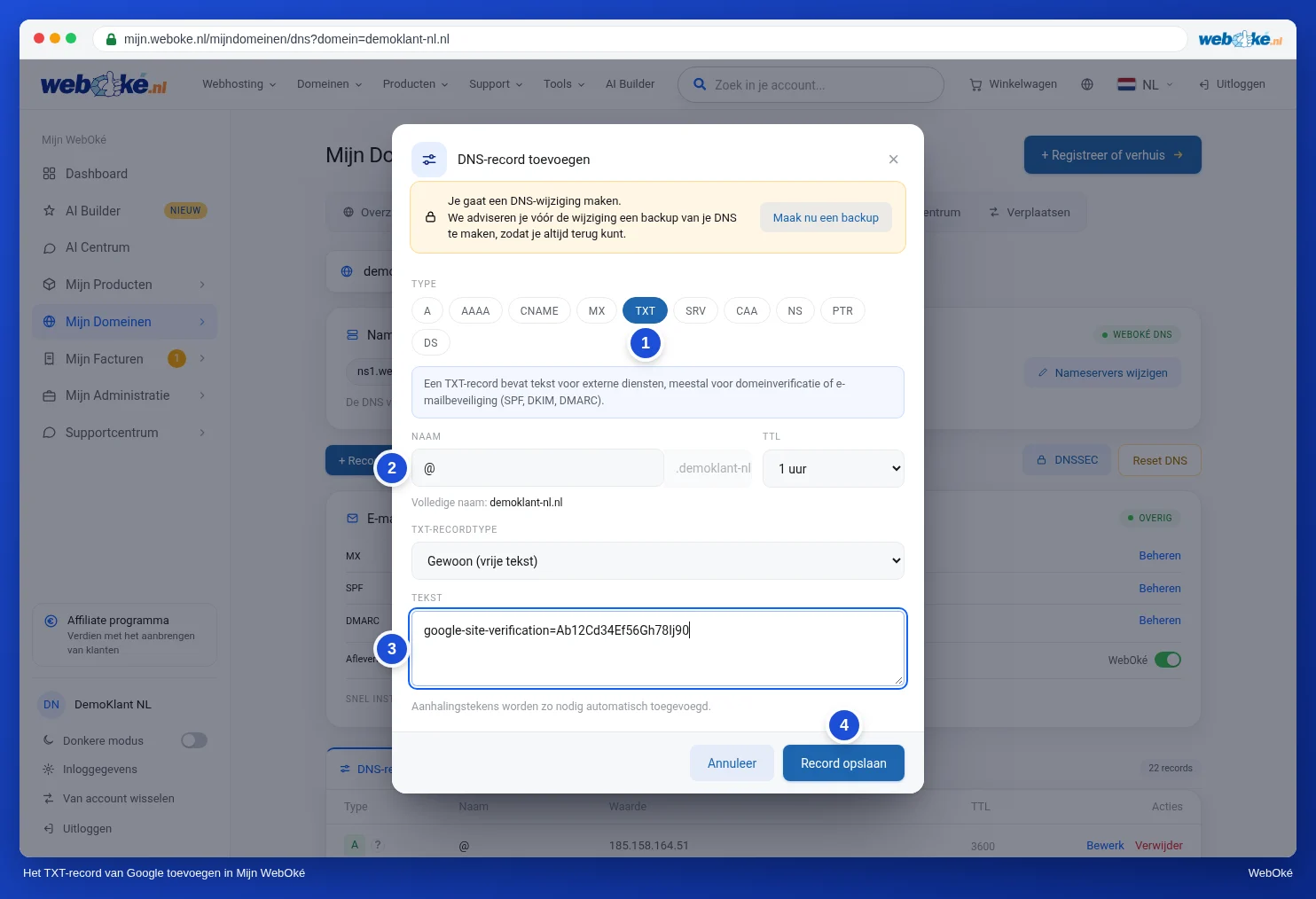
You'll see a message that the record has been added, and it appears in the list. Go back to Google Search Console and click Verify.
Not working straight away?
A change is usually active within an hour. Try again after fifteen minutes. Google says it can sometimes take two to three days before the record is visible everywhere. Still not working after that? Read Verification not working? Here's how to fix it.
Please note: Keep the record in place, even after verification has succeeded. Google regularly checks whether it's still there. If you remove it, you'll get a notification and after a while you'll lose access to Google Search Console. Visitors and your email won't notice the record at all.
For more on adding, editing and deleting records, read Managing DNS: adding, editing and deleting records. How TXT records work is explained in TXT records and domain verification.