
Chapter 2 · 2.3
Verifying your domain in DirectAdmin
Prefer working in DirectAdmin? You can add the same TXT record there. My WebOké and DirectAdmin show the same records, so you only need to do it in one place.
How to add the record
- Log in to DirectAdmin. The easiest way is through My WebOké: go to My Products and click DirectAdmin next to your package.
- In the menu under Account Manager, click DNS Administration.
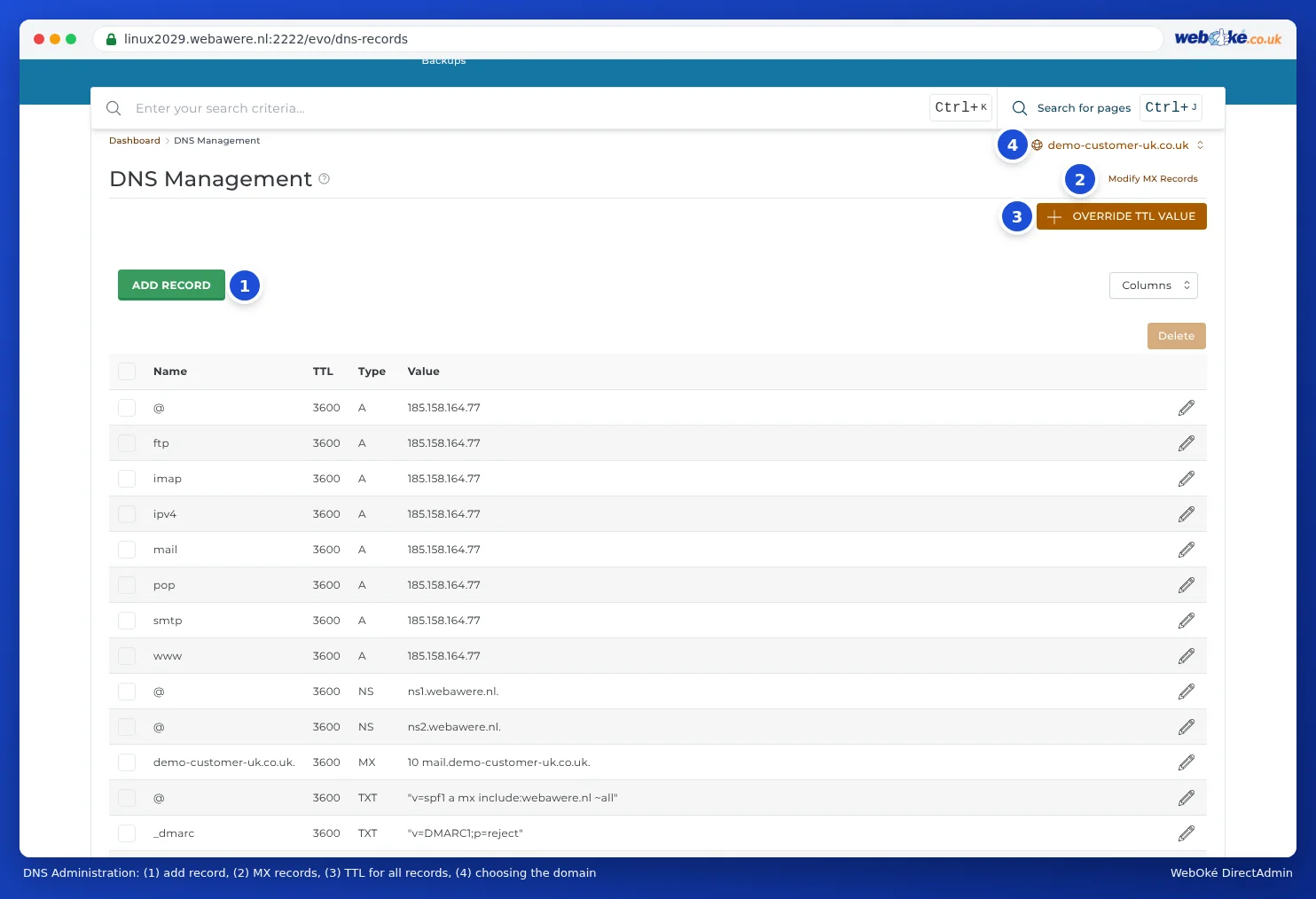
- Do you have more than one domain? Choose the right domain at the top right.
- Click ADD RECORD.
- Under Record Type, choose TXT.
- The Name field (1) already shows your domain name followed by a full stop, such as
jouwdomein.nl.. That is the domain itself. Leave it as it is. - Leave TXT Record Type (2) set to Plain.
- In Value (3), paste the entire code from Google Search Console, including
google-site-verification=. You don't need to type any quotation marks. - Click ADD.

Go back to Google Search Console and click Verify. If it doesn't work straight away, wait fifteen minutes and try again. Afterwards, leave the record in place.
Tip: Don't add your domain name to the Name field yourself. The record would then become jouwdomein.nl.jouwdomein.nl and Google won't find it. For more information, read TXT records for verification (Google, Microsoft and others).