























Because Apple natively supports CalDAV on all its devices, adding and synchronizing your Nextcloud calendar to your Mac is a piece of cake.
Step 1 - To add your calendar to your Mac, you need to create an app password, click here to learn how to create one.
Step 2 - Open the Calendar app on your Mac and click on 'Calendar' in the menu bar at the top left, then click on 'Add Account...' in the dropdown menu

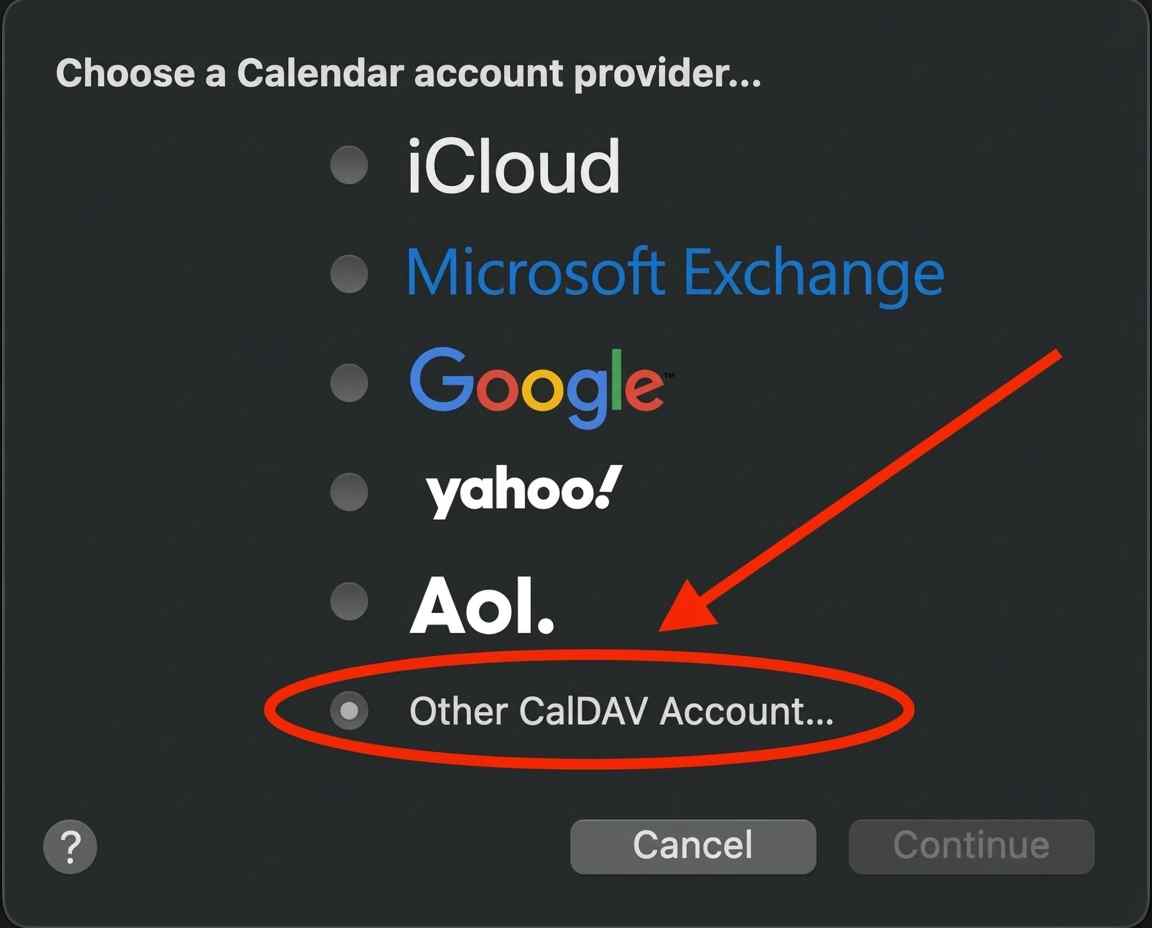
Step 3 - Check 'Other CalDAV Account...' and click 'Continue'
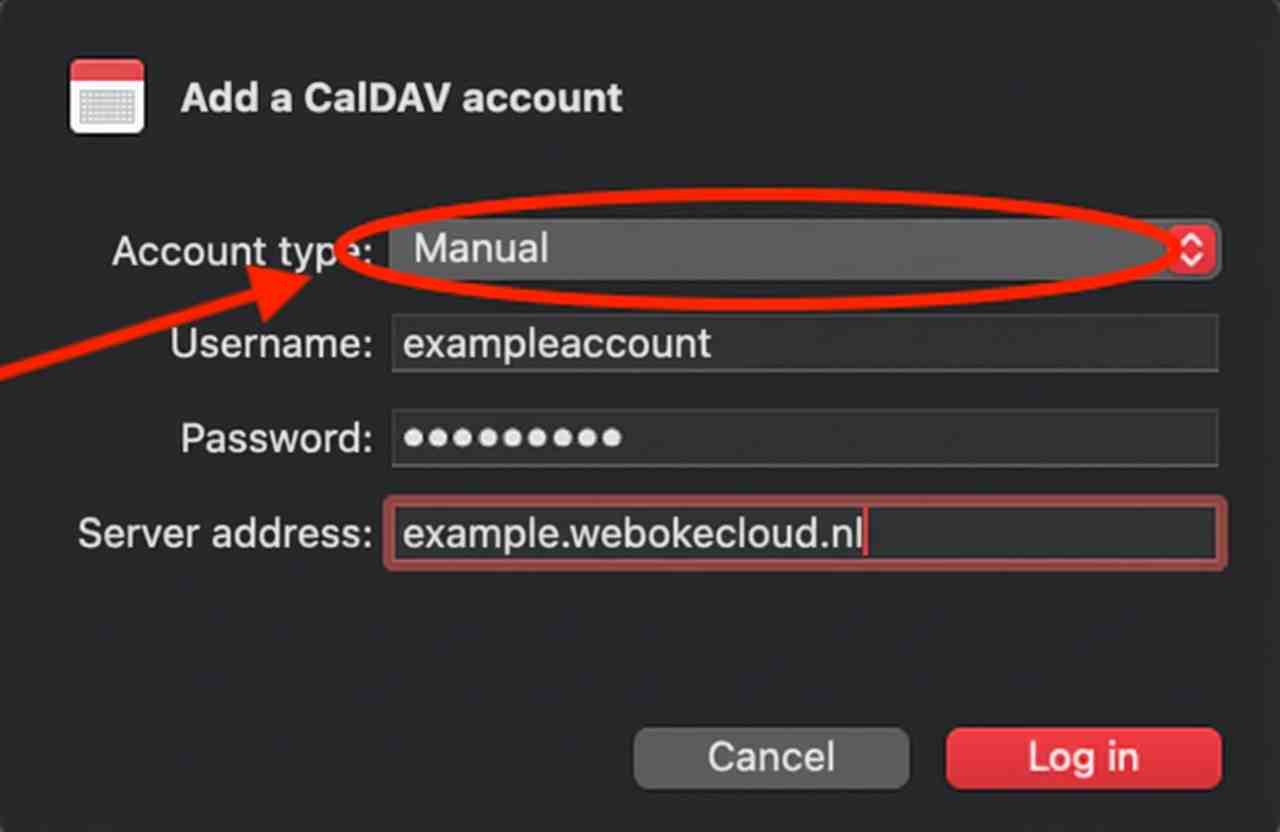
Step 4 - Choose 'Manual' from the dropdown menu at 'Account Type'.
Then enter your Nextcloud username and the app password you created.
Don't know how to create an app password? Click here.
Then enter your Nextcloud server URL and click 'Sign In', and you're done!