
Add a mailbox to Apple Mail on macOS
In this article, we explain how to add a mailbox that you created yourself in DirectAdmin (Create a new email address or mailbox) to Apple Mail on your Mac.
There are two ways to do this:
Option 1: the standard way, where you enter the details yourself
Option 2: download the mailbox configuration file from DirectAdmin and install it on your Mac
We'll start with Option 1. Want to use Option 2? Then scroll down.
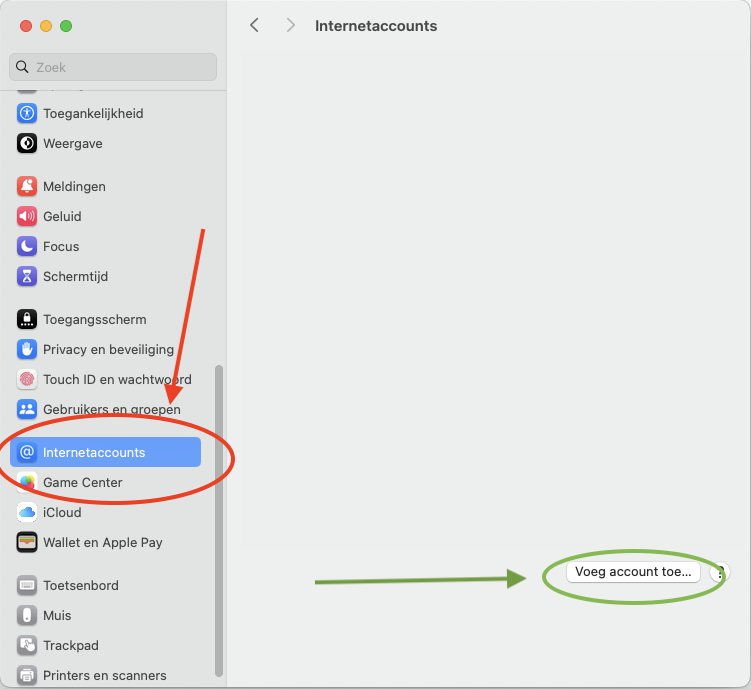
Step 1: Open System Settings on your Mac and open 'Internet Accounts'. Then click 'Add Account...'. You can also open the Mail app and choose Add Account from the Mail menu. The names may differ slightly depending on your version of macOS.
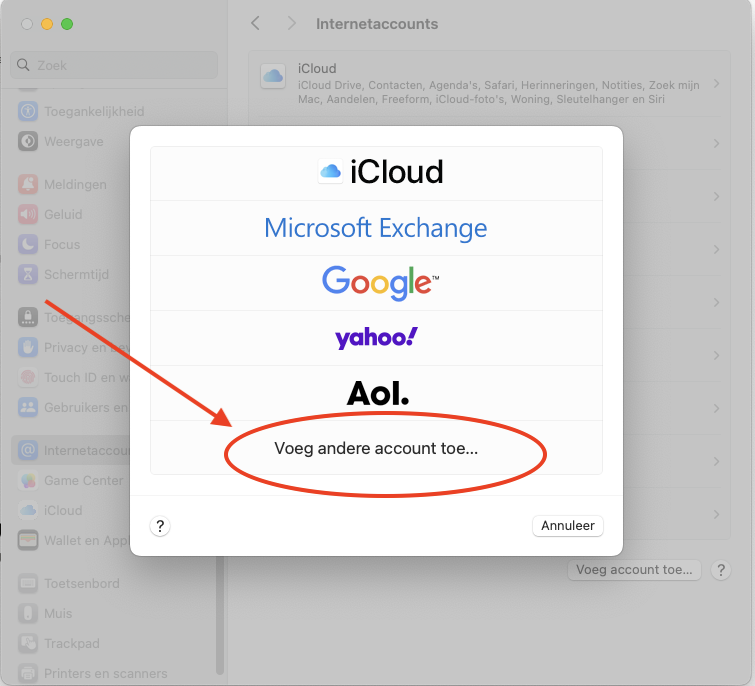
Step 2: Choose 'Add Other Account...'
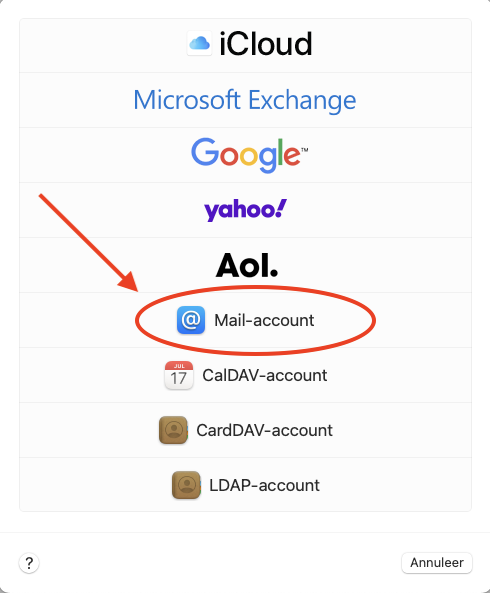
Step 3: Choose 'Mail account'
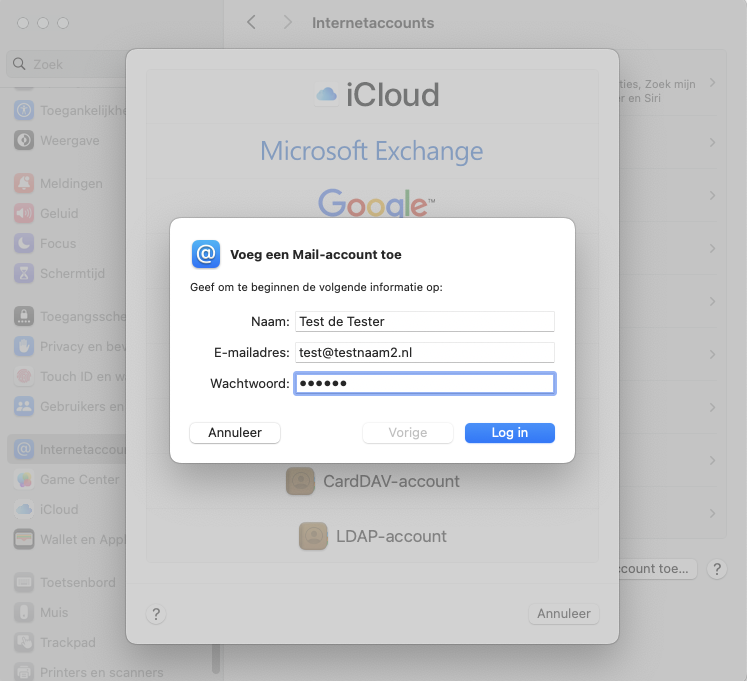
Step 4: Fill in these fields:
Name: This is the display name of the mailbox. When you send an email, the recipient sees this name as the sender in their inbox.
Email Address: This is the email address you created in DirectAdmin.
Password: You set this password when you created the mailbox. Forgot the password? Read Change the password or limits of an email address.
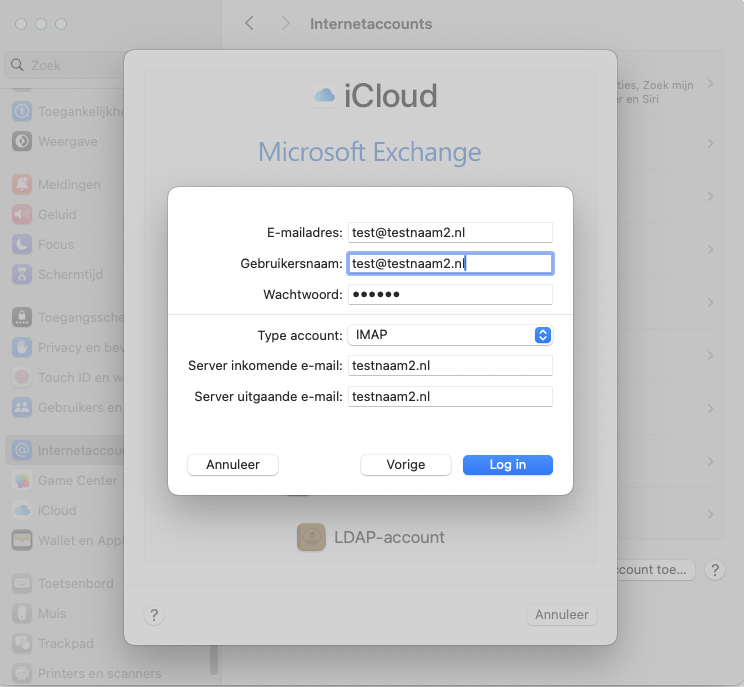
Step 5: Fill in all fields, even if they say they're optional.
Email Address: This is the email address you created in DirectAdmin.
User Name: Enter your full email address here as well. This must always be filled in.
Password: The password of the mailbox.
Account Type: IMAP
Incoming and Outgoing Mail Server: This is your domain name, so in this example testnaam2.nl. If there's IMAP, SMTP or mail in front of your domain name, you can remove it: just the domain name is enough.
Please note: Is only your email hosted with us and your website with another provider, for example with an email package? Or do you get a certificate warning? Then your domain name won't work as the server. In that case, enter the server name of your package. You can find it in My WebOké under My Products and in the welcome email for your package. It looks something like this: linux2023.webawere.nl.
Done! The mailbox has now been added to Apple Mail.
Is sending or receiving not working? In the Mail app, choose Settings from the Mail menu, then Accounts, select your account and open Server Settings. Turn off automatic management of the connection settings and enter: incoming port 993 with TLS/SSL, outgoing port 587 (or 465) with TLS/SSL, and your full email address as the user name for both.
Option 2: add the mailbox using the configuration file
- In DirectAdmin, go to Email Accounts.
- Click the three dots next to the email address and choose Download Apple iOS, iPadOS, Mac configuration.
- Open the downloaded file on your Mac. Go to System Settings: the profile will be ready to install there (under Privacy & Security, under Profiles, or as a notification at the top).
- Install the profile and enter the password of your email address when prompted.
Please note: the configuration file usually uses mail.yourdomain.nl as the server. Do you get a certificate warning afterwards, or does it not work because your website is hosted elsewhere? Then remove the profile and add the mailbox using Option 1, with the server name of your package.
See also in the DirectAdmin manual: All settings at a glance: servers, ports and security.
Detailed explanation with screenshots: Apple Mail and Outlook on the Mac in the DirectAdmin manual.