
Chapter 3 · 3.1
Your profile and contact details
In your profile you'll find the details of your DirectAdmin account: your name, the e-mail address DirectAdmin uses to reach you, your password and your notifications. You'll also find your sessions, your Skin Options and Two-Step Authentication here.
Opening your profile
- Click Hello, followed by your username, at the top right.
- Choose Profile.
You'll land on the User Profile page, with four tabs (1):
| Tab | What do you manage there? |
|---|---|
| General | Your name, your contact e-mail address, your password and your notifications. That's what this article covers. |
| Sessions | Where you're currently logged in, with the Login History below. See Logging out and closing safely and Login History: who logged in and when?. |
| Skin Options | Light or dark, language, date format and File Manager settings. See Skin Options: light or dark, display and more. |
| Two-Step Authentication | Extra security with a code from an app. See Setting up Two-Step Authentication. |
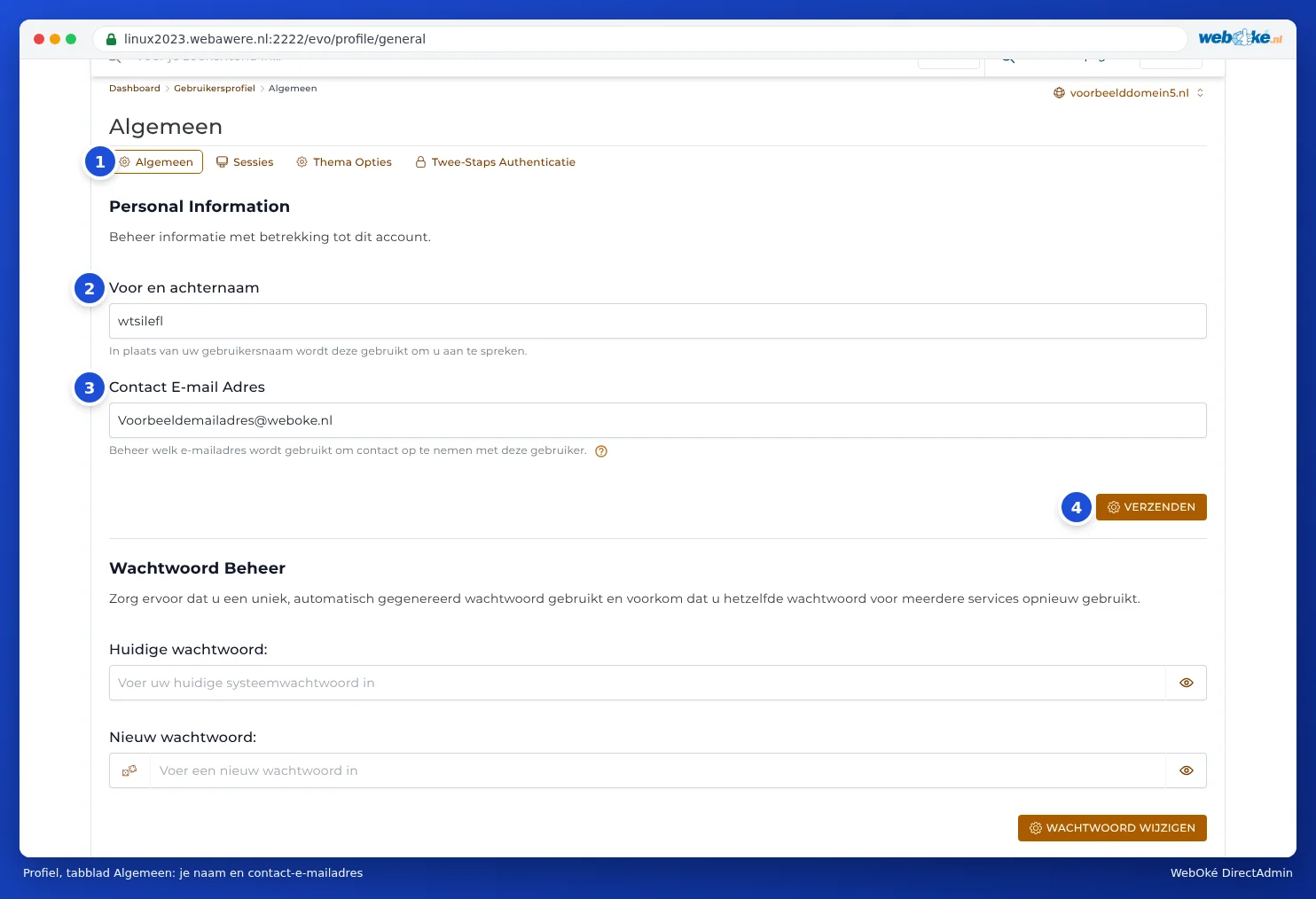
Your name and contact e-mail address
In the Personal Information section (this heading isn't translated), you'll find two fields:
- Full Name (2): DirectAdmin will address you by this name instead of your username. This field can be left blank.
- Contact E-mail Address (3): the address DirectAdmin e-mails you on, for example when you're close to a limit or when a backup is ready.
Update the fields and click SEND (4).
Tip: Choose a contact address that isn't part of the same package, for example your personal address. If your disk space is full, that package won't receive any more mail, including warnings.
Changing your password
Below your details is the Password Management section. There you can change your DA password if you know your current password. If you don't know it, set a new password via Mijn WebOké. Both methods are explained step by step in Setting or changing your DA password.
Notification Settings
Right at the bottom, you decide which warnings DirectAdmin sends you.

- Limit Notice (1): if this is set to On, you'll get a message as soon as you use 95% of your disk space or inodes, or 80% of your bandwidth. With Off, you won't receive a message. If this is currently set to Off for you, switch it to On: that way you'll have time to clean up or upgrade before anything goes wrong.
- Two-Step Authentication Notifications (2): if you have Two-Step Authentication switched on, you'll get a message with information about every failed login attempt. That way you'll notice if someone tries to get in.
After making changes, click SEND below the section. The messages appear under Message Area in DirectAdmin (see Messages in DirectAdmin).
Can I do this in Mijn WebOké too?
Your details in DirectAdmin are separate from those in Mijn WebOké. You change your name, address and the e-mail address for invoices and e-mails from WebOké in Mijn WebOké, under My Administration and then Details. A change in one place doesn't affect the other.