
Chapter 15 · 15.5
Setting up a Node.js app
Your hosting package doesn't only run PHP. With Setup Node.js App you can set up your own Node.js application, for example an Express app or a small API. Each app gets its own Node.js version and its own folder.
Creating an app
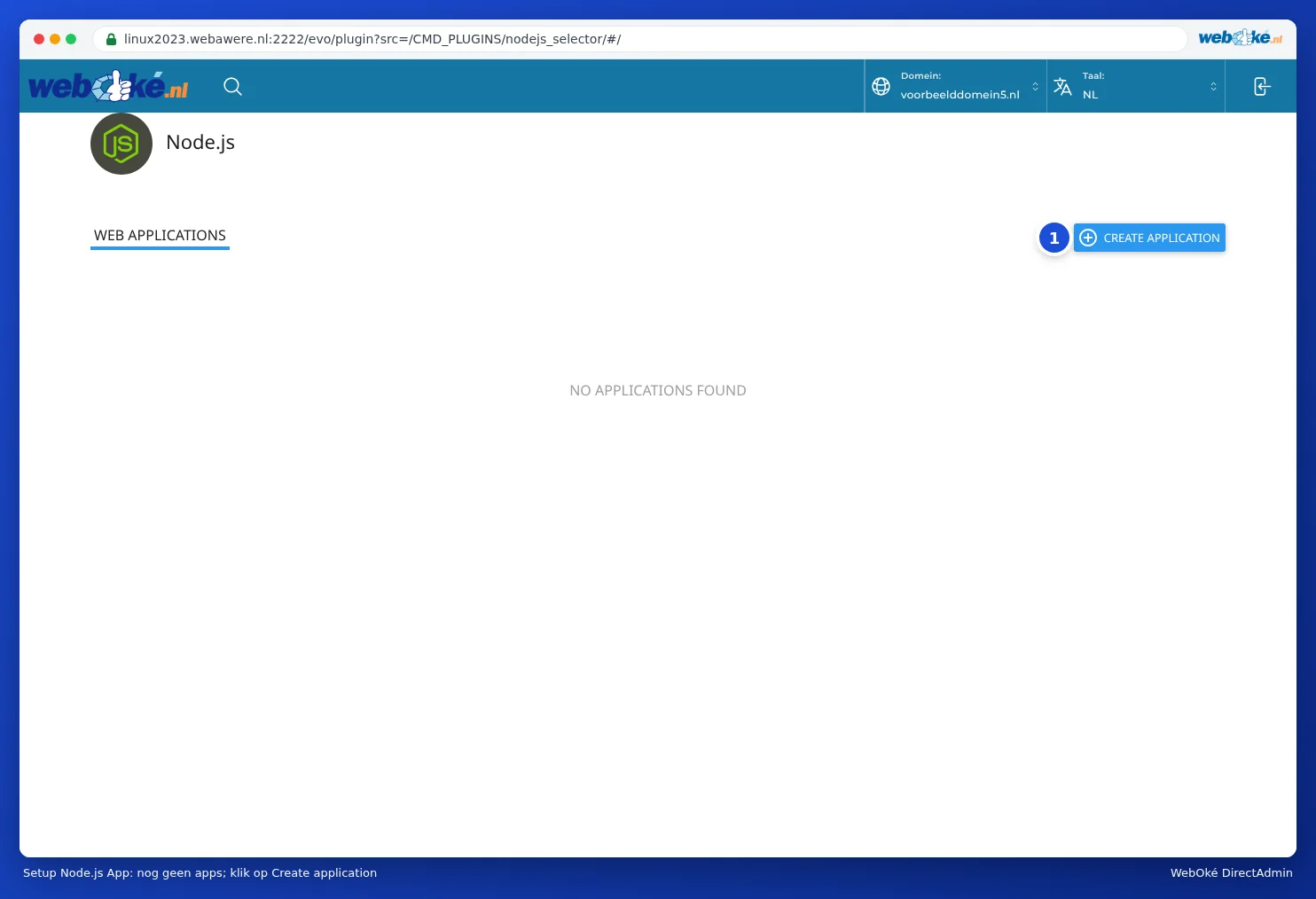
- In DirectAdmin, under Extra Features, click Setup Node.js App.
- Click CREATE APPLICATION (1).
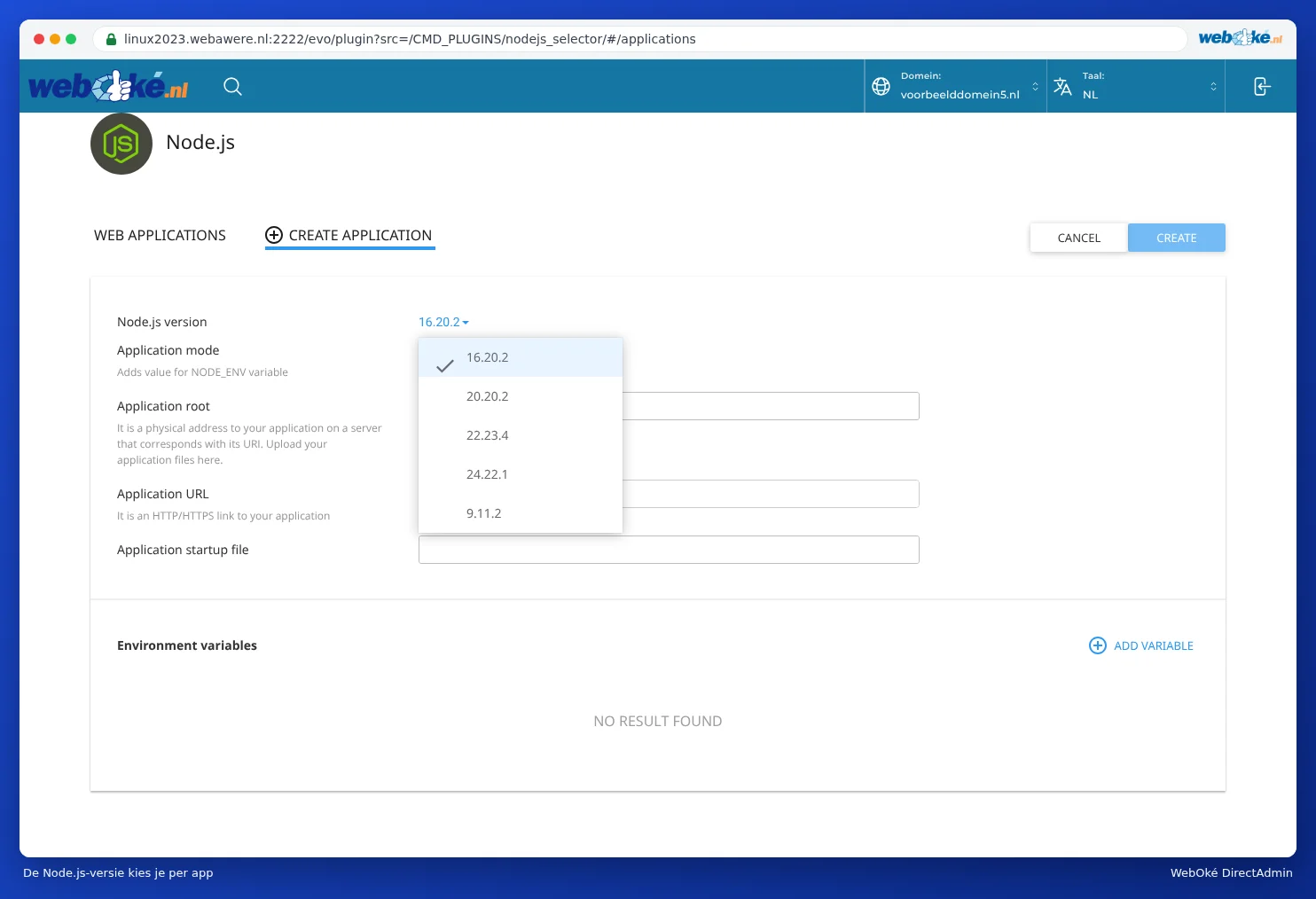
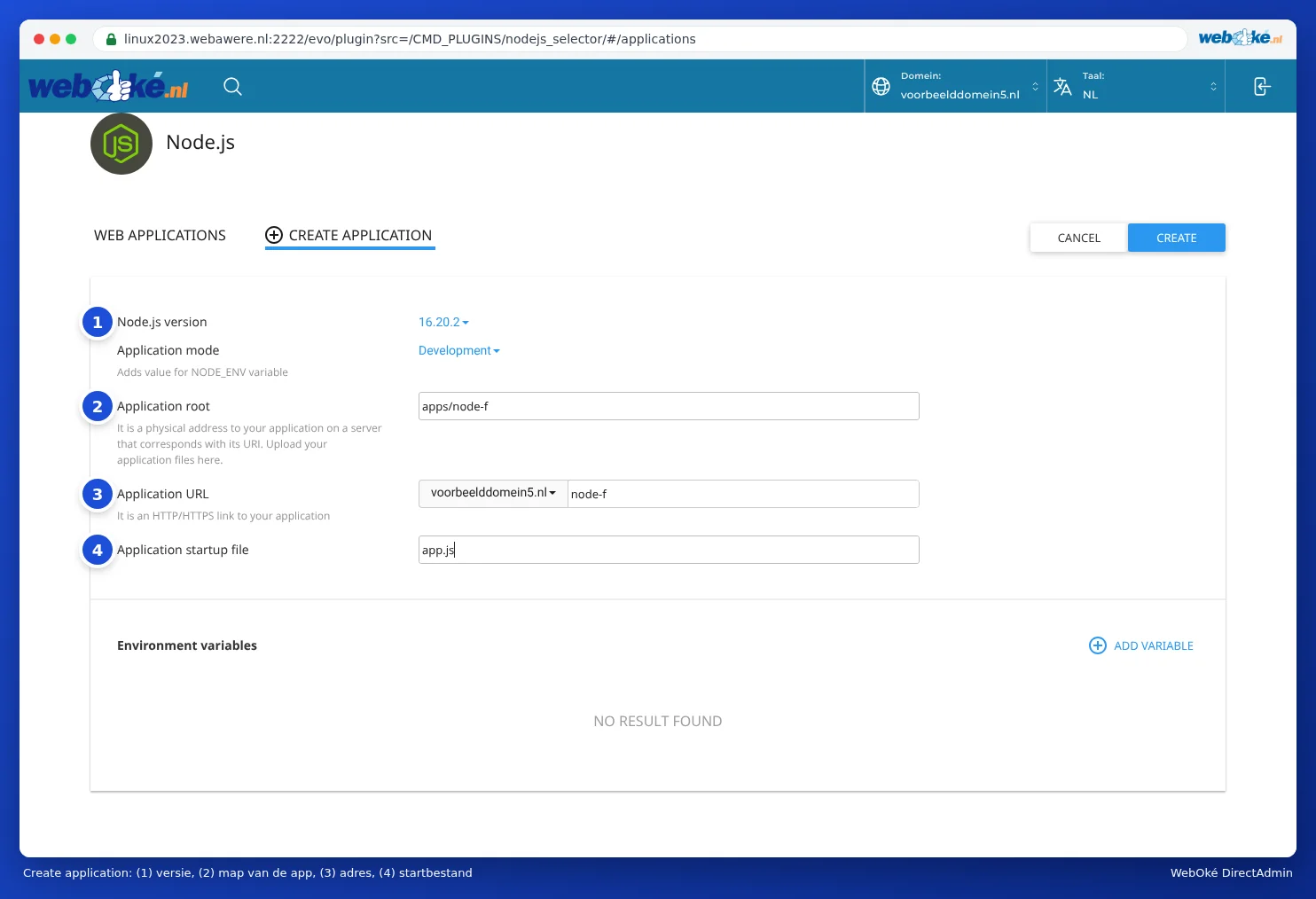
- Under Node.js version (1), choose the version. You can choose from Node.js 9, 16, 20, 22 and 24. The default is 16, but it's best to choose the newest version your app supports, as 9 and 16 no longer receive updates.
- Under Application mode, choose Development or Production. This sets the NODE_ENV variable. For a live app, choose Production.
- Under Application root (2), enter the folder where your app's files will go, for example apps/myapp. Choose a folder outside public_html.
- Under Application URL (3), choose the domain and, if needed, a path, for example api for yourdomain.com/api. If you leave the path empty, the app will run on the whole domain.
- Under Application startup file (4), enter the file that starts your app, such as app.js or server.js.
- If needed, under Environment variables, use ADD VARIABLE to add your own settings.
- Click CREATE.
Uploading your code and installing packages
- Upload your code to the folder you chose for Application root, using File Manager, FTP or Git (see Uploading and downloading files and Git: updating your website from a repository).
- Is there a package.json file in that folder? Then go back to Setup Node.js App, click the pencil icon next to your app to edit it and click Run NPM Install. This installs the packages.
- Click Restart to (re)start the app.
After every change to your code, click Restart again. Otherwise the old version will keep running.
Good to know
- Your app must listen on the port the server assigns to it. Use process.env.PORT in your code instead of a fixed port number.
- The app runs within the limits of your package (CPU, memory, processes; see Resource Usage: CPU, memory and processes). For a heavier app, choose a larger package.
- On a package with SSH (see SSH Keys and logging in with SSH), the top of your app's screen shows a command to activate the correct Node.js version and folder in the Terminal. After that, node and npm work as you'd expect.
- A website you've made with a site generator (static HTML) doesn't need Node.js. You can simply upload it to public_html.
Frequently asked questions
My app shows a 503 error.
The app isn't starting. This is usually because the startup file is wrong, packages are missing (you forgot to Run NPM Install) or there's an error in the code. Check the stderr.log file in your app's folder for the error message.
Can my app run all day?
Yes, as long as it stays within the limits of your package. The app starts when a request comes in and stops again after a period without requests. An app that needs to keep running at all times without visitors, such as a bot, is better suited to a VPS.
My app is stuck and doesn't respond to Kill or Restart.
Wait a minute and try again. If it still doesn't work, open a ticket and mention the name of your app.