
Chapter 2 · 2.2
Signing in via My WebOké
Watch it in a short video
The easiest way to get into DirectAdmin is via My WebOké, your customer area at WebOké. You don't need a separate password for DirectAdmin: My WebOké automatically and securely signs you in on the right server.
Step 1: sign in to My WebOké
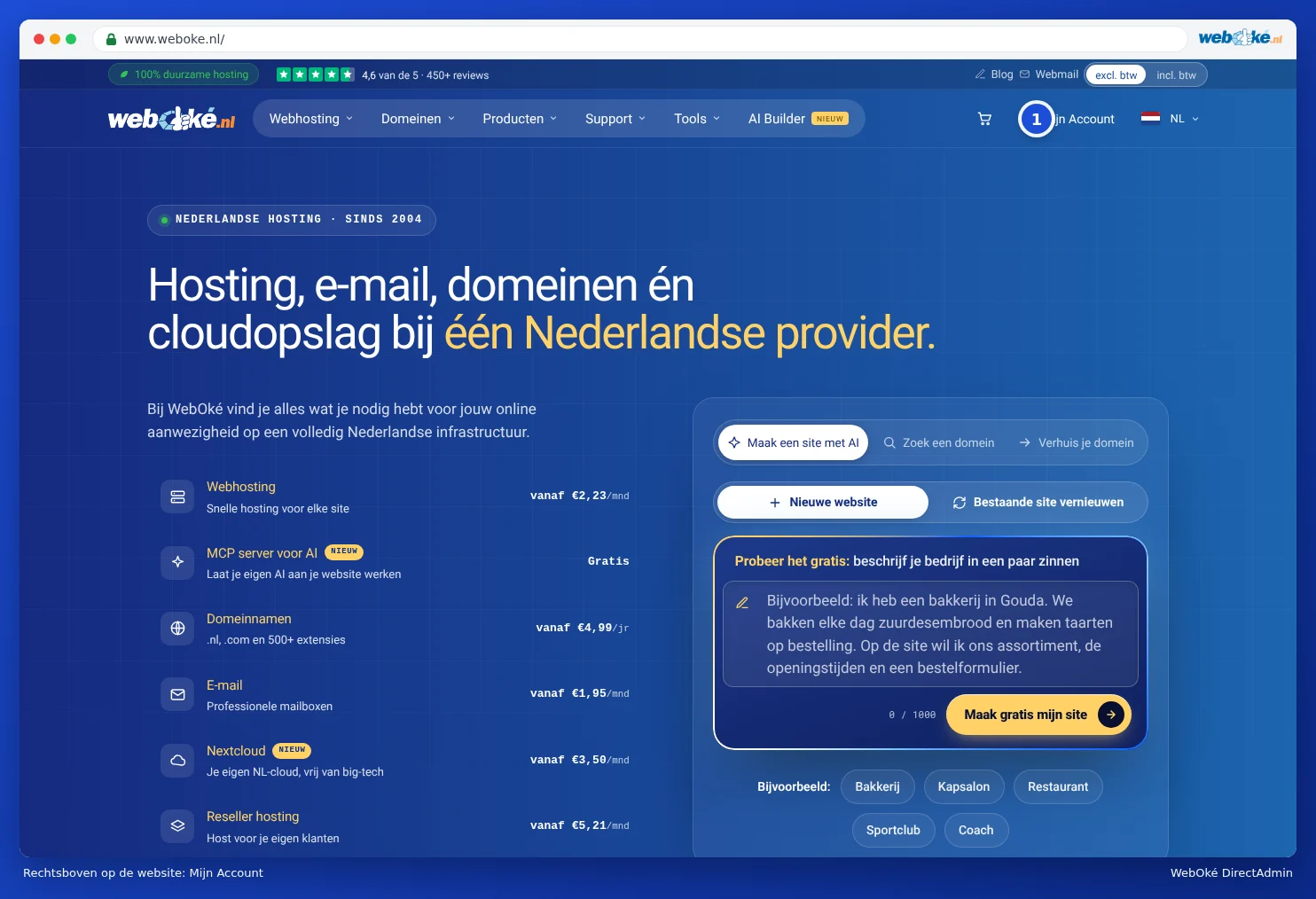
Go to www.weboke.nl and click My Account (1) in the top right corner. You can also go straight to my.weboke.nl.
Enter your email address and password and click Sign In. If you have a Google account with the same email address, you can also click Sign in with Google.

After that, we'll ask for an extra code. You'll receive this by email: a 6-digit code that's valid for 10 minutes. If you use an authenticator app for My WebOké, enter the code from that app instead.
Step 2: open My Products
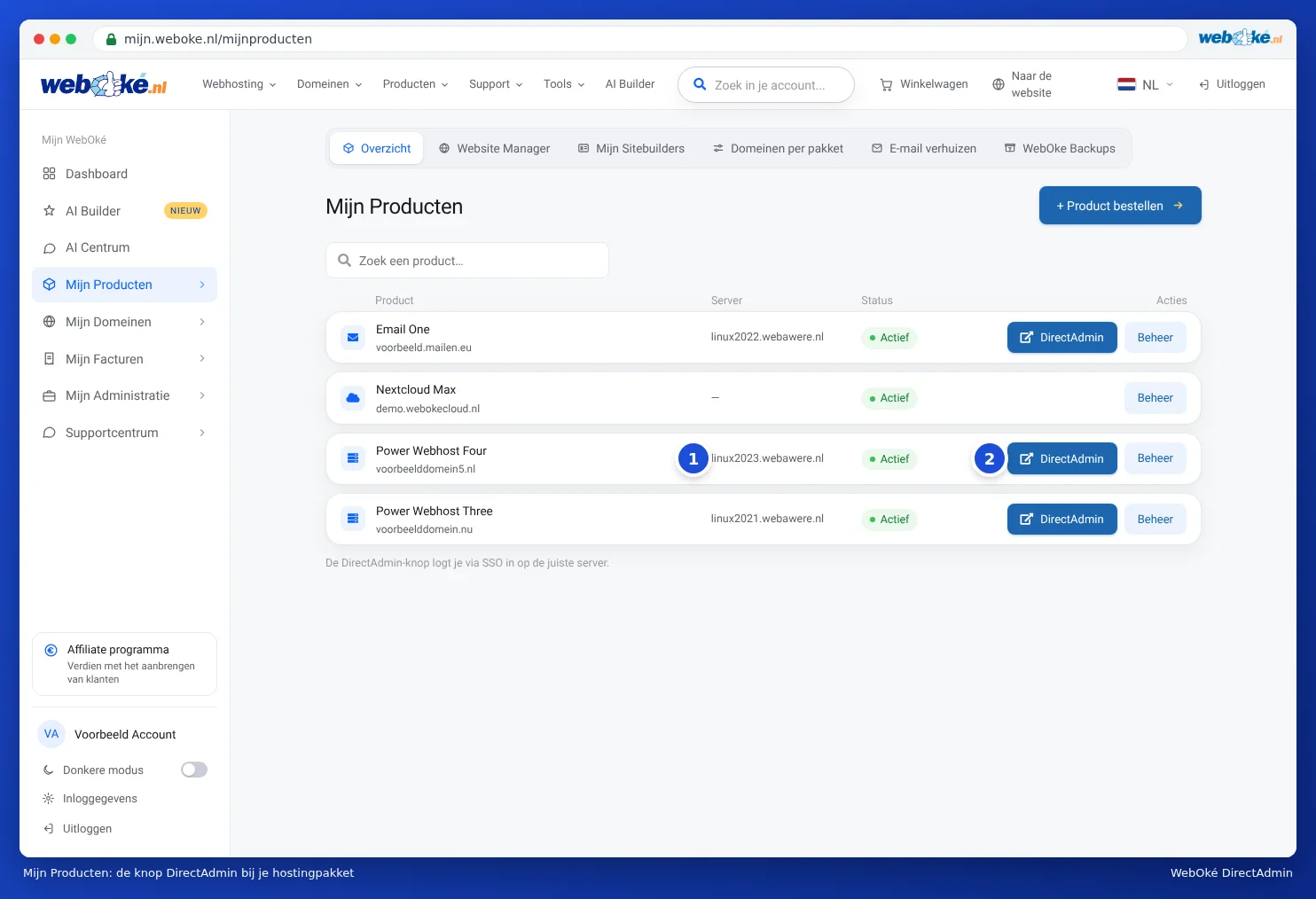
Click My Products in the menu on the left. You'll now see all your products listed. Each hosting package shows the server name (1) and the DirectAdmin (2) and Admin buttons.
Step 3: click on DirectAdmin
Click DirectAdmin next to the correct package. DirectAdmin opens in a new tab and you're signed in straight away. You'll see the dashboard, with the menu at the top and your package's limits below it.
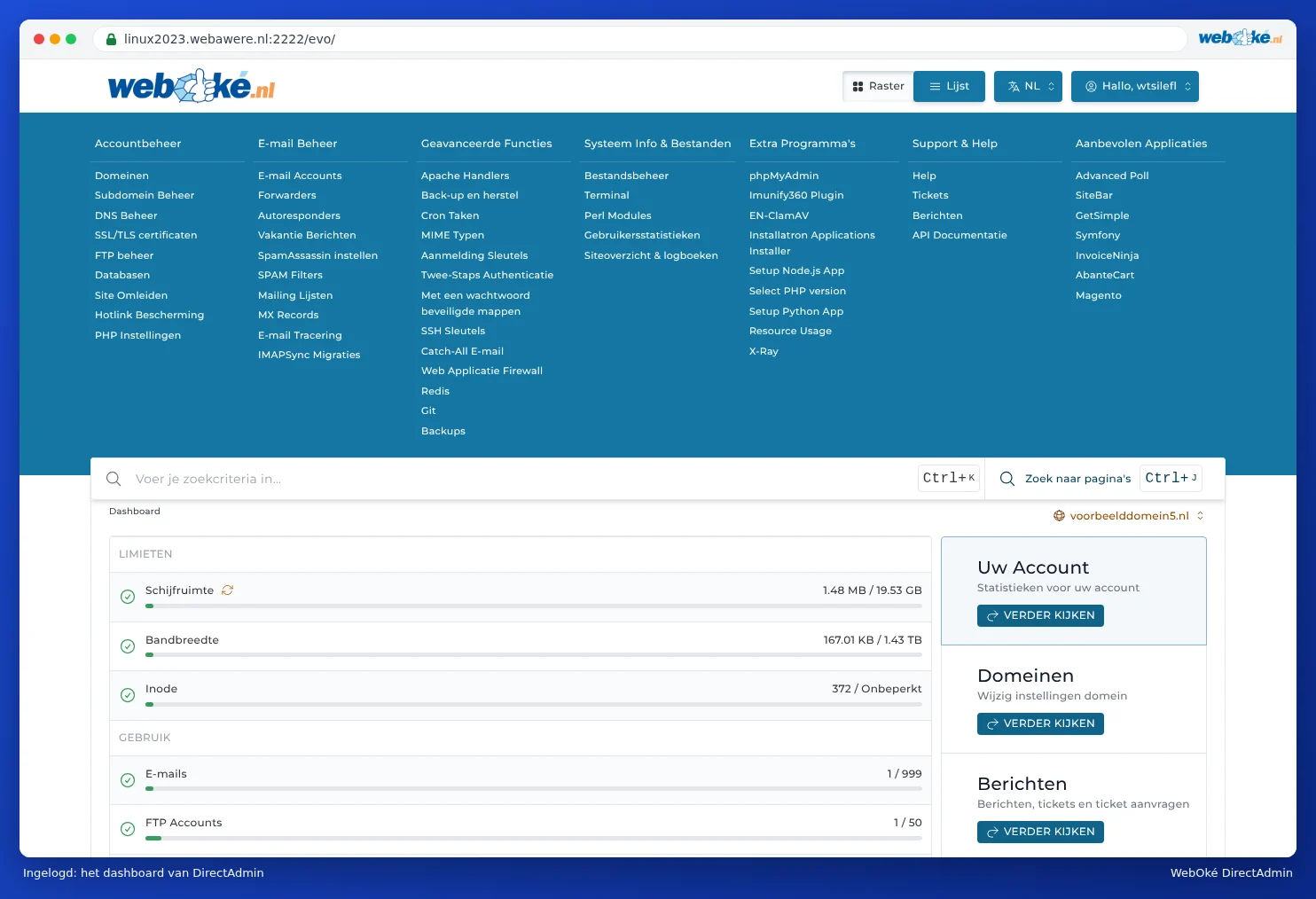
You can read all about what you'll see on the dashboard in Tour: the dashboard and your limits.
From your package's management page
If you click Admin in My Products, you'll land on that package's page. There, on the left, under the Change DA password block, you'll find the Go to DirectAdmin button. This does exactly the same thing. On this page, you can also see your DA username and change your DA password (see Setting or changing your DA password).
Good to know
- The sign-in link is one-time use only. Every time you click DirectAdmin, we generate a new, one-time sign-in link. It only works once. So don't save it as a bookmark: instead, bookmark My WebOké, or the direct address from Signing in directly on port 2222.
- The session is valid for 60 minutes. If you're working for longer, or you've been away for a while and you get signed out, simply click DirectAdmin again in My WebOké.
- Only available for active packages. If your package isn't set to Active (for example, because there's an outstanding invoice), you won't see a DirectAdmin button.
- No button for Nextcloud. You don't manage a Nextcloud package in DirectAdmin, but in Nextcloud itself and via Admin in My WebOké.
Tip: Do you have multiple hosting packages? Each package has its own DirectAdmin. So click the button in the row of the package you want to work on. The domain name is shown under the package name.