
Chapter 12 · 12.2
Timeline, albums and folders
Watch it in a short video
Your photos are simply stored as files in your Nextcloud. The Photos and Memories apps show them in three ways: by date (the timeline), by album and by folder.
Which folders does Photos show?
Photos shows the photos from the folders you choose yourself. Click Photos settings at the bottom left. Under Media folders, only the Photos folder is listed by default. Click Add folder and choose the folders where your photos are stored, for example the folder your phone uploads to. Under Upload folder you choose where photos go that you upload in the Photos app. If you see nothing in Photos, Media folders usually doesn't yet contain the right folder.

The timeline
All media in Photos and the timeline in Memories show all your photos and videos by date, with the newest at the top. With Photos and Videos in Photos, you see only photos or only videos. Click a photo to view it in full size; use the arrow keys to move to the next one.
Albums
An album is a collection of photos from different folders. The photos stay in their folder; the album just refers to them. If you remove a photo from an album, it simply remains in your Files.
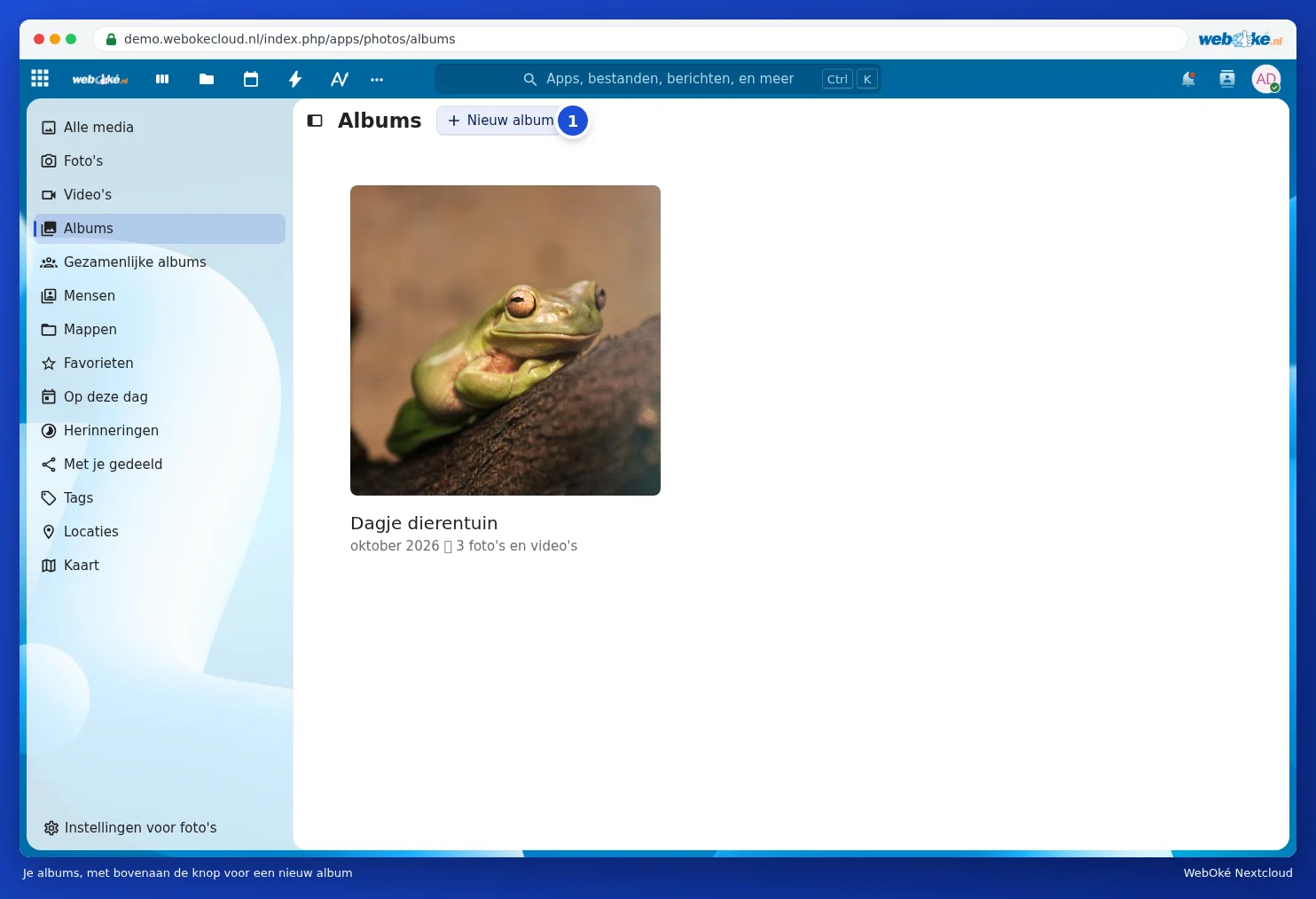
- In Photos, go to Albums and click New album (1).
- Enter a name under Name of the album and, if you like, a place under Location of the album. With Add collaborators you share the album straight away with others.
- Click Create album and choose the photos to include.

In an open album, you can later add more photos with Add photos to this album (1). The button next to it (2) lets you share the album. You can also select photos in the timeline and then add them to an album. At the top of All media, Create new album from filters creates an album from all photos that match your filters, for example a place or period.

Folders
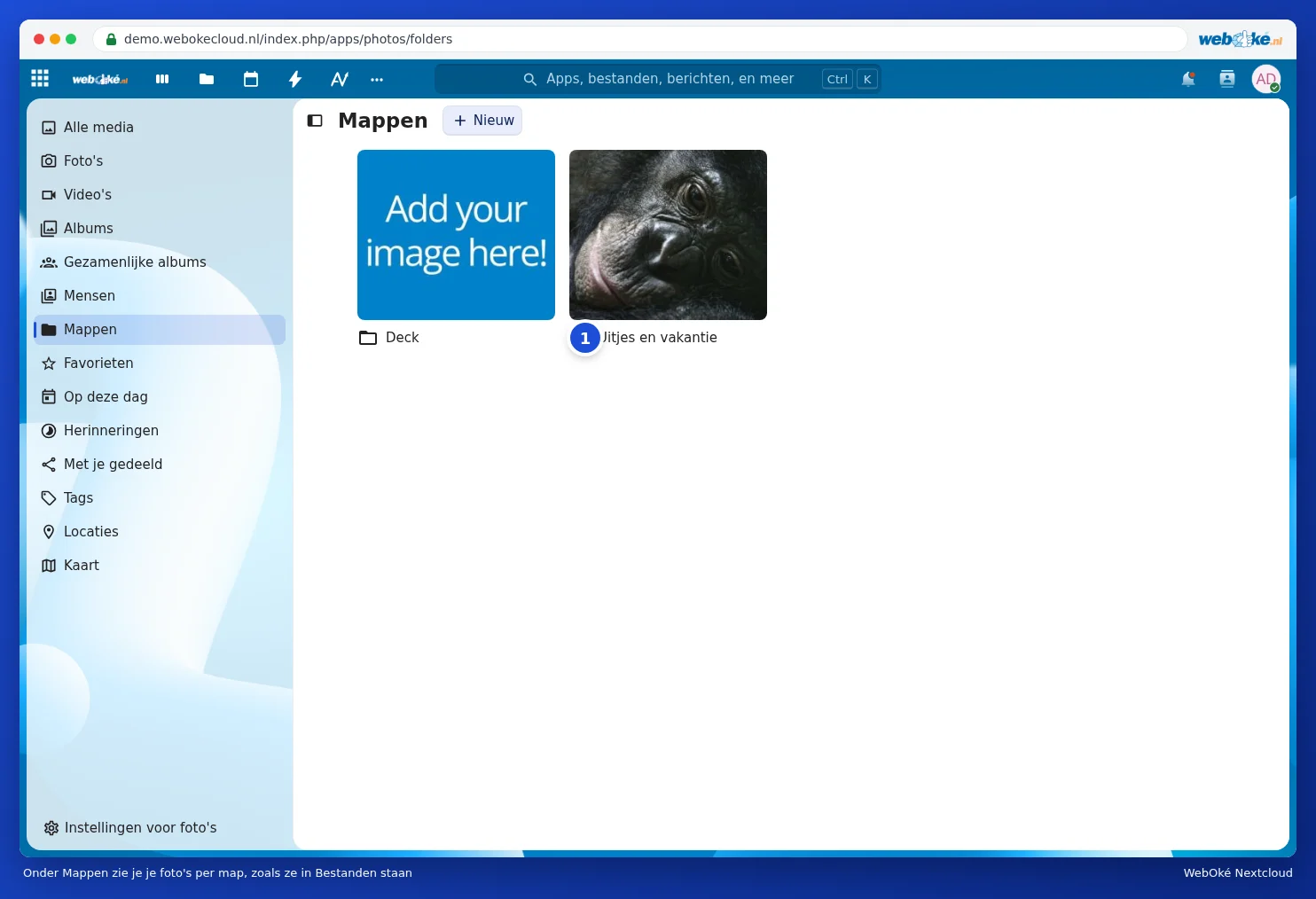
Under Folders you see your photos by folder, exactly as they're organised in Files, but shown as large previews. Handy if you already keep your photos neatly organised in folders by year or by event, such as the folder Outings and holidays (1) below.
Favourites and tags
- Click the star next to a photo to mark it as a favourite. Your favourites appear under Favourites.
- Labels (tags) that you give a photo in Files can be found under Tags. See Searching, favourites, recent and tags.
Deleting photos
If you delete a photo in Photos or Memories, you delete the file from your Nextcloud. It then stays in Deleted files for a while and can be restored. See Recovering a deleted file from Deleted files. If you just want to remove a photo from an album, select it in the album and choose Remove selection from album.