
Chapter 4 · 4.3
Creating, moving, copying and renaming folders
With a good folder structure you can find everything quickly, and share a whole folder in one go. You manage it all from the menu next to a file or folder.
Creating a new folder
- Go to the folder where the new folder should be created.
- Click New and choose New folder.
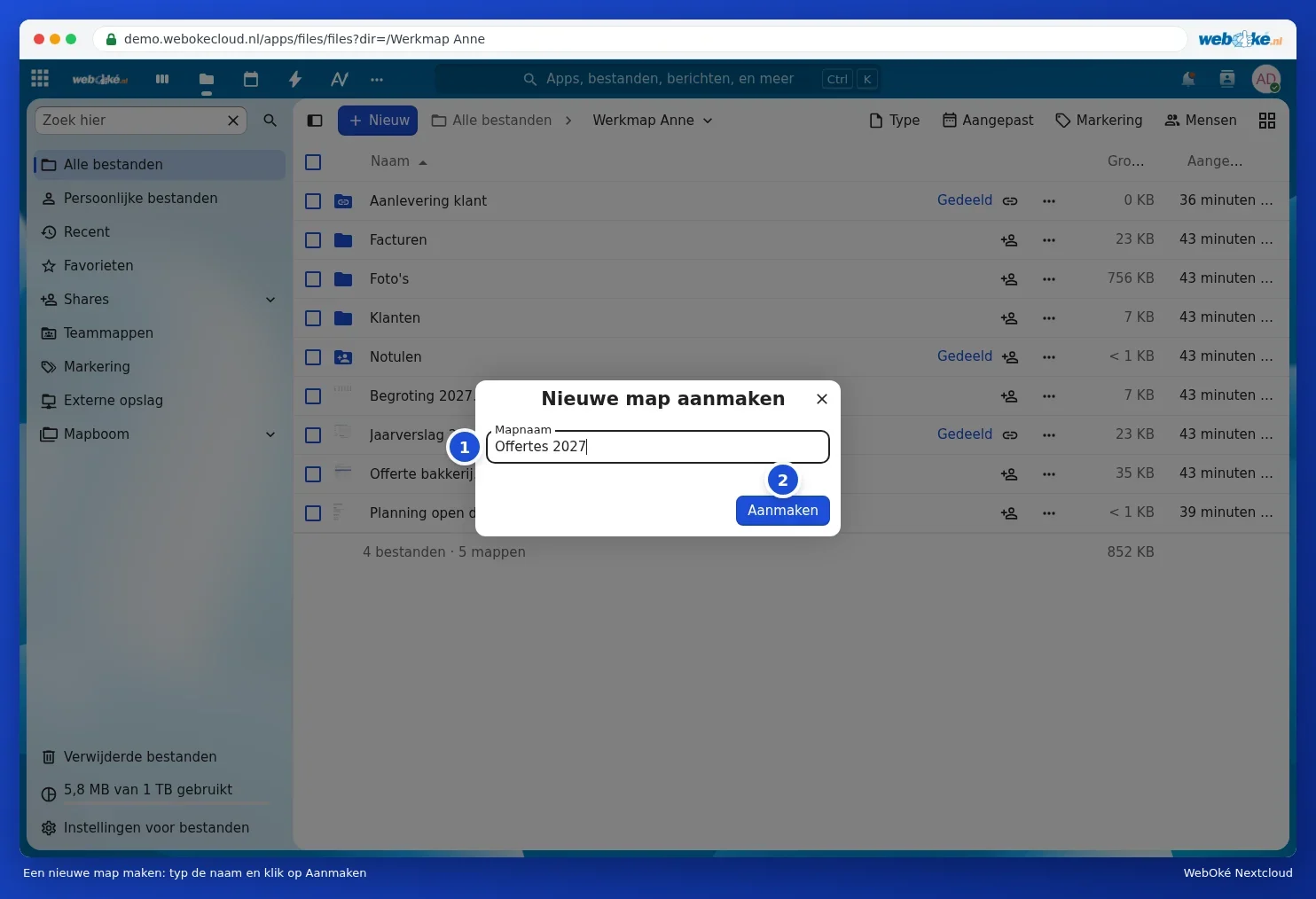
- In the Create new folder window, type a name next to Folder name (1) and click Create (2).
The menu next to a file or folder
Right-click a file or folder, or click the three dots in the row. You'll then see all the available actions:
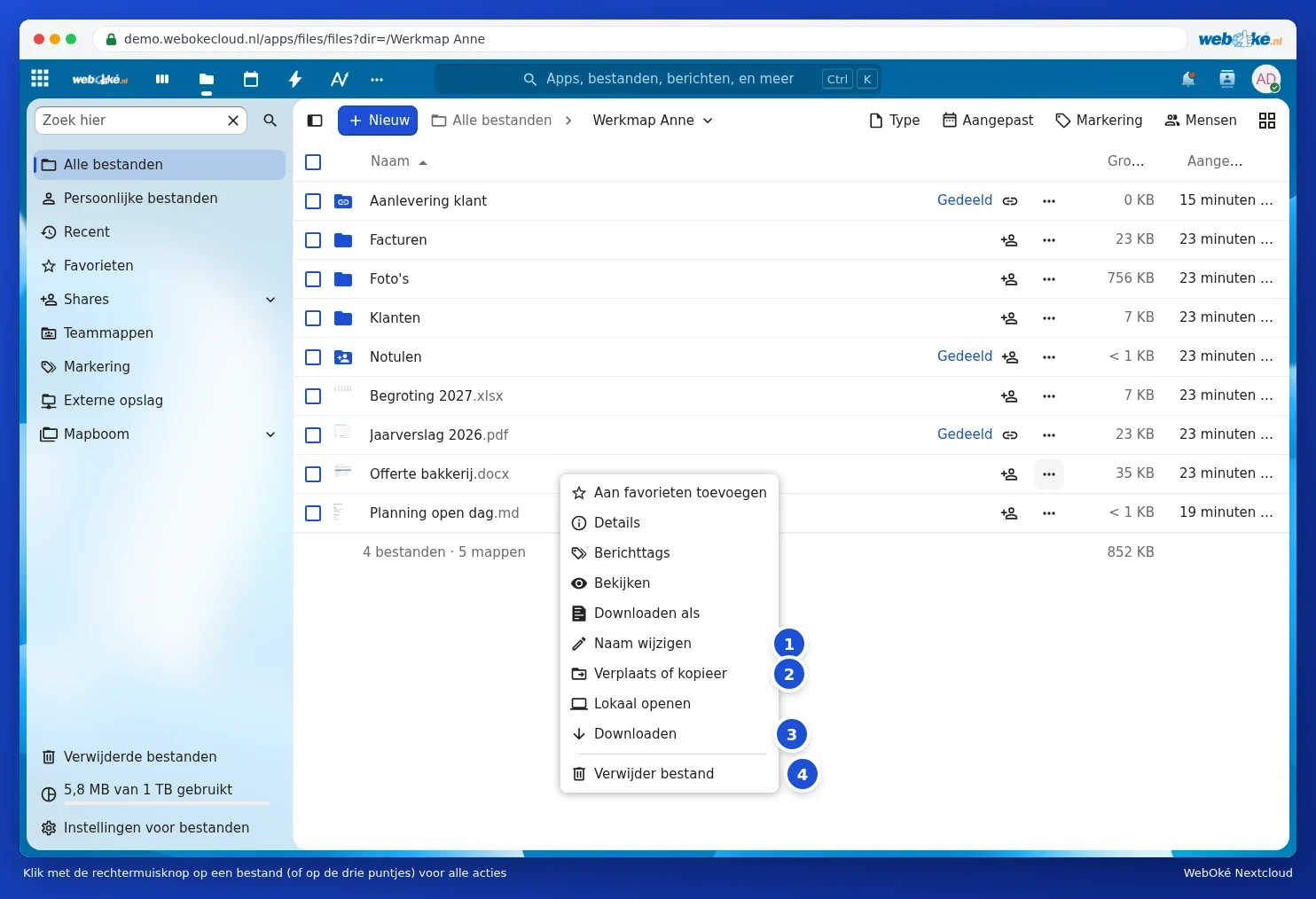
- Rename (1): the name becomes editable. Type the new name and press Enter. Faster: select the file and press F2.
- Move or copy (2): move the file to another folder or make a copy of it.
- Download (3): save the file to your computer.
- Delete file (4): the file goes to Deleted files. You can restore it from there, see Recovering a deleted file from Deleted files.
The same menu also has Add to favourites, Details (the sidebar), Manage tags (see Searching, favourites, recent and tags), View and Open locally (opens the file in the program on your computer, if you have the desktop app). For Office documents, you'll also see Download as, to save the file in a different format, for example as a PDF.
Moving or copying
- Choose Move or copy.
- In the Choose destination window, click the folder you want the file to go to. The chosen folder then appears at the top of the path (1). You can also use the path to go back to a higher folder.
- Click Copy to (2) to make a copy, or Move to (3) to move the file. The name of the chosen folder appears after the button.

Tip: you can also move files by dragging them. Drag a file in the list to a folder, or to a folder in the breadcrumb path at the top. Want to move several files at once? Tick them and choose the action at the top of the list.
Please note: if you move a file to a shared folder, the people that folder is shared with will also get access to it. If you move it out of a shared folder, they'll lose access.