
I can't send email (receiving works fine)
Does your mail come in fine, but sending doesn't work? Does a message stay stuck in your Outbox, or do you get an error message? With this checklist you'll usually find the cause within a few minutes.
1. Test in webmail first
Log in at webmail.weboke.nl with your full email address and password, and send a message to another address of your own.
- Does it work in webmail? Then the problem lies with the settings of your mail program or phone. Continue to step 2.
- Doesn't it work in webmail either, or does the mail bounce back with an error message? Go to step 3.
2. Check the outgoing server (SMTP)
- Server: your domain name (yourdomain.nl) if your website is hosted with WebOké, or the server name of your package, such as linux2023.webawere.nl. You can find this in My WebOké under My Products, in the Server column.
- Port and security: 587 with STARTTLS, or 465 with SSL/TLS. Don't use port 25: many internet providers block it.
- Authentication on: the outgoing server requires you to log in. Use your full email address as the username and the password of the mailbox. If login is turned off, you can read mail but not send it.
- Changed your password? Also enter the new password for the outgoing server. Some programs store it separately there.
All settings at a glance can be found in All settings at a glance.
3. Causes on the server
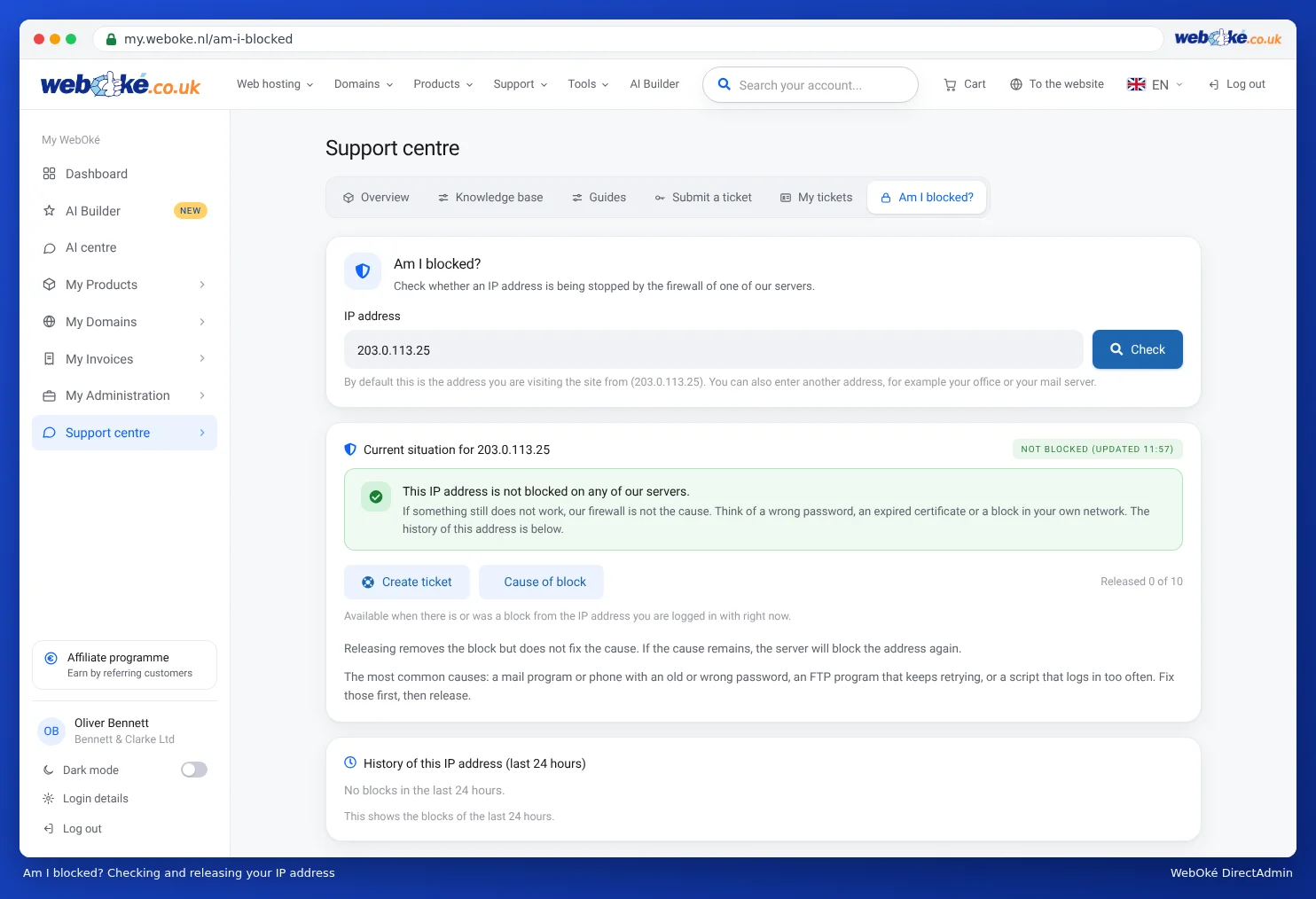
- Your IP address is blocked. If a device keeps trying with an old password, the firewall blocks your IP address. Often your website and webmail also stop working from that connection, but work fine via 4G. Check this in My WebOké via Support Centre › Am I blocked?. First set the correct password on all your devices, and only then release the address. See Am I blocked?
- The sending limit has been reached. A maximum per day applies per mailbox and per package. You'll see a message such as
message limit reached. See Limit for sending mail. - Your mailbox has been misused. Limit reached while you yourself send little mail? Then someone else may be sending spam through your mailbox. Change your password immediately and read My email addresses are being used to send spam.
- You're sending from a different address. If the sender address is different from the mailbox you log in with, the server will refuse the mail. See Sending mail from multiple aliases.
- Your package is full. Then your mail program can't save the message in Sent, and it looks as if sending failed.
Does a message stay stuck in your Outlook Outbox?
Then often one message is blocking the rest, for example due to an attachment that's too large. Open the Outbox folder, drag the message to Drafts or delete it, and send it again without an attachment or with a smaller one. With us, a message may be a maximum of 50 MB, including attachments. That's roughly 36 MB worth of attachments, because attachments grow larger when they're sent. For many recipients the limit is lower. It's therefore better to share large files via a link, for example from your Nextcloud.
Common error messages
- Relaying denied / Relay access denied: you're not logged in to the outgoing server. Turn on authentication.
- Authentication failed: wrong password, or you haven't used the full email address as the username.
- Connection failed or timed out: wrong server or port, port 25 blocked by your provider, or your IP address is blocked.
- Certificate invalid: use the server name of your package as the server.
- Account ... can not send emails from ...: you're sending from a different address than your mailbox.
Does your mail only fail to arrive at one recipient, or does it land in spam there? Then the issue isn't with sending. Check whether SPF, DKIM and DMARC are set up correctly, for example with Domain health.
Can't figure it out? Create a ticket in the Support Centre. Mention the email address, your mail program or phone, the settings you entered, and the exact error message. Never include your password.
Detailed explanation with screenshots: I can't send email and Sending or receiving doesn't work: here's how to fix it in the DirectAdmin manual.