
Is this email really from WebOké? How to recognize phishing and use the promo code
Not sure whether an email really comes from WebOké? In this article you'll learn how to recognise a genuine email, how to use an action code to continue safely without clicking the link, and what to do if you did click on a fake email.
Is this email genuine?
Scammers send emails that look like ours, for example about an invoice, an expired domain, a full mailbox or your password. Pay attention to these points:
- The sender address. Our emails come from an address ending in @weboke.nl or in the WebOké domain of your country, such as @weboke.de or @weboke.eu. Look at the actual address, not just the name. Watch out for addresses that look almost the same. Emails from your Nextcloud come from nextcloud@weboke.nl.
- The action code. If an email from us contains a personal link, it always comes with an action code. If it's missing, be extra careful.
- Where the link goes. Hover your mouse over the link (don't click). Our links go to www.weboke.nl/en, my.weboke.nl or the WebOké site of your country.
- What is being asked. We will never ask you to send a password, login code or payment details by email or to enter them in a form outside our site.
- Pressure and urgency. "Pay within 24 hours or everything will be lost" or "your mailbox will be deleted today" are typical tricks used in fake emails.
Check it yourself in My WebOké
The safest option is to ignore the email and log in yourself. To do so, type my.weboke.nl into the address bar yourself.
- Is it about an invoice? Check under My Invoices whether that invoice is listed and still unpaid. If it isn't there, the email is not from us.
- Most emails we send you, such as invoices and messages about your package or domain, can be found under My Administration › Received emails. Replies to tickets can be found in the Support Center. We don't store login codes anywhere; they are only in your mailbox. See Reading back received emails.
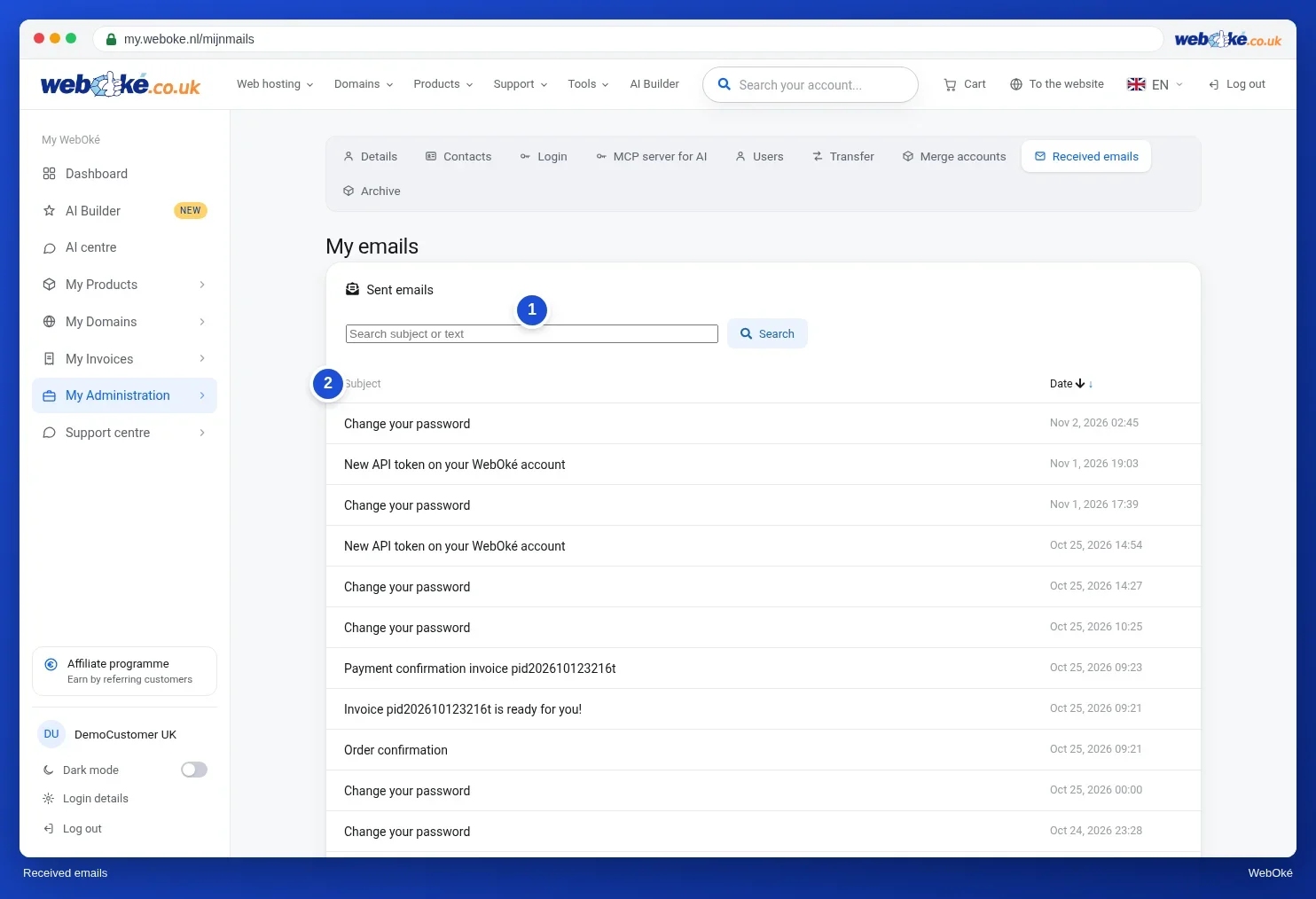
How to use an action code
Emails with a personal link, for example to pay an invoice, reset your password or accept an invitation, also contain an action code. With it, you reach the same page without clicking the link.
- Type www.weboke.nl/en into your browser's address bar yourself.
- In the menu, choose Support › Enter action code.
- Copy the code from the email (for example
terug-3f9a...) and paste it into the field. - Click Continue. You'll land on the same page as via the link in the email.
If the code doesn't work, it has expired or has already been used. An action code works exactly like the link. If a code you don't trust doesn't work either, the email may not have come from us.
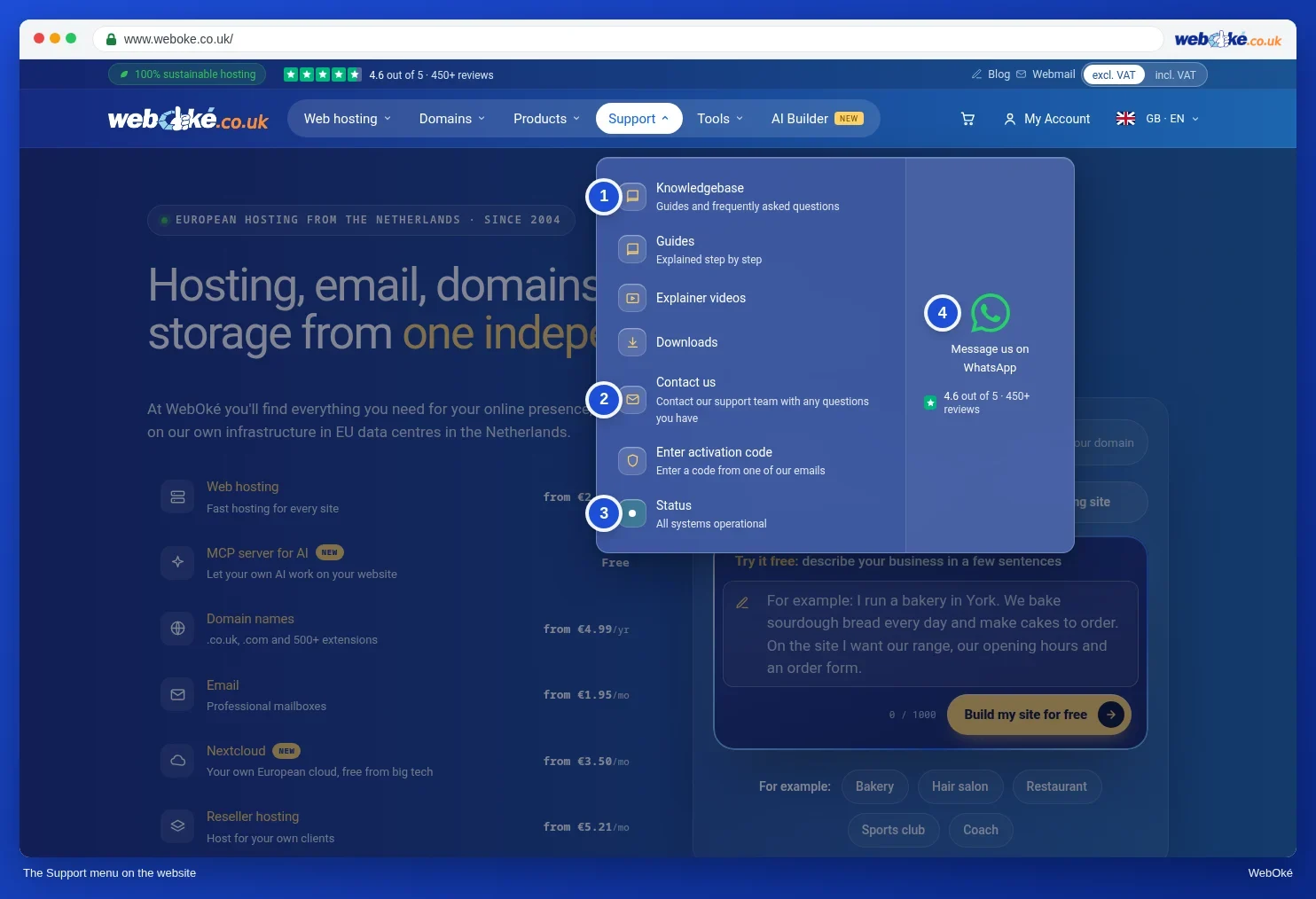
See also: Recognising phishing: how to read a link and a sender and Recognising fake invoices, changed account numbers or CEO fraud.
Reporting a fake email
Have you received a suspicious email that looks like it's from WebOké? Let us know via a ticket in the Support Center or via contact us. Attach the email as an attachment so we can see where it came from. Don't click any links in the email yourself.
Clicked or entered something anyway?
- Entered your My WebOké password? Change it immediately in My WebOké. See Setting, changing or forgetting your password.
- Turn on two-factor authentication if you hadn't already. See Setting up two-factor authentication in My WebOké and an authenticator app
- Entered a mailbox password? Change the password of that mailbox and enter the new one on all your devices. Read What to do if your email address has been misused.
- Do you use the same password elsewhere? Change it there too.
- Entered payment details? Contact your bank immediately.
- Let us know via a ticket and we'll help you look into it.