
Adding a mailbox to your iPhone (Apple Mail)
In this article, we explain how to add a mailbox you created yourself in DirectAdmin (Create a new email address or mailbox) to the Mail app on your iPhone or iPad.
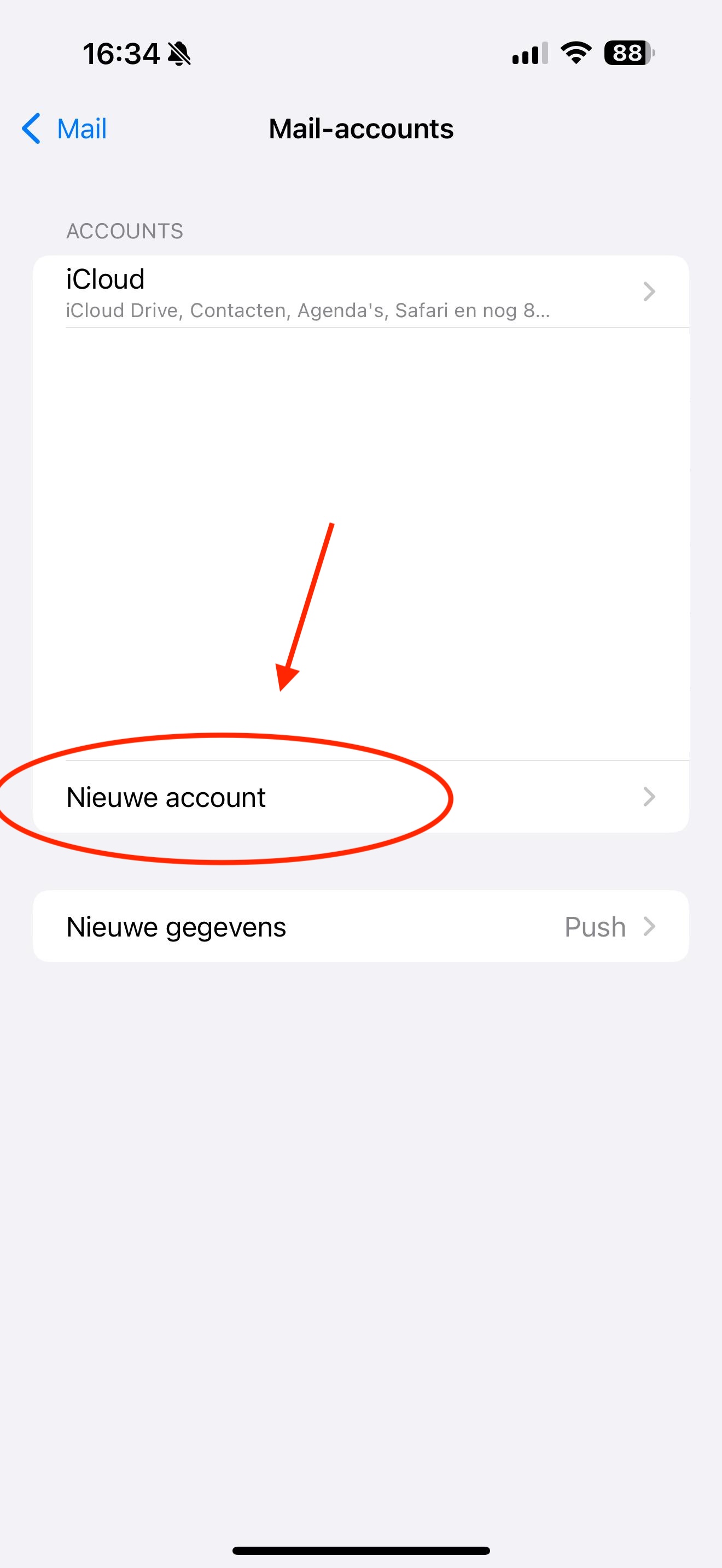
Step 1: Open Settings on your iPhone and go to Mail (in newer versions of iOS, go to Apps and then Mail). Tap Mail Accounts (or Accounts). You can also search for 'Mail Accounts' at the top of Settings.
Then tap 'Add Account'
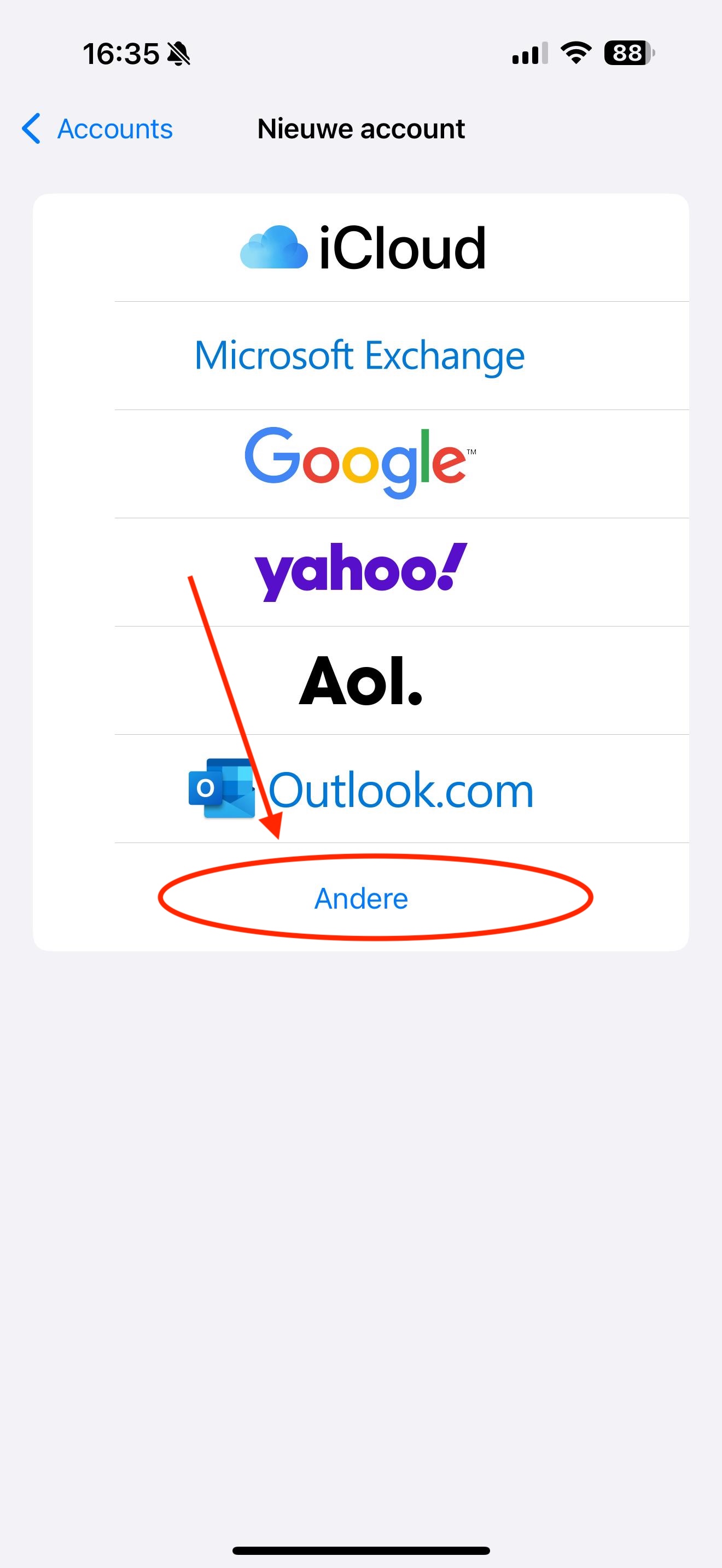
Step 2: Tap 'Other'
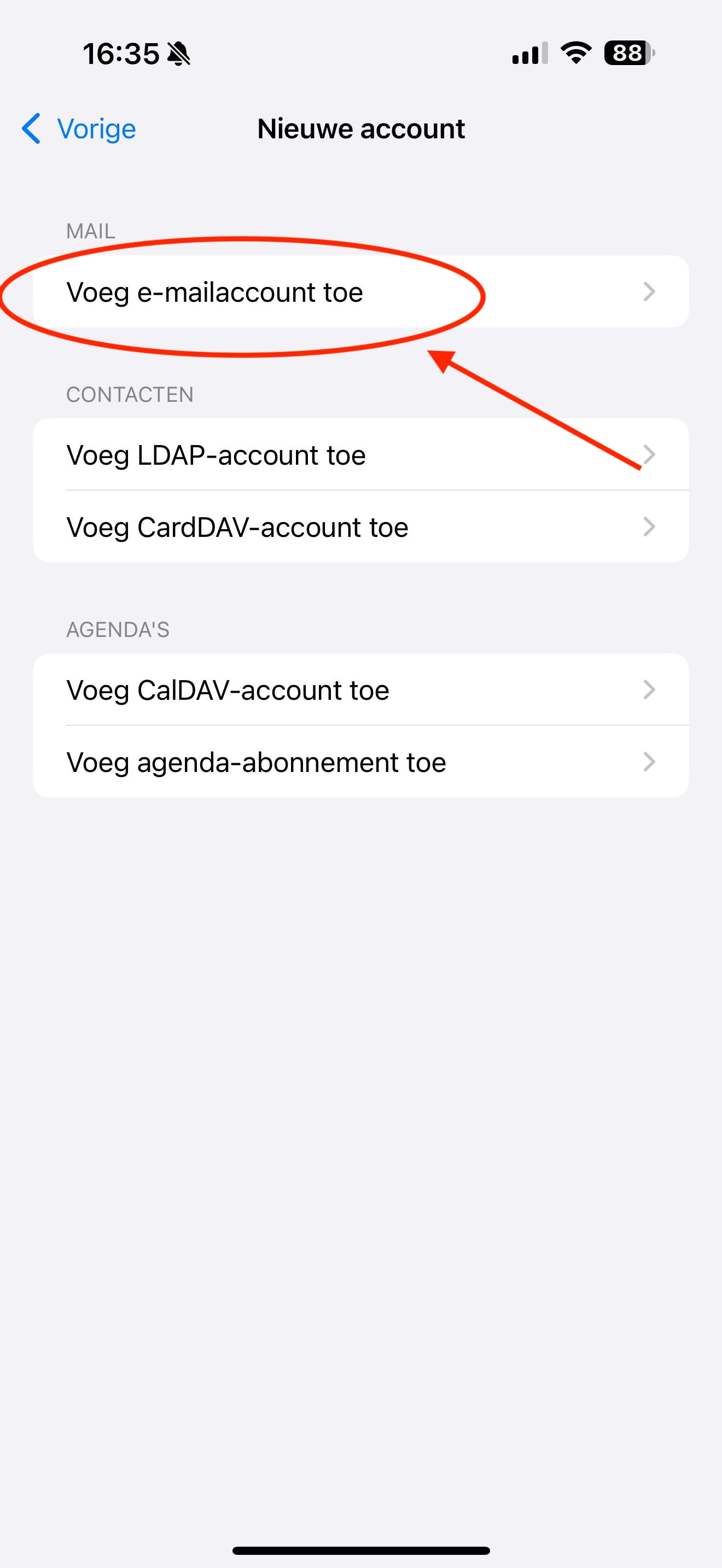
Step 3: Tap 'Add Mail Account'
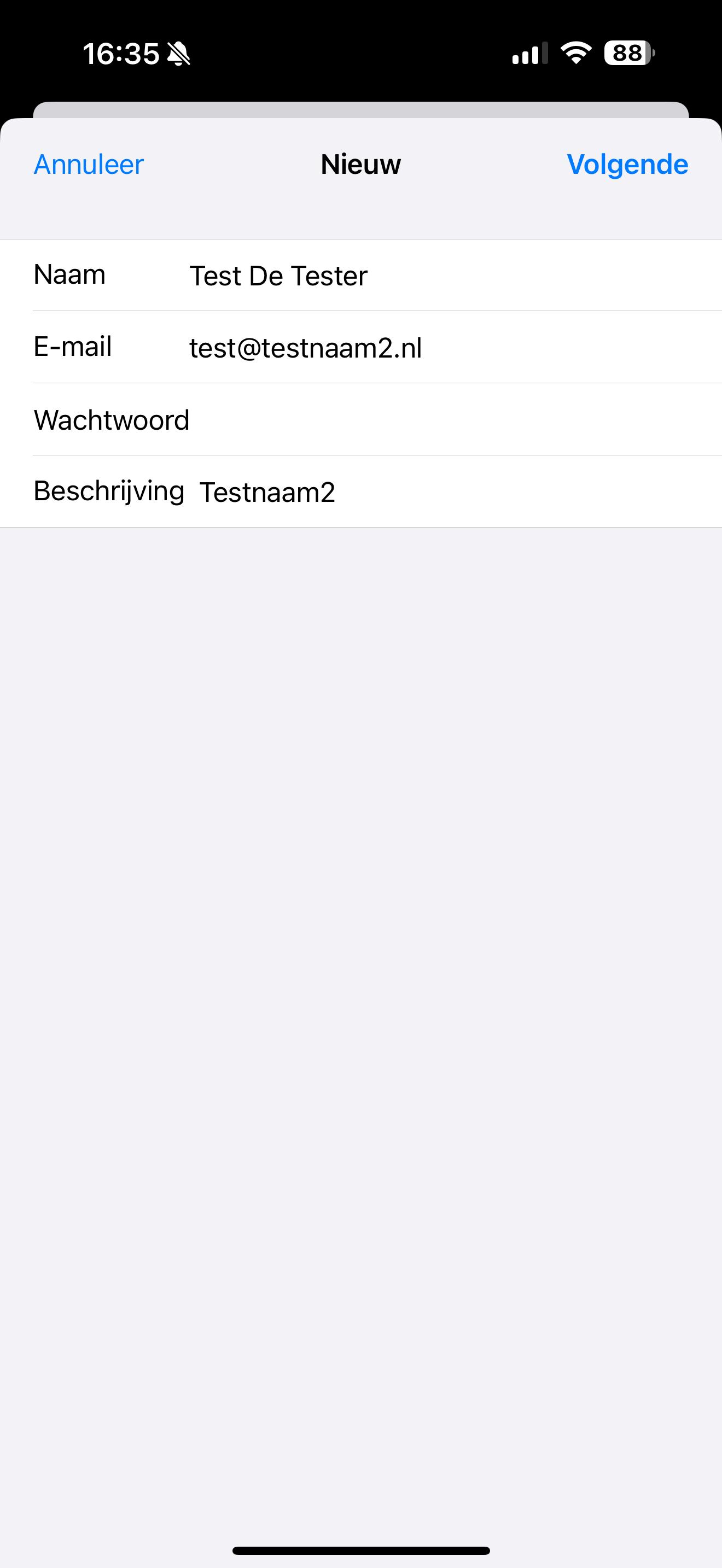
Step 4: Fill in all the fields here:
Name: This is the display name of the mailbox. When you send an email, the recipient sees this name as the sender in their inbox.
Email: This is the email address you created in DirectAdmin.
Password: You set this password when you created the mailbox. Forgot your password? Read Change the password or limits of an email address.
Step 5: Choose IMAP at the top and fill in all fields, even if they say they're optional. If you leave the fields under Outgoing Mail Server empty, you'll be able to read mail, but not send it.
Email: This is the email address you created in DirectAdmin.
User Name: Enter your full email address here as well. This must always be filled in.
Password: The password of the mailbox.
Account type: IMAP
Incoming and outgoing mail server host name: This is your domain name, so in this example testnaam2.nl. If there's IMAP, SMTP or mail in front of your domain name, you can remove it: the domain name alone is enough.
Please note: Is only your email hosted with us and your website with another provider, for example with an email package? Or do you get the message "Cannot Verify Server Identity"? Then your domain name won't work as the server. In that case, enter the server name of your package. You can find it in My WebOké under My Products and in the welcome email for your package. It looks something like this: linux2023.webawere.nl.
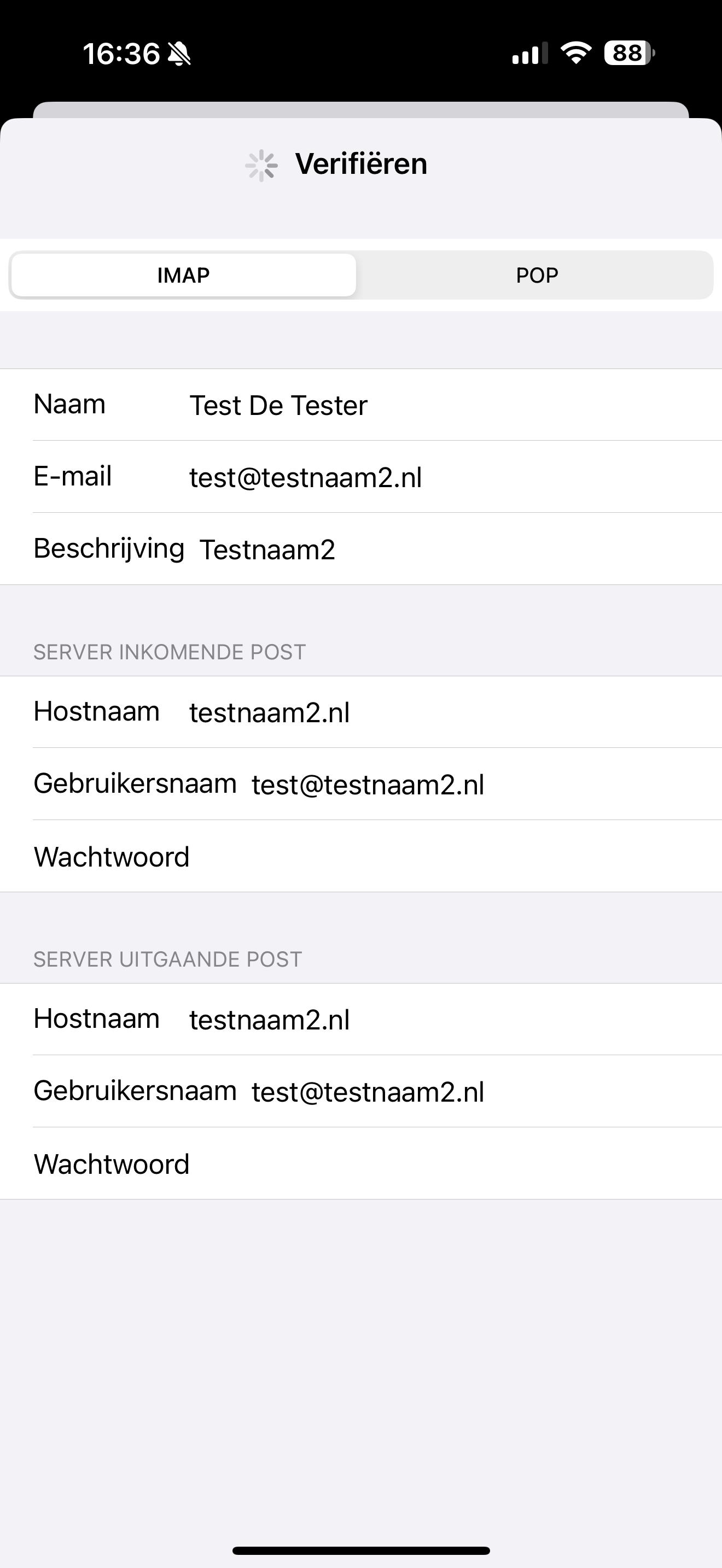
Tap Next and then Save. Usually the iPhone picks the right ports by itself. Can't send or receive mail? Then check under Advanced in your account that Use SSL is turned on with port 993 (incoming), and for the outgoing mail server, port 587 or 465 with SSL.
See also in the DirectAdmin manual: All settings at a glance: servers, ports and security.
Detailed explanation with screenshots: iPhone and iPad in the DirectAdmin manual.