
Increasing your VPS disk space
If you choose a larger VPS package, your VPS's virtual disk gets bigger. A disk can't shrink, so you can't switch to a package with less storage. Whether you can use the extra space right away depends on how your VPS was installed.
VPS installed via the VPS screen (the default)
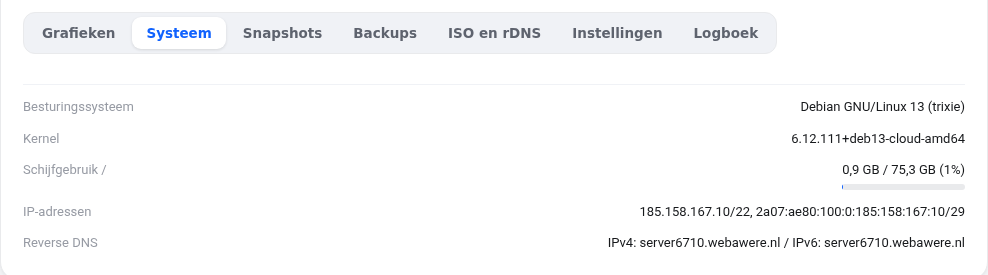
After the package change, your VPS restarts automatically. During startup, the system (cloud-init) automatically expands the partition and the file system. You don't need to do anything. Check it with:
df -h /
Not seeing the new size yet? Restart your VPS once more via the VPS screen, or do it manually as described below.
Expanding manually
First create a snapshot so you can roll back if something goes wrong. Then log in as root.
- View the layout with
lsblk. Your disk is usually calledsda; find the partition that/is on, for examplesda1. - Expand that partition with
growpart /dev/sda 1(the number is the partition number). Is growpart missing? Install it withapt install -y cloud-guest-utilsordnf install -y cloud-utils-growpart. - Expand the file system. Use
df -T /to see which type it is:- ext4:
resize2fs /dev/sda1 - xfs:
xfs_growfs /
- ext4:
- Check with
df -h /.
Self-installed with LVM (for example an older AlmaLinux VPS)
If lsblk shows a line of type lvm under the partition, do the following after step 2:
pvresize /dev/sda2(the partition with LVM)lvextend -r -l +100%FREE /dev/mapper/almalinux-root(you can find the name indf -h /; the-roption expands the file system at the same time)
Can't figure it out? Create a ticket and include the output of lsblk and df -h, and we'll take a look with you.
Detailed explanation with screenshots: A larger package and more disk space in the VPS manual.
Want to learn more? Take the free course VPS and Linux server management, lesson 1.4 Looking around on the command line.