
Skip to content

Cookie settings

Choose which kinds of cookies you allow. You can change your choice at any time via Cookie settings at the bottom of every page. Privacy statement

Necessary

Always on

Needed to log in, keep your cart and remember your choices. These are always on.

Which cookies?
  • weboke_sessie, weboke_klant, weboke_remember: your session and staying logged in
  • weboke_basket: your cart
  • wkBtwIncl: showing prices with or without VAT
  • wok_cookies: your cookie choice, 12 months

Measures which ad leads to a visit or order, so we do not pay for ads that do nothing.

Which cookies?
  • Google Ads via Google Tag Manager (_gcl_au, _gcl_aw), up to 90 days
  • OpenAI Ads, ads in ChatGPT
  • wok_aff: which partner referred you to us (affiliate programme), 60 days

4.6

Creating a signature in Webmail

In this article we explain how to create a standard closing/signature for your email in webmail.

Step 1: Log in at webmail.weboke.nl

Step 2: Click 'Settings', then 'Identities' and then choose the email address you want to create the signature for. Under 'Display Name' you can enter what should be shown when someone sees your email in their inbox. Here you can enter your name or company name, for example. You can choose to create a signature in plain text only, or formatted with HTML. If you choose HTML, you also get the option to upload an image, as you can see in our example.
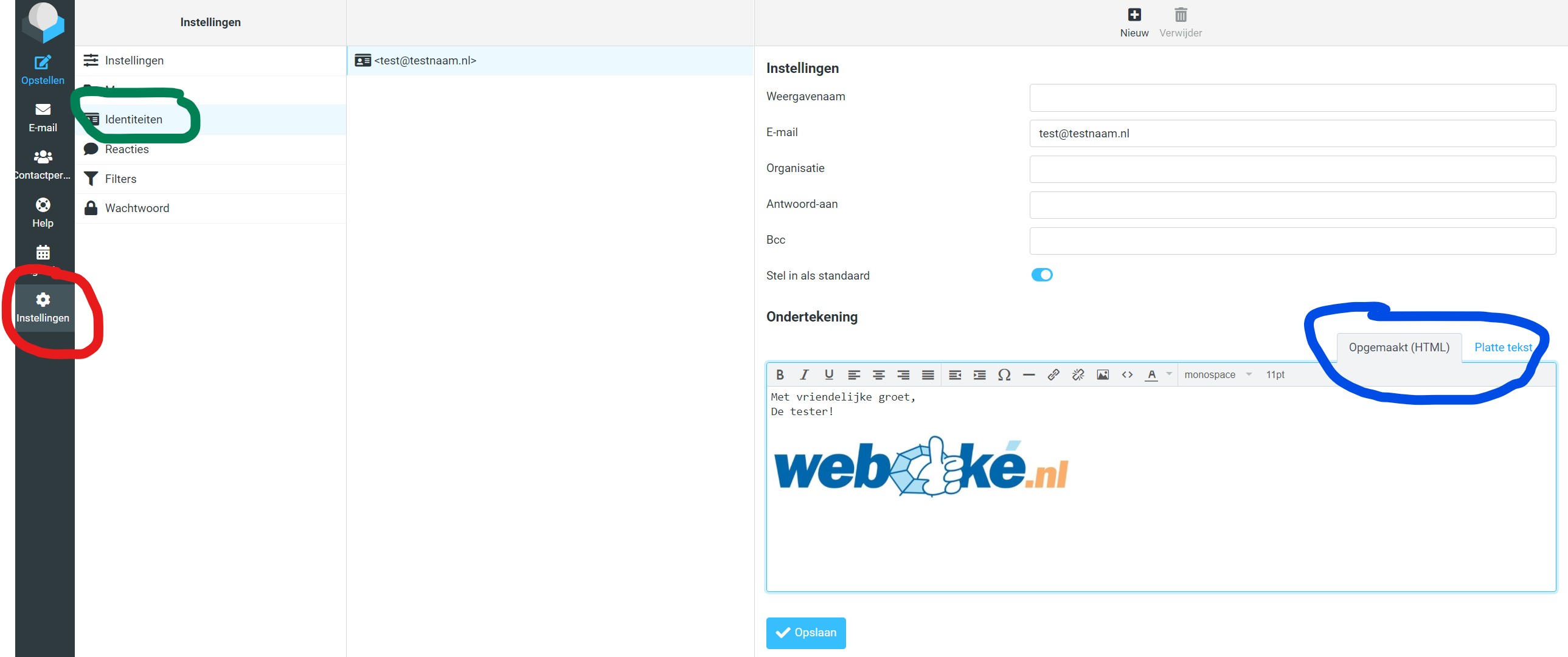
Done! You can now send an email to yourself to check that everything is set up the way you want.

Was this article helpful?

← Back to Email

One moment…

Set up your domains

For each domain, arrange the nameservers, the link to your hosting and who becomes the owner.

Loading your domains…