
Creating a redirect to another domain (hosting package)
This article applies to domains in a hosting package. Do you only have a domain registration, without hosting? Then you create a redirect in My WebOké, under My Domains, on the Redirects tab. Read Creating domain and email redirects.
Want visitors to your domain, or to a single page, to automatically go to a different address? You do that in DirectAdmin with Site Redirection.
- Log in to DirectAdmin: in My WebOké, go to My Products and click DirectAdmin next to your hosting package.
- Under Account Manager, click Site Redirection. If you have more than one domain, select the domain at the top right.
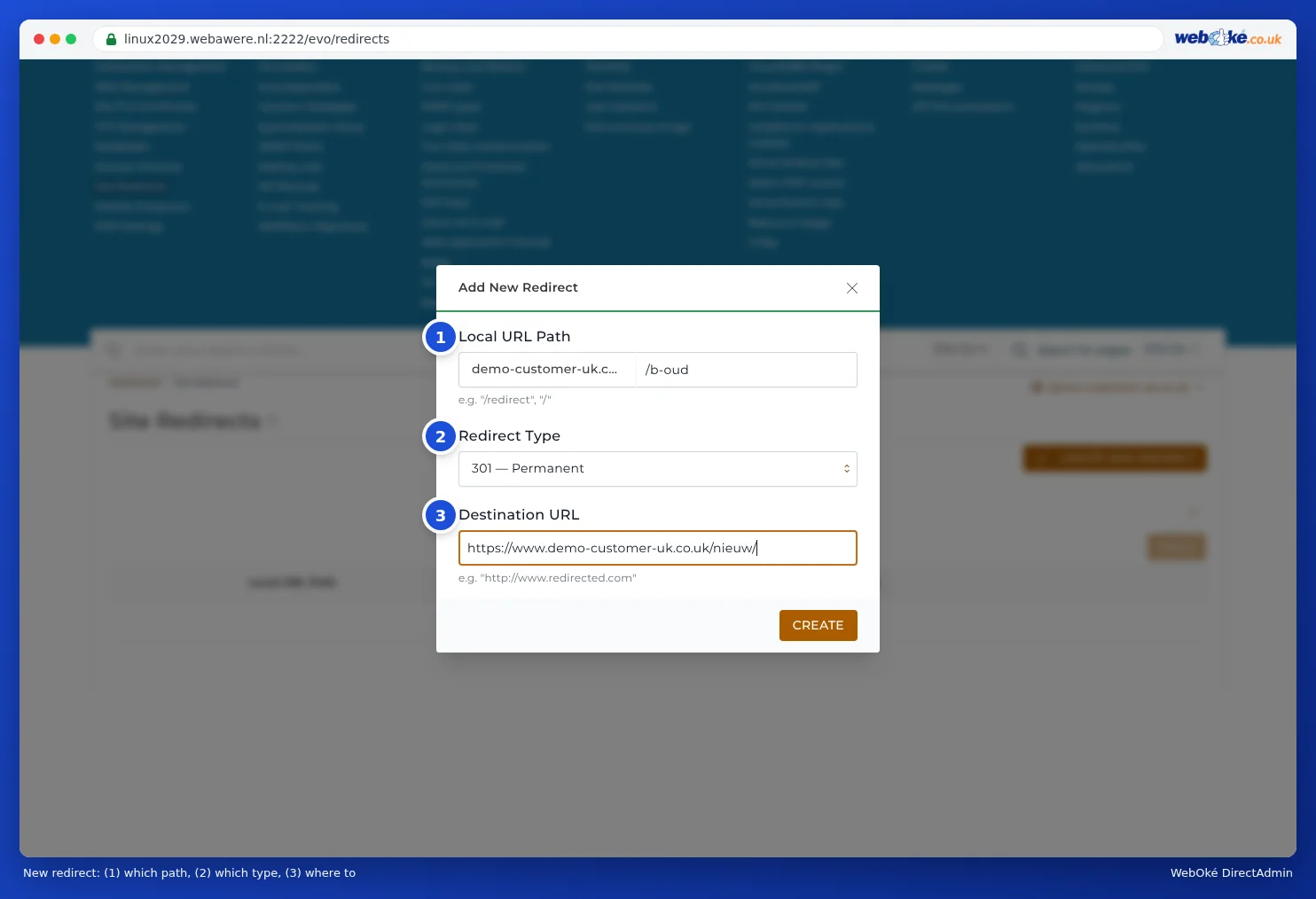
- Click Create New Redirect.
- Under Local URL Path, enter what you want to redirect. Leave just the slash
/for the entire website, or type something after it, for exampleoudfor the page /oud. - Under Redirect Type, choose 301 for a permanent redirect (best for Google), or 302 for a temporary one.
- Under Destination URL, enter the full new address. The field already contains http://: replace it with the complete address including https://, so http doesn't appear twice.
- Click Create. The redirect works immediately.
Please note: Site Redirection adds the rule to the .htaccess file in public_html. If WordPress or a plugin rewrites that file, the redirect may disappear or stop working. In that case, create it again, or set up the redirect within your website itself.
Want the domain name to stay in the address bar? That's not a redirect but a domain pointer or frame forwarding. Read What is a domain alias? and Redirecting with frame forwarding (domain name stays in the address bar).
See also in the DirectAdmin manual: Domain pointers: a second domain name for the same site and Can I also do this in My WebOké? Domains per package and Redirects.
Detailed explanation with screenshots: Site Redirection: redirecting a domain or page in the DirectAdmin manual.