
Changing your PHP version and PHP settings (and what to do if you get errors after an upgrade)
At WebOké you choose which PHP version your website uses, and you can adjust settings such as upload_max_filesize, memory_limit and max_execution_time yourself. You do this in DirectAdmin with Select PHP version. Is your site no longer working after an upgrade? Further down you can read what to do.
Changing the PHP version
- Log in to DirectAdmin: in My WebOké, go to My Products and click DirectAdmin next to your hosting package.
- Under Extra Features, click Select PHP version.
- Choose the version you want from the drop-down list and save your choice.
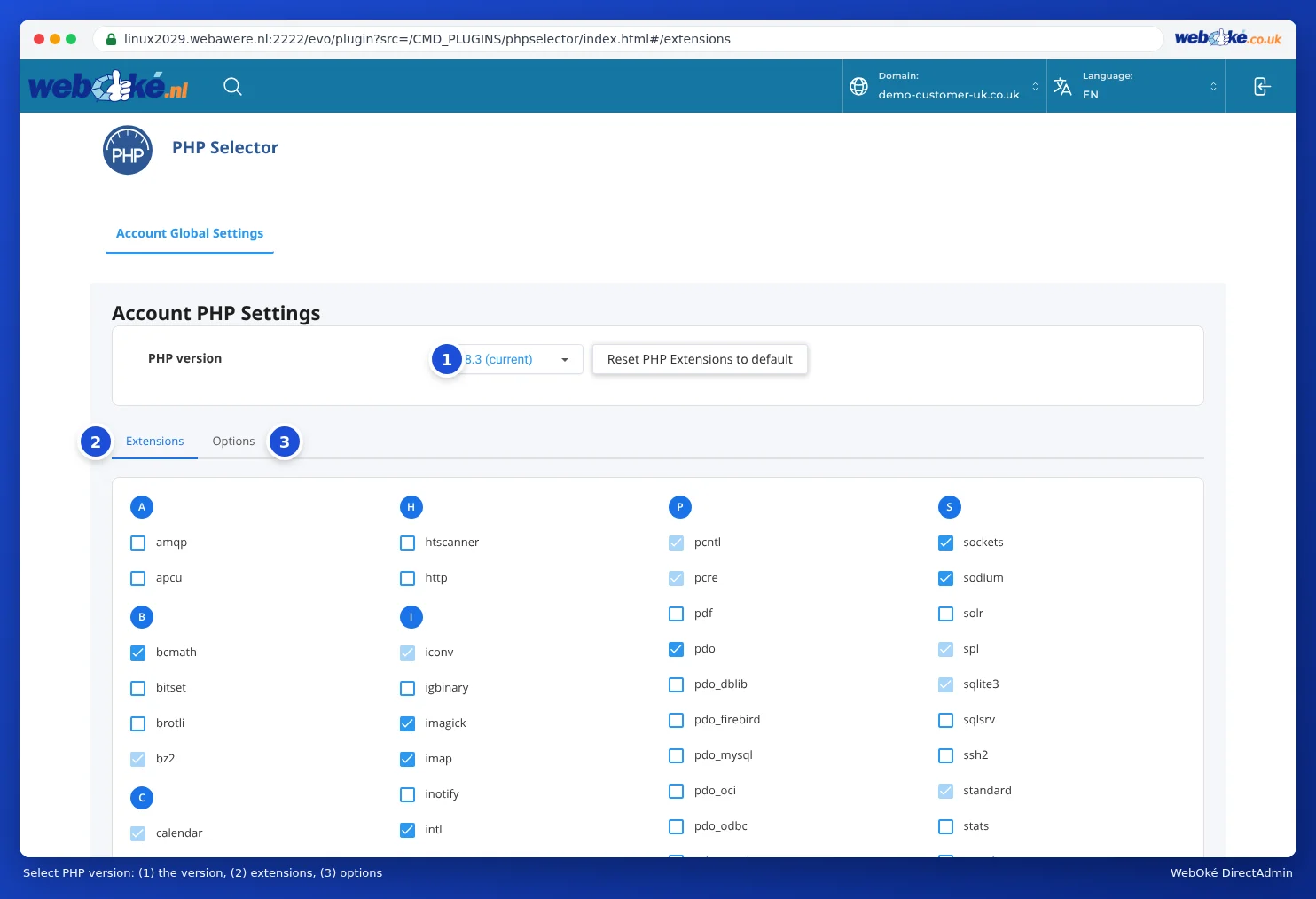
Test your website right after the change. If something no longer works, read the section below.
Your site no longer works after a PHP upgrade
Is your site blank, do you see an error message, or has part of it stopped working? This is almost always caused by a plugin, a theme or custom code that isn't compatible with the new version.
- Switch back to the previous version. In Select PHP version, choose the version you had before. Your site will immediately work as it did before. Any extensions and options you changed for the new version are kept for your next attempt.
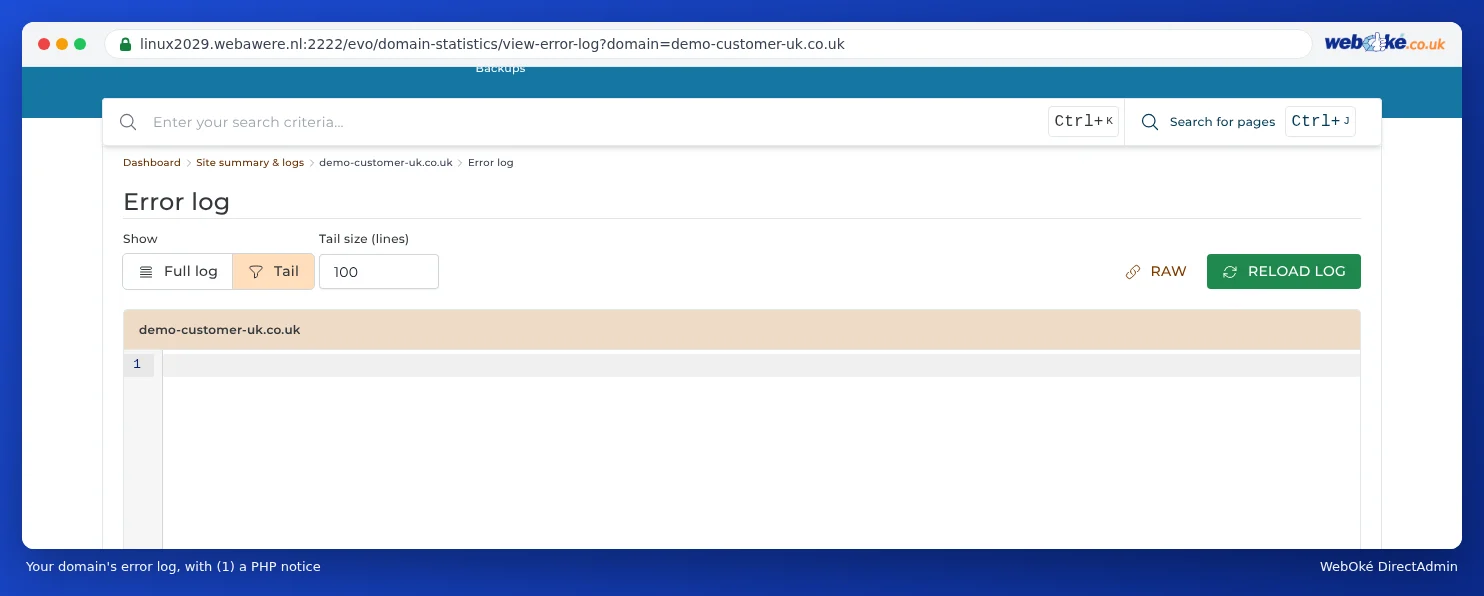
- Find the error in the error log. In DirectAdmin, under System Info & Files, click Site Summary / Statistics / Logs and then Error Log next to your domain. Look at the bottom for lines containing
PHP Fatal errororPHP Warning. The path usually shows which plugin or theme is causing the problem. If there's nothing useful there, read Displaying PHP errors without editing php.ini. - Update your software. Make a backup first. Then update WordPress (or your other software), your theme and your plugins while the old PHP version is still active. Remove any plugins you don't use.
- Try again. Switch the new version back on, test your site and check the error log again.
If you see Call to undefined function, a PHP extension is often missing. You can enable it yourself, see below.
Enabling an extension, such as ionCube
Some paid software, such as certain plugins or webshop modules, is encrypted. It only works with a loader: ionCube (ioncube_loader) or SourceGuardian (sourceguardian). The software's developer will tell you which one you need. You can often tell from a message like "requires the ionCube PHP Loader".
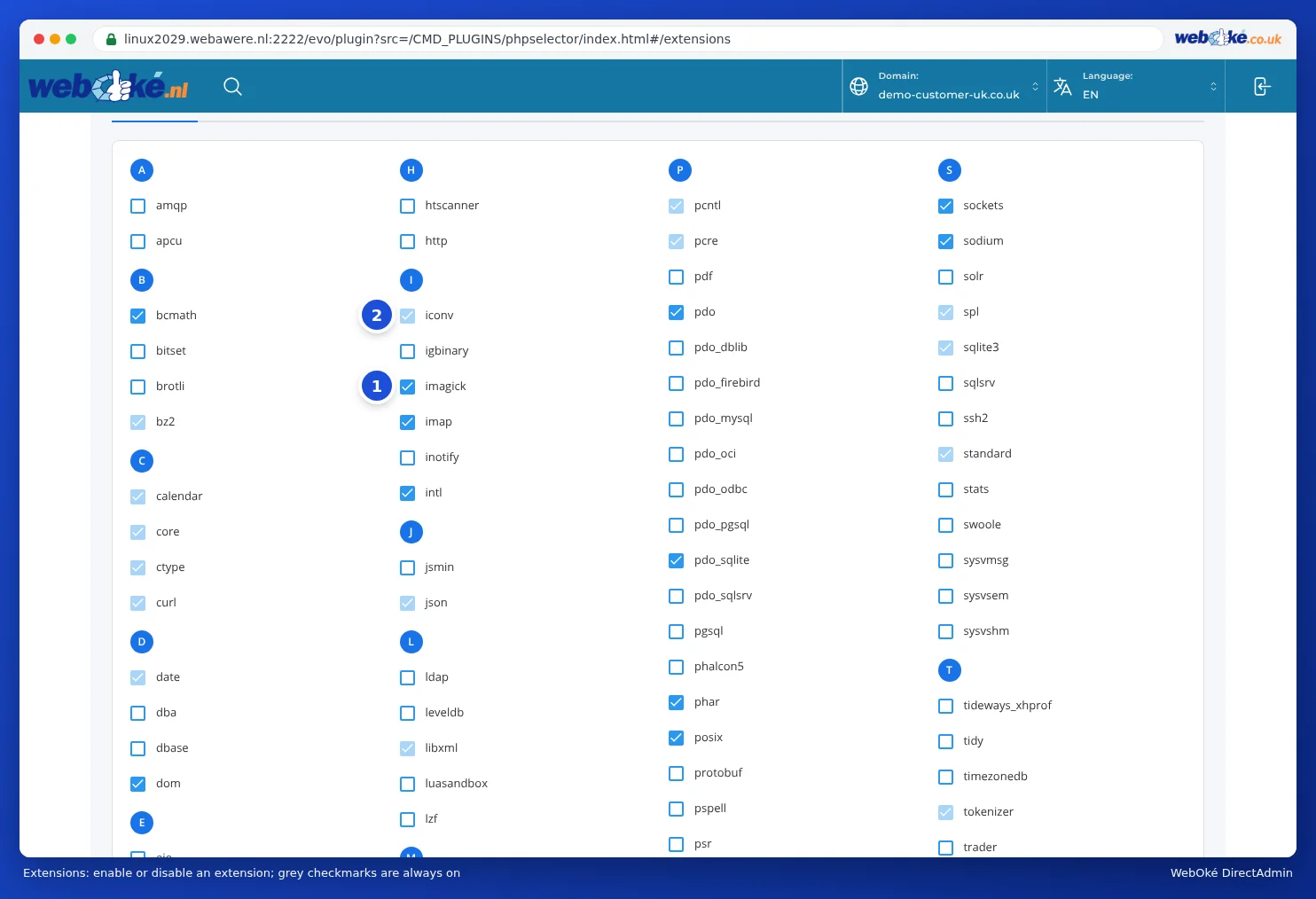
- Open Select PHP version and check at the top that the correct version is selected. Extensions are set per PHP version.
- Go to the Extensions tab.
- Tick
ioncube_loader(or the extension you need). The change is active within a minute.
Changing PHP settings
- Open Select PHP version and go to the Options tab.
- Adjust the setting you need, for example
upload_max_filesizefor larger uploads. In that case, increasepost_max_sizeas well. - The change is saved immediately.
This way you don't need to put anything in a .htaccess file.
Are variations, menus or long forms in WordPress or WooCommerce not being saved, or only partly saved? Then max_input_vars is often too low. Read Variations or menus are not being saved: increasing max_input_vars.
Rather have it fixed for you?
Can't get it to work, or hasn't your website been updated in years? With the PHP upgrade service, we make your website compatible with a current PHP version for a fixed price. If we can't get it done, you get your money back. Read Having a PHP upgrade done for you.
See also in the DirectAdmin manual: PHP options: upload_max_filesize, memory_limit and max_execution_time, Enabling and disabling PHP extensions and Errors after a PHP upgrade and finding the error log.
Detailed explanation with screenshots: Choosing the PHP version (Select PHP version) in the DirectAdmin manual.
Want to learn more? Take the free WordPress course, lesson 8.4 PHP versions and upgrades.