
Chapter 4 · 4.4
Multiple accounts: switching between accounts
With one login, you can belong to more than one customer account. This happens, for example, if another customer invites you as a user to their account while you also have your own account. Or if you work for several companies that each have their own WebOké account. You don't need to log in with different email addresses: you switch accounts within My WebOké.
Your account at the bottom of the menu
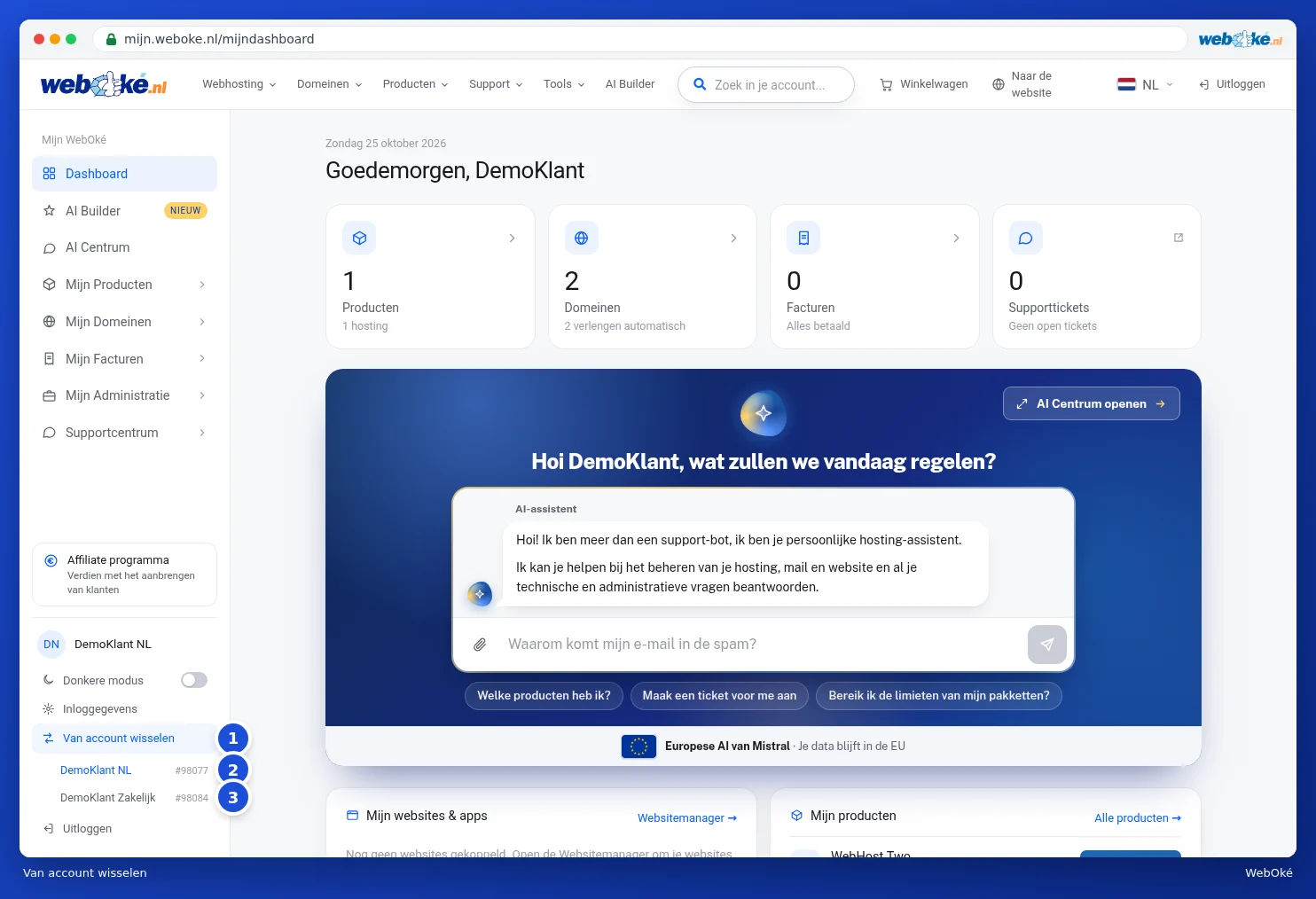
At the bottom left of the menu, you can see which account you're currently working in: your initials and the account name (1). Below that are Dark mode (2, see Language, dark mode and the tour), Login details (3, see Setting, changing or forgetting your password) and Log out (4).

How do you get access to a second account?
The owner of the other account invites you. They do this under My Administration on the Users tab: they enter your email address (1), choose what you're allowed to access, for example Domains (2) and Invoices (3), and click Send invite (4). You can read exactly how this works in Inviting users and setting permissions.

You'll then receive an email titled You've been invited to the account of followed by the name of that account. The invitation is valid for 7 days.
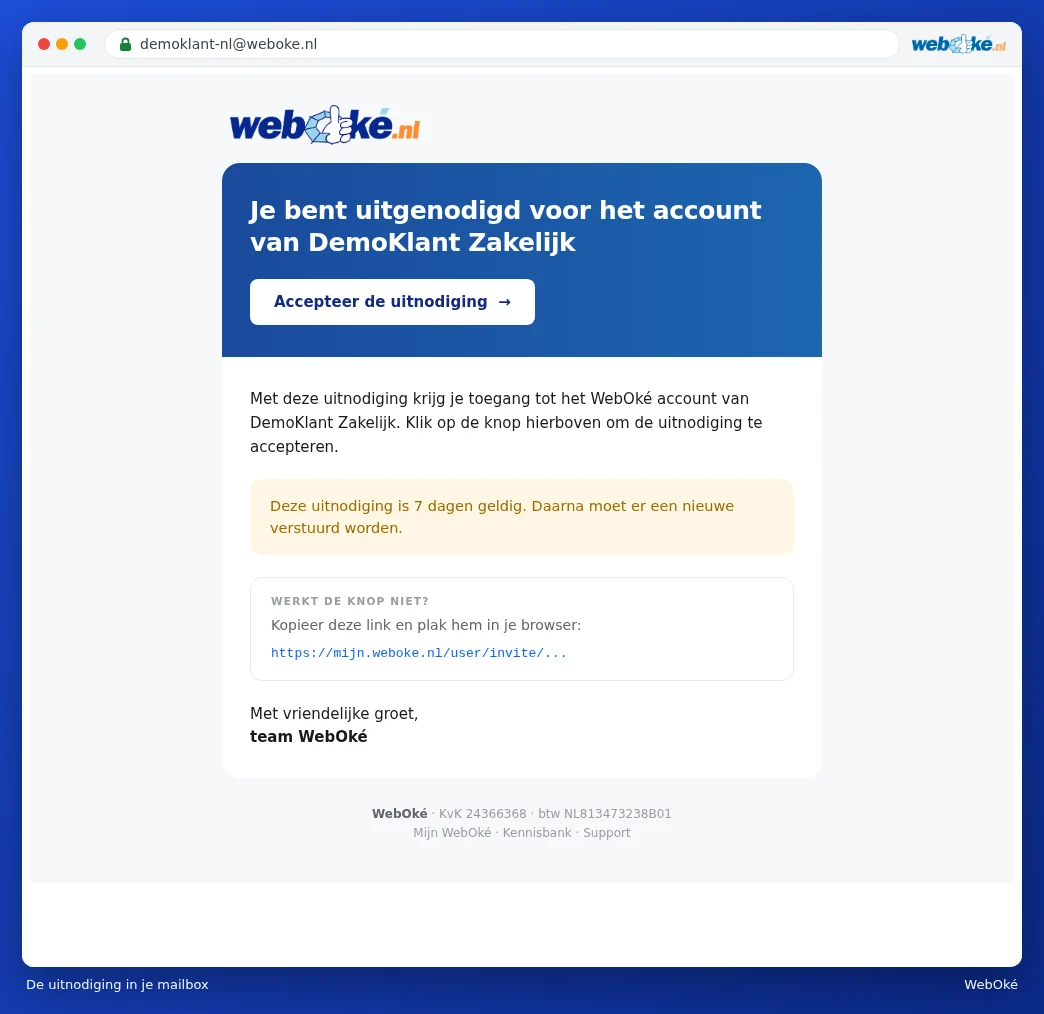
- Click Accept invitation in the email. The Accept invitation page opens.
- Do you already have a login with WebOké using this email address? Then enter your regular password under Your password (1). If you don't have a login yet, enter your name here and choose a password.
- Click Accept invitation (2).
- If My WebOké asks for a code, enter the code you receive by email, just like with regular login (see The login code by email (two-step verification)).

Tip: if you leave the password field blank, we'll still link the access. You'll simply log in yourself afterwards.
Switching accounts
If your login belongs to more than one account, you'll also see Switch account (1) above Log out. If you only have one account, you won't see this button, as shown in the first image.
- Click Switch account at the bottom left. A list of all your accounts unfolds. The customer number appears after each name.
- The account you're currently working in (2) is highlighted and can't be selected.
- Click the account you want to switch to (3). You'll land on the dashboard of that account.
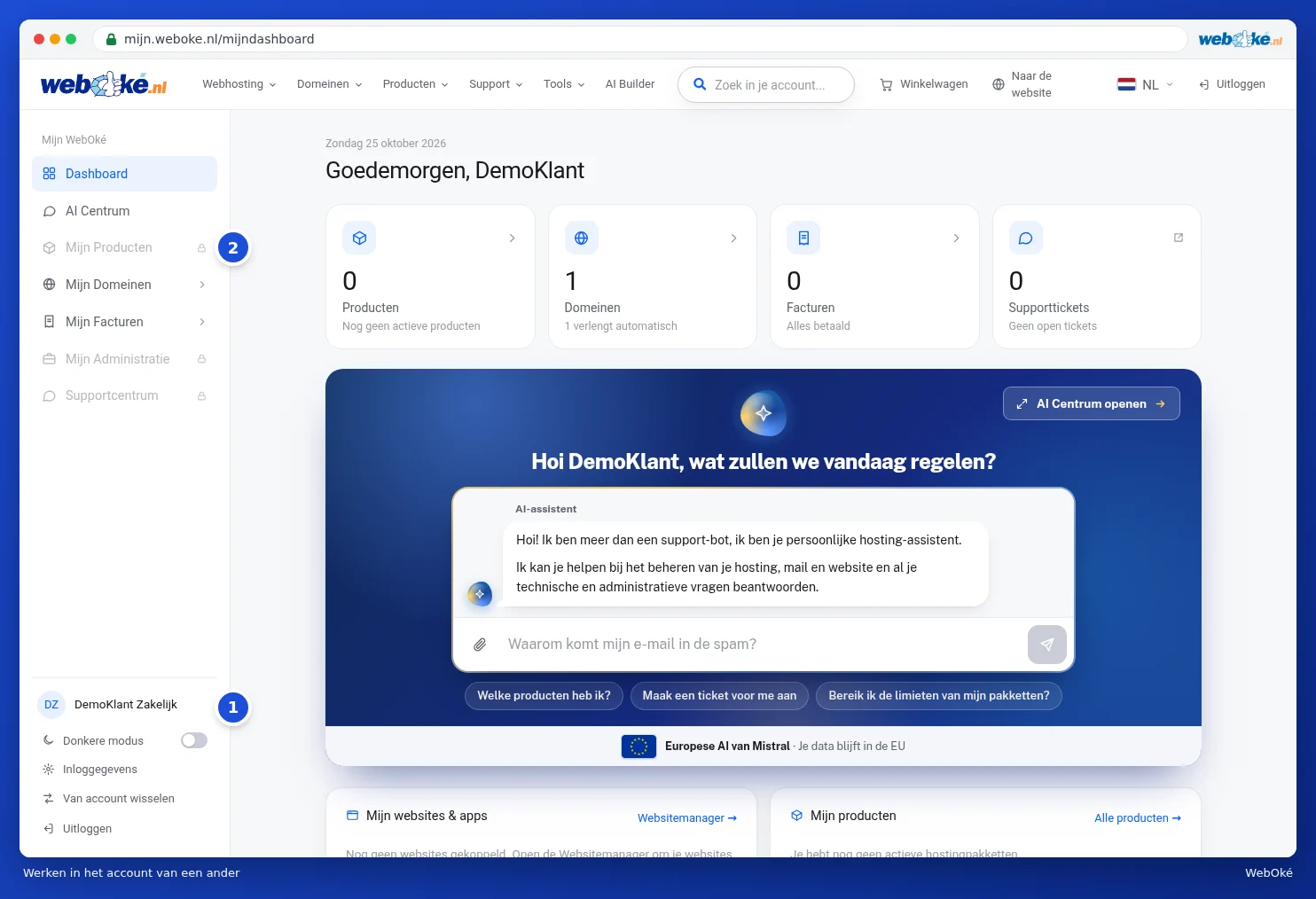
After logging in, you start in your own account, if you have one. If you're working in someone else's account, the name of that account appears at the bottom of the menu (1). This way, you always know where you are. Going back to your own account works the same way, using Switch account.
What can you see in someone else's account?
The owner of an account determines what you, as a user, are allowed to access, for example domains and invoices but not products. Sections you don't have permission for appear greyed out in the menu with a padlock icon (2). The dashboard also only shows what you're allowed to see.
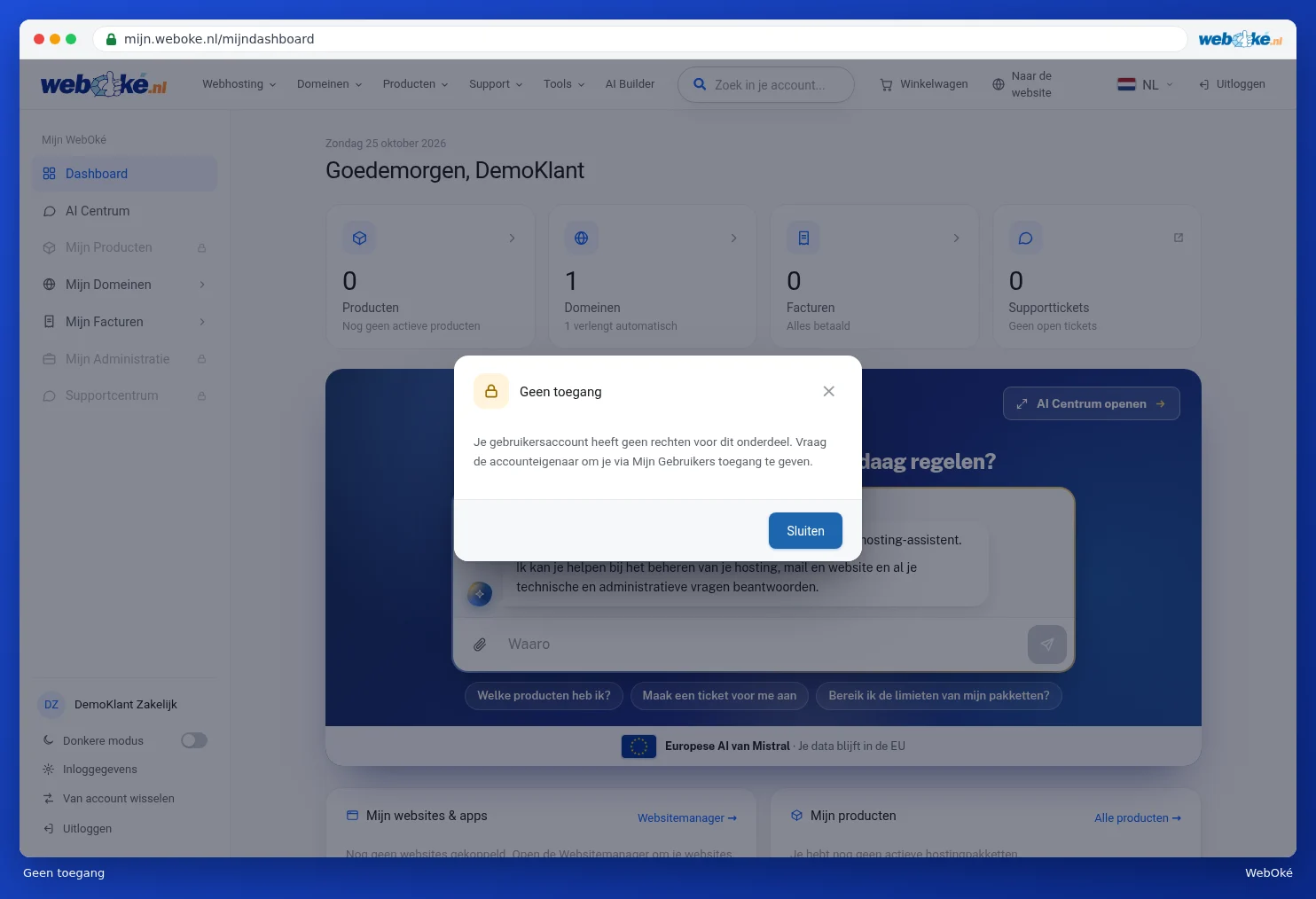
If you click a greyed-out section, you'll see the No access message. Click Close and ask the owner to give you more permissions via My Users. You can read how this works in Inviting users and setting permissions.
Some things can only be done by the owner, such as the affiliate programme, the AI Builder, inviting users and transferring the account. The language choice only changes the language of the account if you're the owner.
Tip: would you rather combine two accounts that both belong to you into a single account? You can do this with Merge accounts, see Transferring and merging accounts.