
Snapshots and backups of your VPS
Your VPS has two safety nets. They look alike, but serve different purposes.
Snapshot: a quick checkpoint
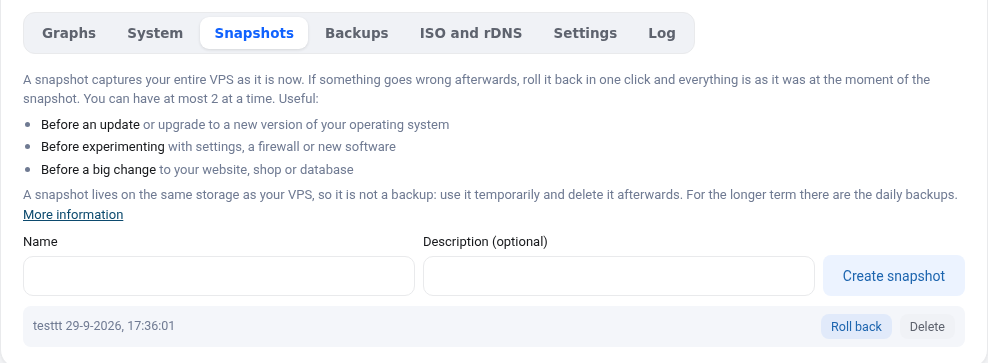
A snapshot captures your entire VPS at one moment, including what is in memory. Handy right before an update, an upgrade to a new Ubuntu version or an experiment. If it goes wrong, roll the snapshot back and everything is as it was.
- You can have at most 2 at a time.
- A snapshot lives on the same storage as your VPS: it is not a backup. Delete it when you no longer need it, because it grows with everything that changes afterwards.
- Create one in the Snapshots tab: give it a name (for example
before-update) and click Create snapshot.
Backup: a copy somewhere else

Every day we automatically back up your entire VPS to a separate storage server. We keep the last 7 days. You can also make one backup per day yourself, for example before doing something big.
- The Backups tab lists all backups with date and size.
- Restore replaces your entire VPS with the backup. Everything changed afterwards is lost. That is why we ask for your WebOké password to confirm.
- Restoring usually takes a few minutes; your VPS starts again automatically.
The difference in short
- Snapshot: fast, temporary, same place. For "if this update goes wrong".
- Backup: daily, 7 days back, on another server. For "I lost something yesterday".
Recover single files?
A backup always restores the whole VPS. To recover just a few files, first take a snapshot of the current state, restore the backup, copy what you need to your own computer and roll the snapshot back. For databases and websites we also recommend your own backup inside the VPS, such as a daily database dump.