
Logging in to your VPS with SSH (and creating an SSH key)
You manage your VPS via SSH: an encrypted connection to your server's command line. Logging in with an SSH key is safer and easier than with a password.
Log in with your password
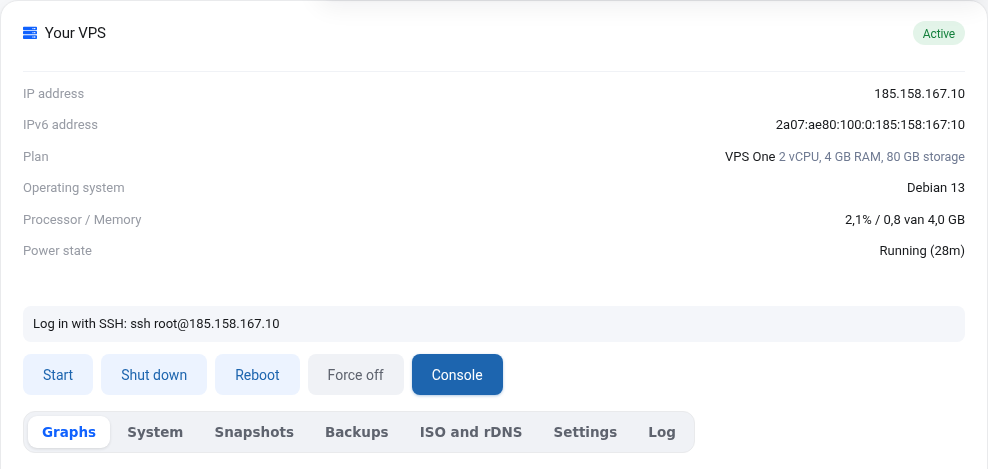
Windows 10 and 11, macOS and Linux have SSH built in. Open PowerShell (Windows) or Terminal (Mac, Linux) and type:
ssh root@your-ip-address
Your IP address is shown in your VPS screen and in the e-mail "Your VPS is installed". Prefer a program with windows? PuTTY or Termius work too.
Create an SSH key
A key has two parts: a private key that stays on your own computer and a public key you give to the server. Create one with:
ssh-keygen -t ed25519
Press Enter for the default location and optionally choose a passphrase. Your public key is then in ~/.ssh/id_ed25519.pub (Windows: C:\Users\yourname\.ssh\id_ed25519.pub). Show it with cat ~/.ssh/id_ed25519.pub. It starts with ssh-ed25519.
Put the key on your VPS
- When installing: paste the public key in the SSH key field. This also works when reinstalling.
- On a running VPS: from your own computer run
ssh-copy-id root@your-ip-address, or paste the line into/root/.ssh/authorized_keyson the server.
Never share your private key (the file without .pub), not even with us.
Not working?
- Connection timed out: is your VPS running? Did you enable a firewall without leaving port 22 open? See No access to your VPS anymore.
- Permission denied: is the password correct? Set a new root password in the VPS screen if needed.
- REMOTE HOST IDENTIFICATION HAS CHANGED: normal after a reinstall. Remove the old entry with
ssh-keygen -R your-ip-address.
