
Password-protecting a directory in DirectAdmin
In DirectAdmin, you can easily protect a folder of your website with a username and password. Visitors will then see a login window first.
- Log in to DirectAdmin: in My WebOké, go to My Products and click DirectAdmin next to your hosting package.
- Select the correct domain in the top right and, under Advanced Features, click Password Protected Directories.
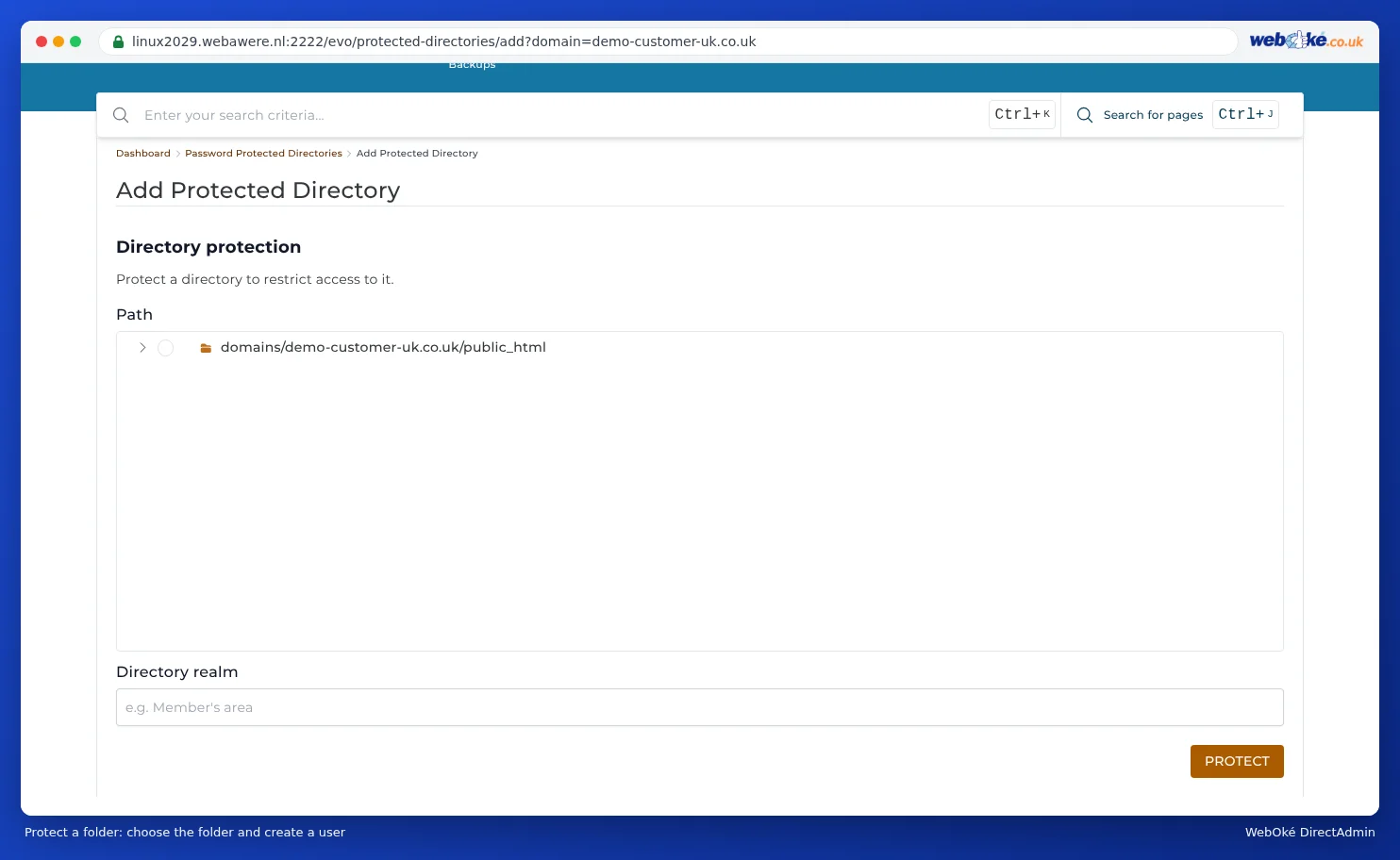
- Click Add Protected Directory.
- Under Path, choose the folder you want to protect, for example
public_html/beheer. - Under Directory realm, enter the text visitors will see in the login window and click Protect.
- Then add the users who are allowed access, each with their own username and password.
Only use this on a site with https. Without https, the password travels across the internet in readable form. See Activating an SSL certificate.
DirectAdmin then places a .htaccess file in that folder. You can add more users later or remove the protection again on the same page.
Protecting a single file
Do you only want to protect a single file, for example admin.php? First protect the folder as described above, so the password file exists. Then edit the .htaccess with a block such as:
<FilesMatch "^(admin|beheer)\.php$">
AuthName "Alleen voor beheerders"
AuthType Basic
AuthUserFile /home/gebruiker/domains/jouwdomein.nl/.htpasswd/public_html/map/.htpasswd
Require valid-user
</FilesMatch>
Copy the path for AuthUserFile from the .htaccess that DirectAdmin created.
Do you use clean URLs, as with WordPress? Then also read .htaccess: clean URLs and still protecting a folder.
See also in the DirectAdmin manual: Showing and editing hidden files such as .htaccess.
Detailed explanation with screenshots: Password Protected Directories in the DirectAdmin manual.