
Attaching your own ISO or reinstalling your VPS
Two ways to start fresh or install something special.
Reinstall
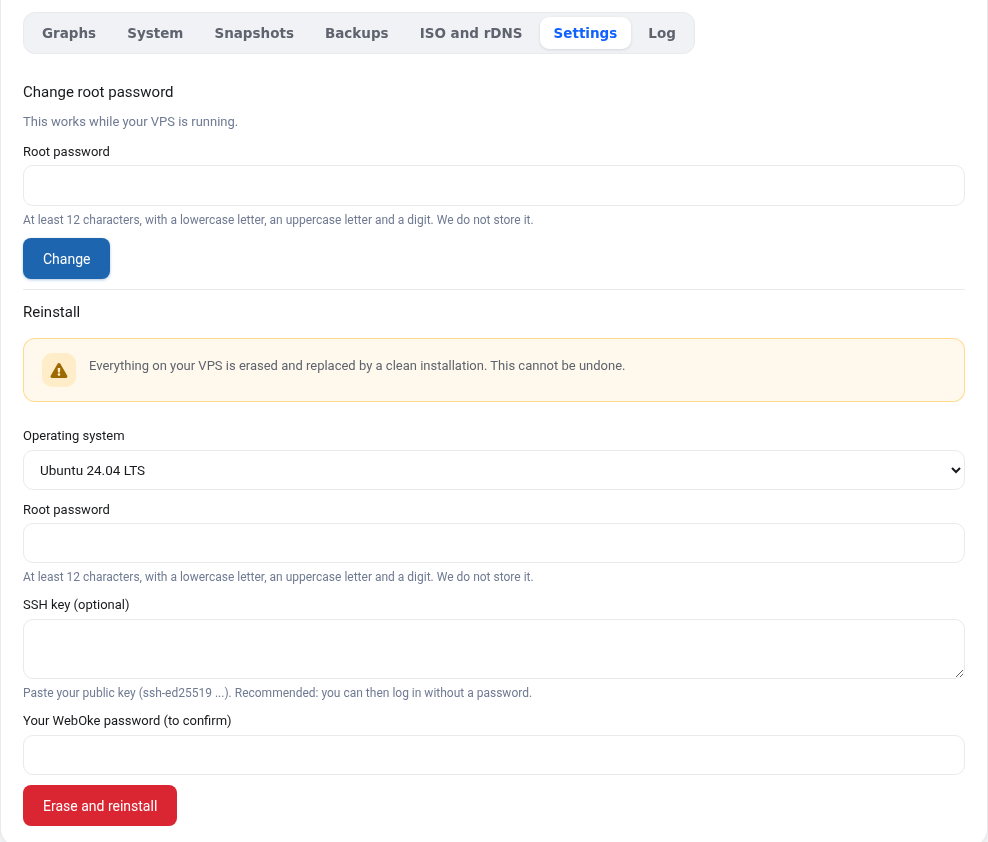
In the Settings tab choose an operating system, a new root password and optionally an SSH key. After about two minutes you have a fresh installation. Note: everything on your VPS is erased, including snapshots. Your IP address stays the same. Make a backup first if you want to keep anything.
Attach an ISO
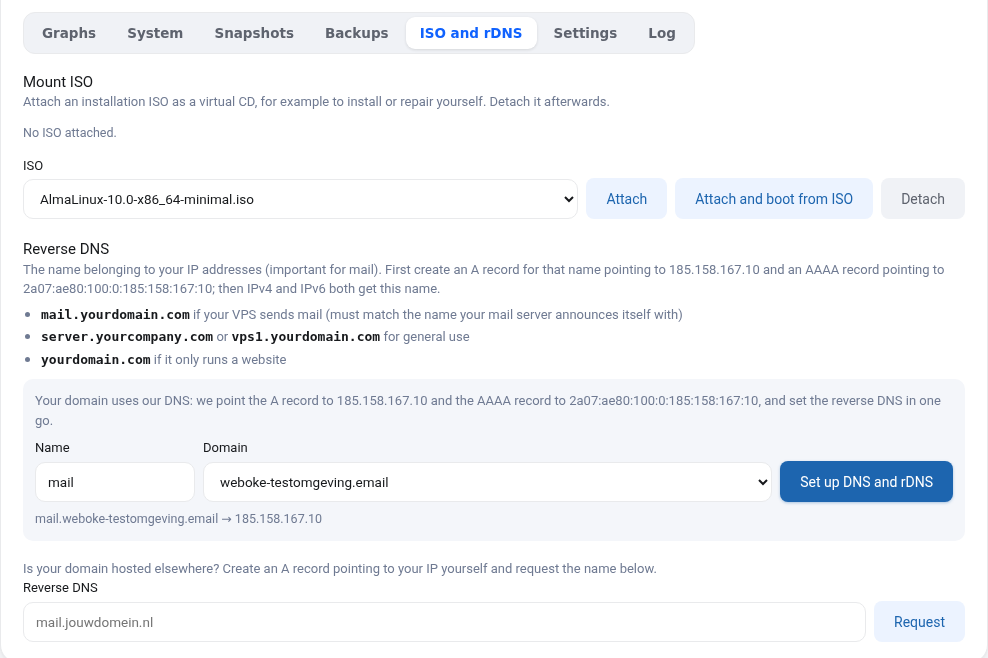
Want to install manually, for example with your own disk layout, or boot a rescue environment? Attach an ISO as a virtual CD in the ISO and rDNS tab.
- Attach: the ISO is in the CD drive, your VPS still boots from disk.
- Attach and boot from ISO: your VPS shuts down and boots from the ISO.
- Detach: the ISO is removed and your VPS boots from disk again. Do not forget this afterwards.
We offer a list of current installation ISOs of Debian, Ubuntu, AlmaLinux and Rocky Linux, among others. Missing one? Let us know in a ticket.
Manual install: network details
A manual installation does not get its network settings automatically. Enter during installation:
- IP address: your VPS IP, netmask
255.255.252.0(/22) - Gateway:
185.158.164.1 - DNS servers:
1.1.1.1and9.9.9.9 - IPv6 address: shown in your VPS screen (
2a07:ae80:100:0:followed by your IPv4 with colons), prefix/29 - IPv6 gateway:
2a07:ae80::1
Also install the qemu-guest-agent afterwards, so disk usage and password reset in your VPS screen work.
