
Logging in to Nextcloud is not working: password, code or rate limiting
Can't log in to your WebOké Nextcloud? Logging in happens in two steps: first your username and password, then a code. Find out below where it's going wrong and what to do about it.
Wrong login or password
- Check your username and whether Caps Lock is on. You can also log in with the email address of your account.
- Check whether you're on the right address: your own Nextcloud, or free.webokecloud.nl if you have Nextcloud Free.
Forgot password
- Click Forgot password? on the login screen.
- Enter your username or email address and click Reset password.
- You'll get an email with a link. Click it and choose a new password.
The email goes to the email address in your Nextcloud profile. If it doesn't arrive, check your spam folder. If there's no address or an old one in your profile, ask the owner of the package for a new password. They can do that in My WebOké under User management › Change password. If you're the owner yourself and can't get into your own account, contact support. With Nextcloud Free only Forgot password? works.
The code by email doesn't arrive
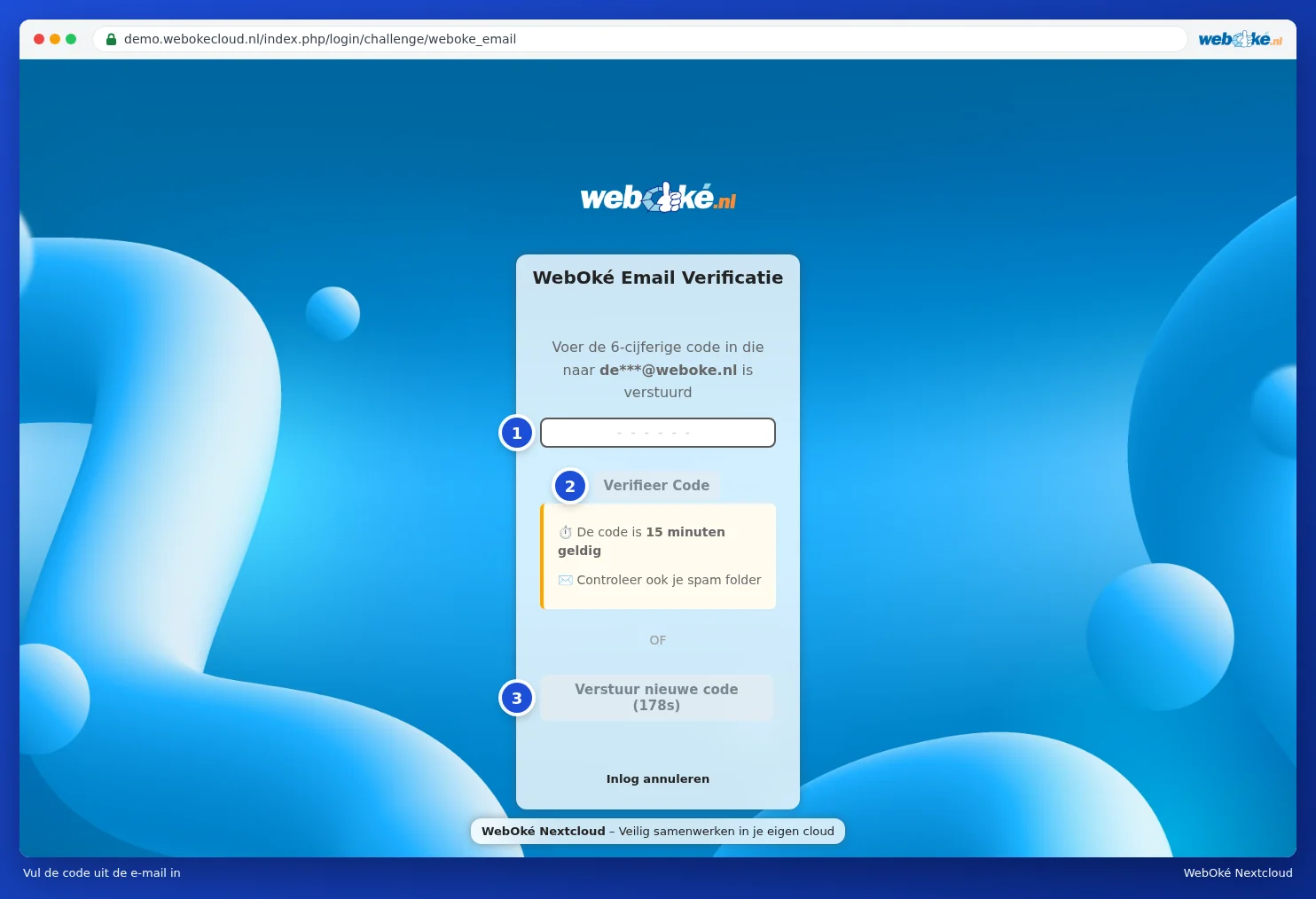
- Wait a minute and check your spam folder. The email comes from nextcloud@weboke.nl.
- Click Send new code. That button works after three minutes. After that, only use the code from the newest email. A code is valid for 15 minutes.
- Check on the code screen which address the code is going to. If it's not correct, ask the administrator of your package to change your email address.
- Is your mailbox full? Clean it up and request a new code.
Do you have an authenticator app or backup codes set up? Use those instead of email. You can read how to set those up in Activating two-factor authentication (2FA) in Nextcloud.
Lost your phone with the authenticator app
Log in with a backup code. Don't have one? Then read Lost phone or lost 2FA: how to get back in.
Too many login attempts or Too many requests
After a few wrong attempts, Nextcloud makes you wait longer each time. Usually it's not you, but a device with an old password: the calendar on your phone, Thunderbird, or a network drive.
- Find the device or app with the old password. Tips can be found in IP address throttled by an old app: which one is it?
- Set an app password there. With two-factor authentication, your regular password doesn't work in apps such as your iPhone's calendar. Read Creating an app password.
- Have the throttling lifted. Open the AI Center in My WebOké and ask the AI assistant to lift the throttling of your Nextcloud. You'll get a card and click Approve and execute yourself. This works for the address you're currently connected with. If it doesn't work, contact support (not available with Nextcloud Free).
This account is disabled
The owner of the package has disabled your account. Ask them to re-enable your account in My WebOké.
The Maintenance mode message
Do you see the message that your Nextcloud is in maintenance mode? Then work is being done on your Nextcloud and you can't access your files for a moment. This is due to an update, which usually takes 5 to 15 minutes, or maintenance on our end.
- Please wait. The page will refresh itself as soon as your Nextcloud is available again. The apps on your computer and phone will then automatically continue syncing.
- Is it taking longer than half an hour? Check the status page and ask the AI assistant in the AI Center how your Nextcloud is doing.
- Does the message keep showing? Then contact support. You don't need to fix anything yourself.
Detailed explanation with screenshots: Can't log in: code, password or throttling and The "maintenance mode" message in the Nextcloud manual.